
Purchase limits (quantity limits and order limits)
Purchase limits are quantity limits and order limits for your store. They set how many of an item customers can buy: at least 6, at most 2 per order, at most 1 per customer, or only in packs of 12. They also set a minimum order or a maximum order, by number of items, by subtotal or by weight. Shopify checks them itself, in checkout and in express checkouts like Shop Pay, Apple Pay and Google Pay, so customers can’t get around them.
Plan: Deals & Rules or Buddy. Works on all Shopify plans. In Shopify admin it appears under Settings → Checkout → Checkout rules.
| You want | Set |
|---|---|
| A quantity limit, like at most 2 per order | Maximum on products, tags or a collection |
| A minimum quantity, like at least 6 | Minimum on products, tags or a collection |
| Packs, like only in 12s | Pack size |
| A minimum order, like $50 | Whole order, Order subtotal, Minimum subtotal |
| A limit per customer, like 1 each | Count purchases set to Per customer, all time, or per year, month or day (see per-customer limits) |
| A wholesale minimum | A minimum for Logged-in customers with tags or B2B customers |
Set up a purchase limit
Section titled “Set up a purchase limit”-
In Checkout Buddy, open Customizations. On the Checkout rules tab, click Create customization and choose Purchase limits.
-
In the Limit card, click a template under Start from a template, or fill the limit in yourself:
- A quantity limit, like at most 2 per order: under Applies to, keep Specific products and pick them (or choose Product tags or Collections), then enter
2under Maximum. - A minimum order, like $50: under Applies to, choose Whole order. Set Limit to Order subtotal and enter
50under Minimum subtotal. - Packs, like only in 12s: pick the items, then enter
12under Pack size.
- A quantity limit, like at most 2 per order: under Applies to, keep Specific products and pick them (or choose Product tags or Collections), then enter
-
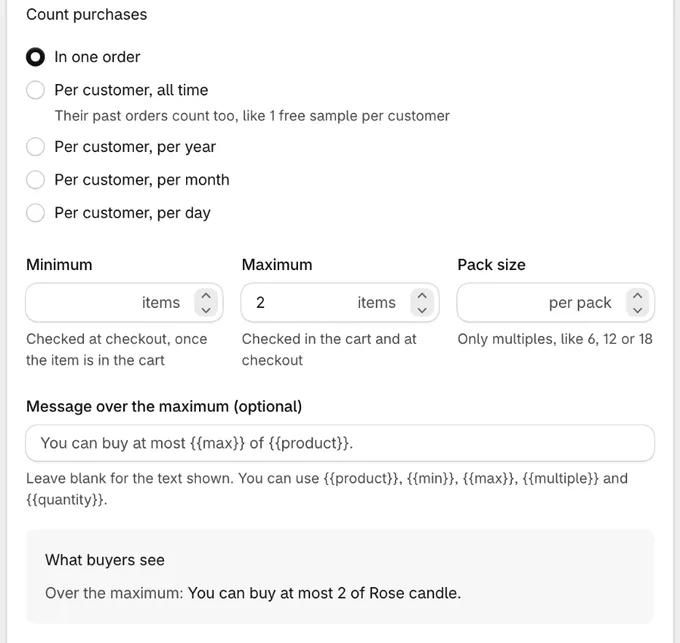
Change the messages if you like. What buyers see shows each message with your numbers and products filled in.
-
Click Save. Checkout checks the limit from the first save; turn it off under Status.
-
To show the limit before checkout too, turn on the notices for product and cart pages.
Templates
Section titled “Templates”A new limit starts with Start from a template. A template fills in the limit; you pick the products and can change anything after.
| Template | What it fills in |
|---|---|
| 2 per order | At most 2 of each product in one order |
| Packs of 12 | Items sell in multiples of 12 |
| 1 per customer | Each customer buys the item once, ever. Also needs the workflows in per-customer limits |
| Order minimum | The whole order’s subtotal is at least $50 |
| Wholesale minimum | Customers tagged wholesale order $250 or more |
The same templates are cards under Templates in Create customization: Rules and limits has Order minimum, 2 per order, 1 per customer and Packs of 12, and Wholesale has Wholesale minimum and Company order minimum (B2B), where company buyers order $500 or more.
Examples
Section titled “Examples”- Limited drop: Specific products, Each product separately, Maximum
2. - Case packs: the Wine collection, All selected items together, Pack size
6. - Order minimum: Whole order, Order subtotal, Minimum
50. - At most 10 items per order: Whole order, Number of items, Maximum
10. - Retail limit, wholesale exempt: Specific products, Maximum
3, Visitors without tagswholesale. - Wholesale minimum: Whole order, Order subtotal, Minimum
500, Logged-in customers with tagswholesale. - Case packs for companies: Specific products, Pack size
12, B2B customers. - Courier weight cap: Whole order, Weight, Maximum
30kg. - Sample box: the Samples collection, All selected items together, Different products
5. - Launch week drop: Specific products, Maximum
2, Logged-in customers only, Only between dates. - International minimum: Whole order, Order subtotal, Minimum
100, Everywhere except your country.
Settings
Section titled “Settings”Each limit is its own card. Click Add limit for more, up to 25 in one Purchase limits.
The limit
Section titled “The limit”- Applies to: Specific products (pick products or single variants), Product tags, Collections, or Whole order.
- Leave out some items: products, tags or collections the limit doesn’t count, like gift cards in an order minimum or one bestseller in a collection’s limit.
- Count (products, tags and collections):
- Each product separately: sizes and colors of a product add up. “At most 2” allows 2 of each product.
- Each variant separately: each size or color counts on its own.
- All selected items together (mix and match): any mix counts. “Packs of 6” from a wine collection allows 4 Merlot and 2 Rosé.
- Count purchases (number of items): In one order, or Per customer over all time, per year, per month or per day, which adds what the customer bought before. Not for limits that pick or leave out collections. See Per-customer limits.
- Limit: Number of items, Weight (from each variant’s weight in Shopify, in the unit you pick), or for the whole order Order subtotal.
- Minimum, Maximum, Pack size, Different products: fill in any of them, and leave the others empty. For a subtotal or a weight, the first two read Minimum subtotal and Maximum subtotal, or Minimum weight and Maximum weight.
- A pack size allows only multiples, like 6, 12 or 18. It’s for numbers of items of products, tags and collections; for packs across an order, use a collection with All selected items together.
- Different products (mix and match and the whole order) caps how many different products there can be, like a sample box of up to 5.
Messages
Section titled “Messages”- Messages: what customers see for each limit you set. Leave one blank for the default shown in the box. You can use
{{product}},{{min}},{{max}},{{multiple}}and{{quantity}}(how many are in the cart, the weight or the subtotal). What buyers see, under the messages, shows each one with your numbers and products filled in. - Translate these messages: shows when your store has other languages. Add a message per language, or leave it blank for your message above, or our default in French, German, Spanish, Italian, Dutch, Portuguese or Japanese.
Who, where and when
Section titled “Who, where and when”- Who it applies to: visitors are everyone; customers are logged in; guests aren’t.
- All visitors.
- Logged-in customers only: guests are asked to log in to buy these items (“Log in to buy …”). Use it for drops, or with limits per customer.
- Logged-in customers with tags: customers with any of the tags in Customer tags, like
wholesale. Guests have no tags, so they’re left out. - Visitors without tags: guests, and customers without the tags.
- B2B customers: customers buying for a company in Shopify B2B.
- Non-B2B visitors: guests, and customers not buying for a company.
- Only in some countries or regions: only in, or everywhere except, the countries, states and provinces you add. The country is the one the buyer shops in; a state or province is known once checkout has a shipping address.
- Only between dates: the first and last day the limit applies, in your store’s time zone. Leave one blank for no start or no end.
The Cart card has Block Add to cart over a maximum, on by default: adding more than a maximum to the cart is refused. Checkout checks every limit either way. See when limits are checked.
When limits are checked
Section titled “When limits are checked”- Maximums (and Different products) are checked when customers change their cart and at checkout. Adding more than the maximum to the cart, or raising a quantity past it, is refused with your message; how the cart page shows it depends on your theme. If your theme’s cart doesn’t show the message, turn off Block Add to cart over a maximum: maximums then wait for checkout too.
- Minimums and pack sizes are checked at checkout, so customers can fill their cart first. The message shows at the top of checkout, and they can’t pay until the cart meets the limit.
- A minimum only counts what’s in the cart. “At least 6 of Merlot” doesn’t ask customers who didn’t add Merlot to buy any.
Product and cart pages
Section titled “Product and cart pages”The Purchase limits app embed shows your limits in your online store before checkout:
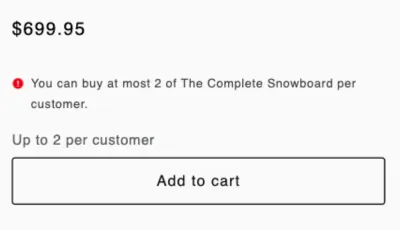
- Product pages: a line above Add to cart, like “Minimum 2 · Maximum 6 · Packs of 2”, “Up to 2 per customer”, or “Log in to buy” for guests. If the theme has a quantity box, it starts at the minimum and steps by the pack size.
- Cart page: a “Before you check out” list of the limits the cart doesn’t meet yet, above the checkout button, like “Buy at least 2 of The Complete Snowboard.” It changes as the cart does.
To turn it on:
- In Checkout Buddy, click Turn on in the Online Store theme card on Home, or in the Product and cart pages card of any Purchase limits.
- Shopify’s theme editor opens on your live theme, with Purchase limits turned on under App embeds. Change its settings if you like (below), then click Save.
- Open a product that has a limit in your store to see its notice. Home now shows On for Purchase limits notices.
To turn it off, open the theme editor from the same card, turn off Purchase limits under App embeds and save.
Its settings turn each part on or off and set the look:
- Show limits above Add to cart: the line on product pages.
- Start the quantity at the minimum and step by the pack size: the product page’s quantity box.
- List limits the cart doesn’t meet yet: the list on the cart page.
- Text: leave it empty to use your theme’s text color (a little lighter), or pick one.
- Background: none by default. With one, the product page line gets a little padding and rounded corners.
- Cart list border: a light shade of the text color by default.
- Text size: Small (the default), Same as the theme or Large.
For anything else, add CSS for body .cb-purchase-limits-notice (the product page line) or body .cb-purchase-limits-cart (the cart page list) in your theme editor’s Theme settings → Custom CSS. Start with body so your rule wins over the app’s own, for example body .cb-purchase-limits-cart { border-radius: 0; }.
- Display only: checkout still enforces your limits, with or without the embed.
- Languages: the cart page list uses your messages and their translations. Product page notices and the default messages come in English, French, German, Spanish, Italian, Dutch, Portuguese and Japanese, in the language the customer shops in.
- Per-customer limits show on product pages, like “Up to 2 per customer”. The notice doesn’t count the customer’s earlier orders: Shopify counts them when the customer adds to the cart and at checkout.
- States and provinces: they’re known only at checkout, so a limit for some states shows to everyone in that country.
- Cart drawers: the list shows on the cart page only.
Per-customer limits
Section titled “Per-customer limits”With Count purchases set to Per customer, a maximum counts the customer’s earlier orders too: 1 free sample per customer, 2 pairs per customer during a drop, or 10 items per customer per month. The limit is checked when they add to the cart and at checkout.
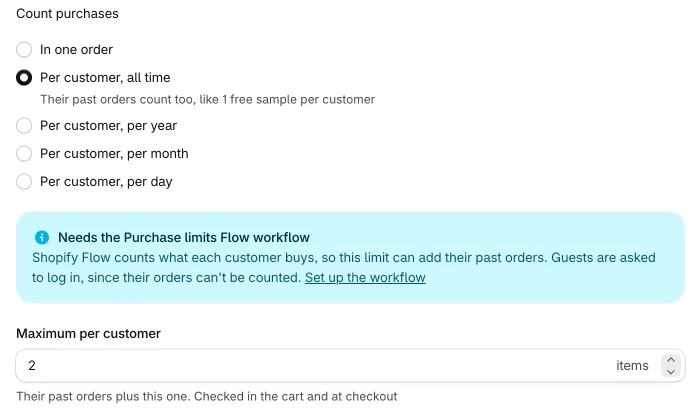
- Customers have to be logged in. Guests are asked to log in to buy the items, because their orders can’t be counted.
- Two free Shopify Flow workflows keep each customer’s counts: one adds every new order, the other takes cancelled orders off. Add them once for your store; every per-customer limit uses them.
- Counting starts when you turn the workflows on. Orders from before don’t count.
Setting it up takes about 2 minutes: set the limit, then import the two workflows.
1. Set the limit
Section titled “1. Set the limit”In a limit card, set Count purchases to Per customer, all time, per year, per month or per day, then fill in Maximum per customer and save.
2. Import the two workflows
Section titled “2. Import the two workflows”Install Shopify Flow if your store doesn’t have it.
-
Download both workflows:
- Purchase limits: count orders adds every new order.
- Purchase limits: count cancels takes cancelled orders off.
-
Open Flow from Apps in Shopify admin. Click Import, choose
purchase-limits-count-orders.flowand click Import.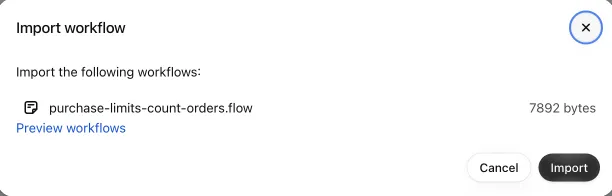
-
Click Turn on workflow, then Turn on.
-
Go back to Workflows and do the same with
purchase-limits-count-cancels.flow.
Import each file once. If you already built these workflows by hand, don’t import them as well: every order would count twice. To build them yourself instead, see build the workflows by hand.
Check that it works
Section titled “Check that it works”-
As a logged-in customer, buy an item that has a per-customer limit.
-
In Flow, open Purchase limits: count orders. Under Recent runs, the order’s run shows Completed within a few seconds.
-
The customer can now buy only what’s left. Going over is refused in the cart (as above) and at checkout:

-
Cancel that order in Shopify admin. Purchase limits: count cancels runs, and the customer can buy the item again.
Things to know about per-customer limits
Section titled “Things to know about per-customer limits”- Two orders placed seconds apart can both get through, because Flow counts each order after it’s placed.
- Refunds don’t lower the count; cancel the order if it shouldn’t count.
- Collections: per-customer limits can’t pick or leave out collections, which Shopify Flow can’t see. The editor turns those choices off. Use specific products or product tags; for a whole collection, tag its products.
- Per year, month or day follow your store’s dates and time zone: a new month starts every customer’s monthly count from 0.
Things to know
Section titled “Things to know”- Amounts are in your store’s currency and converted for customers paying in another currency. Messages show the amount in their currency.
- The order subtotal is after product discounts and before order discounts, shipping and taxes.
- Messages show at the top of checkout, not next to the product. Up to 10 show at once. To show limits on product and cart pages too, see Product and cart pages.
- Big selections: Shopify allows about 600 picked variants across all the limits in one Purchase limits. For more, use product tags or a collection.
- Moving to the Free plan deletes your purchase limits. See downgrade to Free.
- Not checked outside checkout: Shopify POS, subscription renewals and orders that apps create for you don’t go through checkout’s rules (a Shopify limit).
- If Shopify can’t run the limits, checkout goes on without them rather than stopping every customer. Very big carts, around 200 different items, checked against many product tag and collection limits can be too much for Shopify’s checkout functions; split such limits into a second Purchase limits.
Build the workflows by hand
Section titled “Build the workflows by hand”The two workflows of per-customer limits, made step by step instead of imported. Open Flow from Apps in Shopify admin.
The workflow that counts orders
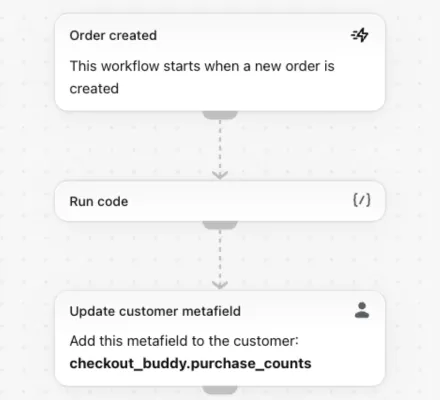
-
Click Create workflow, then Select a trigger. Search for
Order createdand pick it. -
Click the + under Order created, then Action. Search for
Run codeand pick it. -
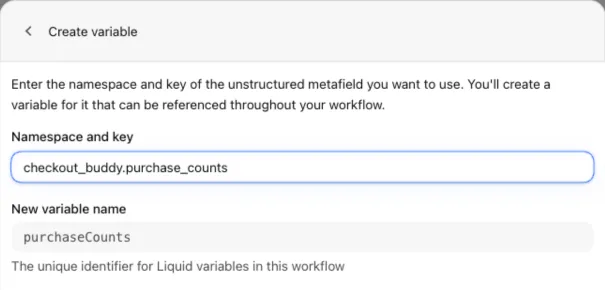
Give the code the two metafields it reads. In Select inputs from previous steps, click Add variable and add each of these:
- The customer’s counts: click order, search for
metafield, and click + next to themetafieldunder./customer/. Click Use an unstructured metafield, entercheckout_buddy.purchase_countsin Namespace and key, and click Add. The variable is namedpurchaseCounts. Click value. - Your limits: click Add variable again, click shop, search for
metafield, and click + next to the firstmetafield. Click Use an unstructured metafield, entercheckout_buddy.purchase_limits, and click Add. The variable is namedpurchaseLimits. Click value.
- The customer’s counts: click order, search for
-
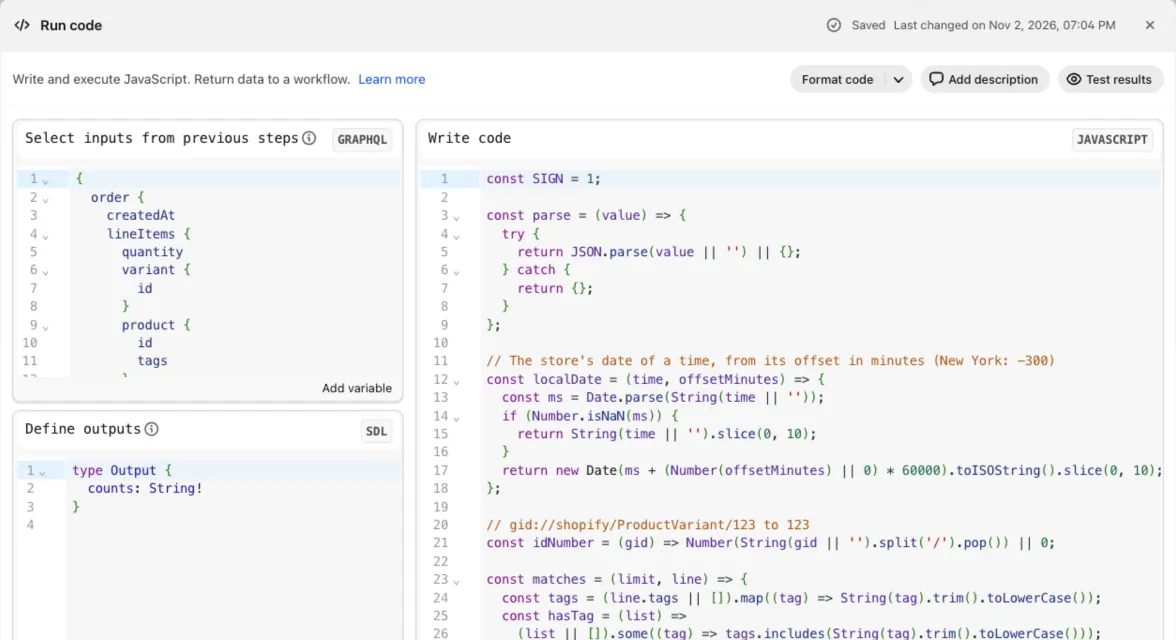
Replace the three boxes with the code below. In each box, select all its text (Cmd+A or Ctrl+A) and paste:
- Select inputs from previous steps: the Input.
- Define outputs: the Output.
- Write code: the Code.
-
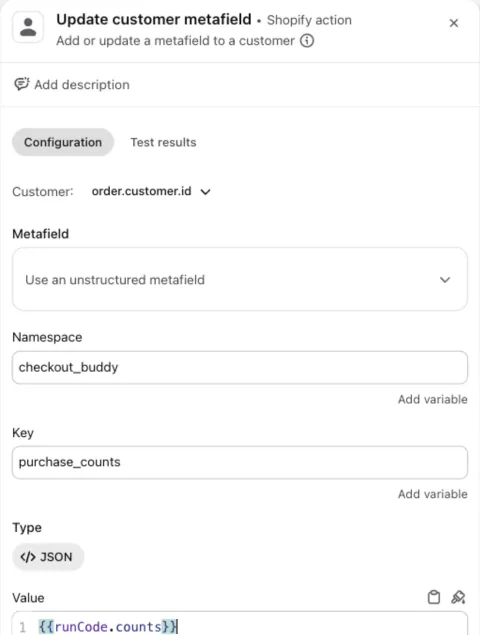
Close Run code. Click the + under it, then Action. Search for
Update customer metafieldand pick it. Set:- Metafield: Use an unstructured metafield
- Namespace:
checkout_buddy - Key:
purchase_counts - Type: JSON
- Value:
{{runCode.counts}}
-
Rename the workflow, for example
Purchase limits: count orders(More actions → Rename). Click Turn on workflow, then Turn on.
The workflow that takes cancelled orders off
- In the first workflow, click More actions → Duplicate and name the copy
Purchase limits: count cancels. - Open the copy from the Workflows list and click Edit. Point at the Order created step and click the swap button next to it. Search for
Order cancelledand pick it. - Click Run code and change the first line of the code to
const SIGN = -1;. - Click Turn on workflow, then Turn on.
The code
Section titled “The code”Input
{ order { createdAt lineItems { quantity variant { id } product { id tags } } customer { purchaseCounts { value } } } shop { timezoneOffsetMinutes purchaseLimits { value } }}Output
type Output { counts: String!}Code
const SIGN = 1;
const parse = (value) => {  try {    return JSON.parse(value || '') || {};  } catch {    return {};  }};
// The store's date of a time like 2026-11-03T00:22:02Z, from the store's offset in// minutes (New York: -300). Plain arithmetic: Run code blocks clock functions, Date tooconst MONTH_DAYS = [31, 28, 31, 30, 31, 30, 31, 31, 30, 31, 30, 31];const isLeapYear = (year) => year % 4 === 0 && (year % 100 !== 0 || year % 400 === 0);const daysInMonth = (year, month) =>  month === 2 && isLeapYear(year) ? 29 : MONTH_DAYS[month - 1];const localDate = (time, offsetMinutes) => {  const text = String(time || '');  const parts =    /^(\d{4})-(\d{2})-(\d{2})T(\d{2}):(\d{2})(?::[\d.]+)?(Z|([+-])(\d{2}):?(\d{2}))?/.exec(      text,    );  if (!parts) {    return text.slice(0, 10);  }  let [year, month, day] = [parts[1], parts[2], parts[3]].map(Number);  // Minutes into the day in UTC, then in the store's time zone  const zone = parts[7]    ? (parts[7] === '-' ? -1 : 1) * (Number(parts[8]) * 60 + Number(parts[9]))    : 0;  let minutes =    Number(parts[4]) * 60 + Number(parts[5]) - zone + (Number(offsetMinutes) || 0);  for (; minutes < 0; minutes += 1440) {    day -= 1;    if (day < 1) {      month -= 1;      if (month < 1) {        month = 12;        year -= 1;      }      day = daysInMonth(year, month);    }  }  for (; minutes >= 1440; minutes -= 1440) {    day += 1;    if (day > daysInMonth(year, month)) {      day = 1;      month += 1;      if (month > 12) {        month = 1;        year += 1;      }    }  }  const pad = (value) => String(value).padStart(2, '0');  return `${year}-${pad(month)}-${pad(day)}`;};
// gid://shopify/ProductVariant/123 to 123const idNumber = (gid) =>  Number(    String(gid || '')      .split('/')      .pop(),  ) || 0;
const matches = (limit, line) => {  const tags = (line.tags || []).map((tag) => String(tag).trim().toLowerCase());  const hasTag = (list) =>    (list || []).some((tag) => tags.includes(String(tag).trim().toLowerCase()));  const picked =    limit.selectionType === 'ALL' ||    (limit.selectionType === 'VARIANTS' &&      (limit.variantIds || []).includes(line.variant)) ||    (limit.selectionType === 'PRODUCT_TAGS' && hasTag(limit.productTags));  const leftOut =    (limit.excludeType === 'VARIANTS' &&      (limit.excludeVariantIds || []).includes(line.variant)) ||    (limit.excludeType === 'PRODUCT_TAGS' && hasTag(limit.excludeProductTags));  return picked && !leftOut;};
const countsKey = (limit, line) => {  if (limit.countBy === 'PRODUCT') {    return `${limit.key}:p${line.product}`;  }  if (limit.countBy === 'VARIANT') {    return `${limit.key}:v${line.variant}`;  }  return limit.key;};
function countPurchases(input, sign = SIGN) {  const order = input?.order || {};  const stored = parse(order.customer?.purchaseCounts?.value);  const counts = stored.c && typeof stored.c === 'object' ? stored.c : {};  const storedDate = String(stored.d || '');  const orderDate = localDate(order.createdAt, input?.shop?.timezoneOffsetMinutes);  const limits = (parse(input?.shop?.purchaseLimits?.value).limits || []).filter(    (limit) => limit && limit.key && limit.period && limit.period !== 'ORDER',  );
  // Whether a date is in the counts' year, month and day  const samePeriods = (orderDay) =>    [4, 7, 10].map(      (length) =>        !!storedDate && storedDate.slice(0, length) === orderDay.slice(0, length),    );
  let date = storedDate;  // The periods the order's items count in: all time, year, month, day  let inPeriod = [true, true, true, true];  if (sign > 0 && (!storedDate || orderDate >= storedDate)) {    // A new order: the periods it's in start over where they changed    const same = samePeriods(orderDate);    Object.keys(counts).forEach((key) => {      [1, 2, 3].forEach((index) => {        if (!same[index - 1] && Array.isArray(counts[key])) {          counts[key][index] = 0;        }      });    });    date = orderDate;  } else {    // A cancelled order, or an older one counted late: only the periods still current    inPeriod = [true, ...samePeriods(orderDate)];  }
  (order.lineItems || []).forEach((item) => {    const line = {      variant: idNumber(item?.variant?.id),      product: idNumber(item?.product?.id),      tags: item?.product?.tags || [],    };    const quantity = Number(item?.quantity) || 0;    if (!line.variant || quantity <= 0) {      return;    }    limits      .filter((limit) => matches(limit, line))      .forEach((limit) => {        const key = countsKey(limit, line);        const count = (counts[key] = Array.isArray(counts[key])          ? counts[key]          : [0, 0, 0, 0]);        inPeriod.forEach((counted, index) => {          if (counted) {            count[index] = Math.max(0, (Number(count[index]) || 0) + sign * quantity);          }        });      });  });
  // Keys with nothing left go, to stay within the 10,000 bytes Shopify passes on  Object.keys(counts).forEach((key) => {    if (!Array.isArray(counts[key]) || counts[key].every((value) => !value)) {      delete counts[key];    }  });  return { counts: JSON.stringify({ d: date || orderDate, c: counts }) };}
export default function main(input) {  return countPurchases(input, SIGN);}