
Order buttons and order blocks
Order blocks help customers with one order without contacting you: see when it ships and arrives, track it, review it, get help, buy it again, ask for a change, register a product, see when returns close or read care instructions. They go in two places:
- Order button: a button in each order’s actions, on the Orders and Order status pages. Shopify adds it to each order’s action menu, so there’s nothing to add in Shopify’s editor.
- Order status: a block on the page for one order. It shows in the Customer accounts app block, which you add to the Order status page once in Shopify’s editor, with the page’s other blocks.
Requires: any Shopify plan except Starter (no Shopify Plus needed) and Shopify’s new customer accounts. Account blocks come with the Deals & Rules and Buddy plans, or count as the Free plan’s one customization. See set up account blocks.
| Block | Order button | Order status | Profile |
|---|---|---|---|
| Order link button | ✓ | ✓ | |
| Get help with an order | ✓ | ✓ | |
| Buy again with choices | ✓ | ✓ | |
| Request a change | ✓ | ✓ | |
| Product registration | ✓ | ✓ | ✓ (a list of registered products) |
| What happens next | ✓ | ||
| Return window | ✓ | ||
| Order guide | ✓ |
Choose the place under Where it shows. Conditions under This order, such as Fulfillment status or Hours since ordered, are available for both.
The order button
Section titled “The order button”- On the Customer accounts tab of the Customizations page, click Create customization and choose a card: Buy again with choices for a reorder button, Order link button for a review or tracking link, or Get help with an order, Request a change or Product registration for a form. Pick its template or Start blank.
- Under Where it shows, keep Order button. New blocks of these types start there.
- Set the Button text and the block’s settings, and add conditions under Who sees it if only some orders should get it.
- Turn on the switch in the Status card so it says Published, then save. There’s nothing to add in Shopify’s editor: the button shows in the actions of each order that matches.
Shopify shows one Checkout Buddy button per order. When several order button blocks match an order, the one with the lowest Order under Where it shows shows; with equal numbers, the oldest. Use conditions to give different orders different buttons, and give a button with no conditions the highest Order, so it only shows on orders the others don’t match. For example, with Order 1, 2 and 3:
- Request a change, when Hours since ordered is less than 2 and Fulfillment status is any of Unfulfilled.
- Write a review (an Order link button), when Days since delivered is more than 5.
- Get help with an order, with no conditions, for every other order.
An Order link button opens its link. The other blocks open their form in a Shopify window over the page. To offer more than one action on the same order, put the others on the Order status page as blocks. Every block made for that page shows, stacked by Order on the page. See which blocks show.
On the Order status page, a form block shows as a card with its heading, intro and a button that opens the form. Customers who opened the page from a link without logging in see “Log in to continue.” and a Log in button instead.
Screenshot needed
An order on the Orders page with its actions menu open, showing a Get help button from Checkout Buddy
Get help with an order template, Orders page, one order.
Order link button
Section titled “Order link button”A button that opens a link for the order: tracking, a review form, an invoice, a care guide.
| Setting | What it does |
|---|---|
| Button text | The button’s label, such as “Write a review”. |
| Link | The address it opens. Put the order in it with {{ orderNumber }} (1001), {{ orderName }} (#1001) or {{ orderId }} (the ID in its admin URL), and the customer with {{ email }}. |
| Heading, Text | On the Order status page only: optional text above the button. |
Values in the link are URL-encoded, so #1001 or an email address don’t break the address. For example, the Write a review template, on the Order link button card, uses:
https://example.com/reviews?order={{ orderNumber }}On the Order status page the link opens in a new tab.
Get help with an order
Section titled “Get help with an order”Answers first, then a form. Common questions show above the form, so many customers don’t need to send it.
| Setting | What it does |
|---|---|
| Button text | The order button, or the button on the block. “Get help” by default. |
| Form heading | “Get help with order #1001” if empty. |
| Intro | Optional text above the form. |
| Answers first | Questions and answers shown above the form. Click Add question. |
| Topics | Customers pick one, such as “Damaged item”. Leave empty to skip. Click Add topic. |
| Message label | The message box’s label. “Tell us more” if empty. |
| Contact email, Help center or chat link | Optional. Shown in the form as Email us and Contact us links. |
| Send button | “Send” if empty. |
| After sending | The message customers see once the request is sent. |
Customers pick a topic, write a message and send it. The request is saved on the order, and its Customer request status is set to Open. Until you set that status to Done, the block shows the customer a note such as “You sent a request on Oct 7, 2026. We’ll be in touch.” See see requests and registrations.
Buy again with choices
Section titled “Buy again with choices”Customers pick which items and quantities to buy again.
| Setting | What it does |
|---|---|
| Button text | The order button, and the button that buys the items. |
| Heading | “Buy again” if empty. |
| Intro | “Choose the items and quantities you want” if empty. |
| Buy goes to | Their cart, to keep shopping (the default), Straight to checkout or Shop Pay. |
| Discount code | Optional. Applied when they buy. |
Every item in the order starts ticked, with the quantity they ordered. Customers untick items or change quantities (1 to 99), and the button opens your online store’s cart with those items and your code, or checkout or Shop Pay, as Buy goes to says. It starts a fresh cart with just those items, replacing what was in it.
Request a change
Section titled “Request a change”For a few hours after ordering, customers can ask to change their address, delivery instructions or items. You approve and make the change in Shopify.
| Setting | What it does |
|---|---|
| Button text | “Request a change” by default. |
| Customers can ask for | Hours after ordering. 0 for no limit. |
| Form heading, Intro | Optional text for the form. |
| What they can change | The options customers pick from, such as “Change shipping address”. Click Add option. |
| Message label | “Tell us more” if empty. |
| Contact email, Help center or chat link | Optional Email us and Contact us links, shown after the customer sends a request or once changes are closed. |
| Send button, After sending | As in Get help. |
Customers see until when they can ask (for example “You can request changes until Oct 7, 2026, 3:15 PM”), pick what to change, optionally which item, and describe it. Once the time is up, or if the order was cancelled, the form says “This order can no longer be changed online.” and shows your contact links.
The time limit only closes the form. To hide the button too, add an Hours since ordered condition. The Request a change template does this, and also requires Fulfillment status Unfulfilled.
Requests are saved on the order like Get help requests, and set Customer request status to Open.
Product registration
Section titled “Product registration”Customers register an item from the order for warranty: serial number, purchase date and your own questions.
| Setting | What it does |
|---|---|
| Button text | “Register product” by default. |
| Form heading, Intro | Optional text for the form. |
| Serial number label | “Serial number” if empty. |
| Serial number required | Customers must enter a serial number. |
| More questions | Extra questions, built with the same form builder as Profile fields, including logic. |
| Register button | “Register” if empty. |
| After registering | The message customers see once registered. |
Customers choose an item that isn’t registered yet, enter the serial number, check the purchase date (it starts as the order date) and answer your questions. Registrations are saved on the order, in its Product registrations metafield. On the Order status page, items already registered from that order are listed with a check mark.
On the Profile page, a Product registration block lists what the customer has registered from their 20 most recent orders, with serial numbers. Its settings are Heading, Text and When nothing is registered.
What happens next
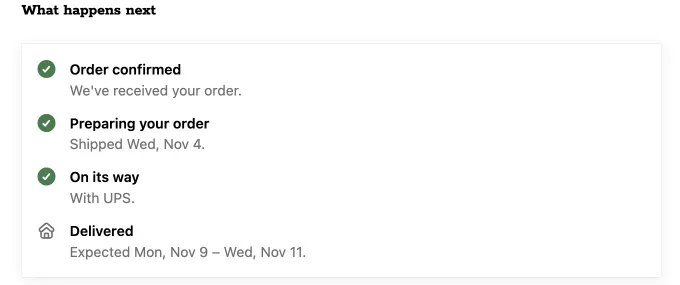
Section titled “What happens next”Order status page only. Shows the order’s steps with their dates and ticks them off as the order moves along: ships by and arrives by for shipped orders, or ready by for pickup. It’s the thank you page’s What happens next block, following the order after the thank you page.
| Setting | What it does |
|---|---|
| Heading, Intro | Optional heading and text. |
| Days to prepare an order, Same-day cutoff, Days you ship, Add a day you don’t ship | When an order ships, counted from when it was placed. The same settings as the checkout block. |
| Days in transit, from, to | How long delivery takes after it ships. The template sets 3 to 5. |
| Count days in transit as | Business days, as Shopify does (the default, Monday to Friday) or Calendar days. |
| Days until a pickup order is ready | For pickup orders. The default is 0, the same day. |
| Steps for shipped orders, Steps for pickup orders | Up to 6 steps each. Leave them empty to use the default steps. |
The order’s own dates replace the estimates as soon as Shopify has them:
| Where the order is | Steps ticked off | Dates |
|---|---|---|
| Placed, not shipped yet | The first | Ships by your estimate, arrives your days in transit later |
| Shipped | All but the last | The day it shipped, the carrier’s name, and Shopify’s expected delivery date when the tracking has one |
| Delivered | All | The day it arrived |
| Pickup, not picked up yet | The first | Ready by your estimate |
| Picked up | All |
An estimate that has passed is left out rather than shown as a broken promise: an order that hasn’t shipped by its ship-by date shows “Preparing your order” with no date. Cancelled orders and orders with nothing to ship don’t show the block.
Default steps:
| Shipped orders | Pickup orders |
|---|---|
| Order confirmed: We’ve received your order. | Order confirmed: the same text |
| Preparing your order: Ships by (date), then Shipped (date). | Preparing your order: We’re getting your items ready. |
| On its way: We’ll email you tracking details when it ships, then With (carrier). | Ready for pickup: Ready by (date). We’ll let you know when you can collect it. Once picked up: You’ve picked up your order. |
| Delivered: Expected (dates), then Arrived (date). |
Default steps come in English and French. In your own steps, shipDate, deliveryDate, deliveryDateFrom, deliveryDateTo, readyDate and carrier hold the order’s dates, as on the thank you page, and all personal text works.
Template: What happens next.
Return window
Section titled “Return window”Order status page only. Shows when returns close, marks final sale items, and can let customers request an exchange.
| Setting | What it does |
|---|---|
| Heading, Text | Optional text. |
| Return window | Days after delivery. Match your return policy. 0 hides the window. |
| Final sale product tag | Items whose product has this tag are marked “Final sale”. |
| Final sale note | Shown under the final sale items. |
| Let customers request an exchange | Sends a Shopify return request for one item, with what they want instead in the note. You approve it in Shopify. |
| Exchange button, Exchange intro | The exchange button and the text above it. |
Customers see one of: “You can return items until Nov 6, 2026 (30 days left).”, “The return window closed on Nov 6, 2026.” or, before delivery, “Your return window starts when your order is delivered.” The delivery date comes from the order’s tracking.
With a Return window, the exchange button shows while the window is open, so after delivery. Without one, it shows whenever the order has items Shopify lets the customer return. They pick an item and say what they’d like instead. Checkout Buddy files a Shopify return request for one of that item, with “Exchange for:” and their answer in the note, and a return reason from the ones Shopify suggests for it.
Order guide
Section titled “Order guide”Order status page only. Shows care, setup or warranty information for each item in the order, from your product metafields.
| Setting | What it does |
|---|---|
| Heading, Text | Optional text. |
| Add metafield | Up to 6 product metafields, each with a Heading (such as “Care”), Namespace and Key. |
| When no item has a guide | Text to show when none of the order’s products have a value. Leave empty to hide the block. |
Use product metafields of text, rich text, link or file types. Each product with a value gets a section customers open by its title; files and links show as a link.
- In Shopify, go to Settings → Custom data → Products and add a metafield definition, for example Care instructions with the namespace and key
custom.care_instructions. - Fill it in on your products.
- In the Order guide block, enter the same Namespace and Key, then save. Checkout Buddy turns on the definition’s Storefront access when you save, because customer account pages read product metafields through Shopify’s Storefront API.
If you add the definition after saving the block, save the block again. A metafield without a definition shows nothing.
See requests and registrations
Section titled “See requests and registrations”Help requests, change requests and registrations are saved on the order, in metafields Checkout Buddy pins to the order page in Shopify:
| Metafield | What it holds |
|---|---|
| Customer requests | Each request: help or change, the topic, the item for change requests, the message, the customer and the date. |
| Customer request status | Open when a customer sends a request. Set it to In progress or Done yourself. |
| Product registrations | Each registration: the item, serial number, purchase date, answers to your questions, the customer and the date. |
To find open requests:
- In Shopify’s Orders list, filter by Customer request status.
- On the Customer accounts tab on Checkout Buddy’s Customizations page, the Customer requests card lists up to 25 orders with an open request, most recently updated first, with the latest topic and message. View order opens it in Shopify; Mark done sets its status to Done. The card shows when you have a Get help or Request a change block.
Setting the status to Done also clears the “You sent a request” note on the customer’s order. A new request from the customer sets it back to Open.
Things to know
Section titled “Things to know”- No email notifications. Requests and registrations are saved on the order only. Check the Customer requests card or filter your Orders list.
- Each order keeps its latest 50 requests and its latest 50 registrations.
- Order buttons show on every order that matches. Without conditions, a Request a change button also shows on old orders, where its form says the order can no longer be changed.
- Orders older than 60 days. Shopify doesn’t let apps read orders older than 60 days yet, so order buttons and Order status blocks that need the order don’t show on them.
- Exchanges are return requests. Shopify handles them like any return request: approve or decline them on the order.
- Buy again and Product offers add products through a cart link, which can’t carry line item properties.