
Automations
An automation changes the buyer’s checkout when your rules pass: it adds a discount code, sets a cart attribute, or removes items. It shows nothing on the page unless you give it a message. Automations run in the Content app block, next to your content blocks.
| Automation | What it does | Made before the Content block with |
|---|---|---|
| Add a discount code | Applies a code for the buyer, as if they typed it | Apply discount code |
| Set a cart attribute | Saves a key and value on the order, for discounts, checkout rules, Shopify Flow and other apps to read | Apply checkout attribute |
| Remove items | Takes products out of the cart | Line item remover |
Requires: Shopify Plus and the Buddy plan.
Add an automation
Section titled “Add an automation”- In Checkout Buddy, go to Customizations → Discounts → Create customization → Add a discount code, or Customizations → Content → Create customization → Set a cart attribute or Remove items. Search finds them by their older names too. Each card opens with a choice: start with the action alone, or one of its templates.
- Give it a Name. Only you see it.
- Under What it does, fill in the code, the attribute, or the items to remove. You can switch the Action there too.
- Under When it acts, choose when it makes its change, and what happens when the rules stop passing. See below.
- Under Which checkouts, choose Every checkout, or Only checkouts that match the rules and add them. The line above them reads your rules back, such as “Runs only when it’s the customer’s first order.” These are the same rules as content blocks, except This item, This shipping method and This pickup location.
- Optionally, write a message buyers see once it has acted.
- Under Status, turn on the switch so it reads Published, and save. New automations start as Draft, which doesn’t run.
- In Shopify’s checkout editor, add the Content app block to one of checkout’s sections if it isn’t there yet, and save the editor. See where it runs.
Templates
Section titled “Templates”Ready-made automations, in Select customization’s Templates and behind each automation’s card. Fill in what only you know, then publish:
| Template | What it does |
|---|---|
| First order code, added for them | Adds your code on logged-in customers’ first order, with a message. Enter your code. |
| VIP code, added for them | Adds your code while the customer metafield custom.field is VIP, and takes it off when it isn’t. Enter your code. |
| Mark pickup orders | Saves Pickup: Yes on orders picked up in store |
| Mark orders with pre-order items | Saves Pre-order: Yes on orders with a product tagged preorder or pre-order |
| Remove items that can’t ship abroad | Removes products tagged domestic-only when the order ships outside the countries you list, and says why |
The Welcome discount on first orders recipe sets up the code too: it creates a 10% code, then opens First order code, added for them with that code filled in.
When it acts
Section titled “When it acts”Every automation answers two questions, under When it acts.
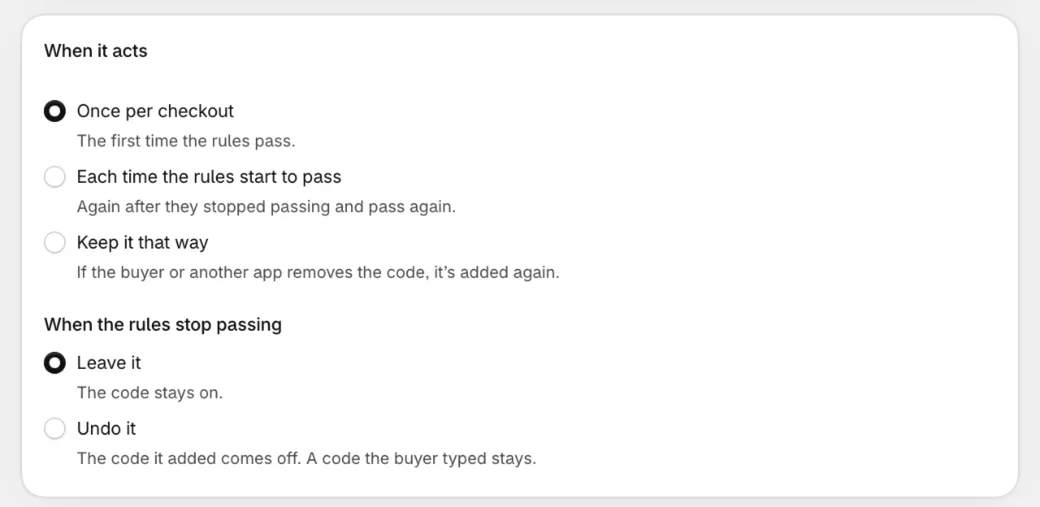
When it acts:
| Choice | What it means |
|---|---|
| Once per checkout | The first time the rules pass. If the buyer undoes it, it stays undone. |
| Each time the rules start to pass | Again after the rules stopped passing and pass again |
| Keep it that way | Whenever its change is undone, by the buyer, another app or a block, it makes it again |
When the rules stop passing:
| Choice | What it means |
|---|---|
| Leave it | Its change stays |
| Undo it | It takes back its own change, and only that: a code the buyer typed, or an attribute someone else changed since, is left alone |
Each action starts with the choice most stores want:
| Automation | Starts as | Undo it |
|---|---|---|
| Add a discount code | Once per checkout · Leave it | The code it added comes off |
| Set a cart attribute | Keep it that way · Leave it | The attribute is removed |
| Remove items | Keep it that way | Not offered: removed items aren’t added back |
For example, a welcome code buyers may remove: Once per checkout · Leave it. A code that should apply only while the cart has 10 items: Keep it that way · Undo it.
The message
Section titled “The message”Under Message, write a Title and Text buyers see once the automation has acted, such as “Code SAVE10 was added to your order.” or “We removed the sample: it can’t ship to your country.” It shows as a banner in the app block, in the Color you choose, and buyers can close it. Live values work in it: see live values in text.
Leave both empty to act without showing anything.
The Preview under Status shows the message as buyers see it, at phone, order summary and computer widths, and changes as you type.
Under Translations, translate the message for each of your store’s languages. Codes, keys and products aren’t translated: for a different code per language, make one automation per language with a Language rule.
Where it runs
Section titled “Where it runs”An automation runs in the Content app block, in checkout’s sections: the main column, the header, around the address, shipping or payment methods, the order summary or the footer. It doesn’t run in app blocks under each item, shipping method or pickup location, unless they list its ID.
- It runs on the steps where the app block is. A buyer has to reach that step. For an automation that should work throughout checkout, put the app block somewhere on every step, such as the order summary.
- Block IDs empty: every Content app block in a section runs every automation, and shows its message. They work together, so the change is made once, but the message shows in each. To show the message in one place, list the automation’s ID in that app block’s Block IDs, and list IDs in the others.
- Show first match only doesn’t change automations: they run whatever it says.
- Only changes Shopify allows there. Some checkouts don’t let buyers change discount codes, items or attributes, such as an invoice for a draft order. There, an automation that would make that change does nothing.
- Never in Shopify’s checkout editor. There, the app block shows a note only you see, saying what each automation does, and its message as a preview.
- Not in express checkouts. Buyers who pay with Apple Pay or Google Pay from the cart skip checkout, and nothing is changed inside the Apple Pay or Google Pay windows. For a rule that must always hold, use a function, such as Code rules, purchase limits or the checkout blocker.
Safeguards
Section titled “Safeguards”An automation that changes checkout could set off another change, or fight the buyer. Each one is built so it can’t loop:
- It changes only what’s different. If the code is already on, or the attribute already has its value, nothing is changed.
- Undo takes back only its own work. A code the buyer typed is never removed.
- A refused change isn’t retried right away. If Shopify refuses it, such as a code the cart doesn’t qualify for or an item Shopify won’t remove, it tries again only once something else in checkout changes.
- A brake. If an automation changes checkout more than 5 times in a minute, for example two automations setting one attribute to different values, it stops for the rest of that checkout.
- It waits while checkout loads. It acts only when its rules surely pass, and undoes only when they surely fail.
- It checks first that Shopify allows the change in this checkout.
- Several app blocks agree. Only one makes the change at a time.
The editor also warns you, without stopping you from saving, when:
- another automation sets the same attribute to a different value, or
- an automation’s rules check what it changes itself, such as adding a code with a Discount code rule. With Undo it, that could go back and forth until the brake stops it.
Things to know
Section titled “Things to know”- Published automations run in every checkout that has the app block, and drafts don’t run at all. Once you publish one, try a checkout that should pass and one that shouldn’t.
- Duplicate, at the top of the editor, makes a draft copy. Delete automation stops it right away.
- Automations run in the buyer’s browser. For a discount or rule that must apply whatever page the buyer reaches, prefer an automatic discount or a function.