
What happens next
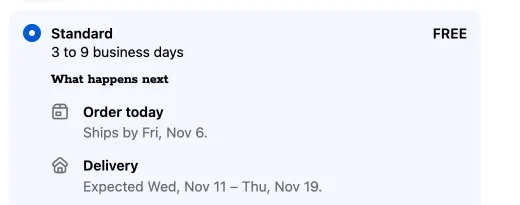
The What happens next block tells buyers when their order ships and when it should arrive if they order now, or when a pickup order is ready. The dates follow the shipping method the buyer picks.
Available on the Free and Buddy plans. Needs Shopify Plus. The same block is also on the thank you page and the Order status page, where it ticks steps off as the order ships.
New What happens next blocks show in the Content app block, with your content blocks, and use the Content rules. Their dates use your store’s time zone.
Add a What happens next block
Section titled “Add a What happens next block”- In Checkout Buddy, go to Customizations → Content → Create customization → What happens next.
- Set your days under Dates, and change the Text and Steps if you like. The Preview shows the dates for an order placed now.
- Under Status, turn on the switch so it reads Published, and save. New blocks start as Draft.
- In Shopify’s checkout editor, add the Content app block where the dates should show, and save the editor. Where it shows has a link to the editor, and warns you while the app block isn’t in your live checkout.
Where to place it
Section titled “Where to place it”- Near the shipping methods, such as after them, so buyers see the dates change as they pick one.
- Under each shipping method: each method shows its own dates, from its own delivery estimate. Under each pickup location, it shows the pickup steps.
- Block IDs: with it empty, the block shows in every Content app block in checkout’s sections and under each shipping method or pickup location, with your other content blocks. To show it in one place only, enter its ID in that app block’s Block IDs, and list IDs in your other Content app blocks. See which blocks an app block shows.
Settings
Section titled “Settings”| Setting | What it does |
|---|---|
| Heading, Intro | Optional heading and text above the steps, under Text. The heading starts as “What happens next”. Live values and the dates below work here too. |
| Days to prepare an order | Shipping days before the order leaves. The default is 1. |
| Same-day cutoff | Orders after this hour start the next day, in your store’s time zone, wherever the buyer is. Or No cutoff. The default is 12 PM, as Shopify’s own delivery dates. |
| Days you ship | The days of the week you ship. Monday to Friday by default. Choose at least one. |
| Add a day you don’t ship | Holidays and other days off, up to 30. |
| Days in transit, from, to | How long delivery takes, for shipping methods without a delivery estimate. The defaults are 3 and 5. |
| Count days in transit as | Business days, as Shopify does (the default, Monday to Friday) or Calendar days. |
| Days until a pickup order is ready | For pickup. The default is 0, the same day. |
| Steps for shipped orders, Steps for pickup orders | Up to 6 steps each, with a Title, an Icon and optional Text. Leave them empty to use the default steps. |
| Show on | Under Devices: Phones and computers, Phones only or Computers only. |
How the dates work
Section titled “How the dates work”- Start: today, or the next day you ship when the buyer orders after the cutoff or on a day you don’t ship.
- Ships by: the start plus Days to prepare an order, counting only days you ship.
- Arrives: the ship date plus the delivery estimate of the shipping method the buyer picked, the one Shopify shows under it, such as “3 to 9 business days”. Under each shipping method, it’s that method’s estimate. Methods without one, such as a rate set up without a delivery time, use your Days in transit. So do carts before the buyer has picked a method.
- Pickup: when the buyer chooses pickup, the block shows the ready date instead: the start plus Days until a pickup order is ready.
Days in transit count business days, Monday to Friday, as Shopify does for the dates under each shipping method, whatever days you ship: an order that ships on a Friday with 3 to 5 days in transit arrives Wednesday to Friday the next week. Your days off move the ship date, not the delivery. Choose Calendar days to count weekends too.
“Today” and the cutoff use your store’s time zone, wherever the buyer is, so a buyer in another time zone sees the same dates as one next door. If the page stays open past the cutoff or midnight, the dates move on by themselves. Dates update as the buyer changes the shipping method, and show in the buyer’s language, such as “Tue, Oct 13”.
Default steps
Section titled “Default steps”| Shipped orders | Pickup orders |
|---|---|
| Order today: Ships by (date). | Order today: Ready for pickup by (date). |
| Delivery: Expected (dates). |
Default steps come in English and French. A default step whose date can’t be worked out, such as an arrival date with no delivery estimate and no Days in transit, doesn’t show.
Your own steps
Section titled “Your own steps”Write your own steps to change the wording or add a step, such as “Gift wrapped by hand”. Put dates in a step’s text:
| Variable | What it shows | Example |
|---|---|---|
shipDate |
The ship-by date | Tue, Oct 13 |
deliveryDate |
The arrival dates, as a range when the estimate is one | Fri, Oct 16 – Tue, Oct 20 |
deliveryDateFrom, deliveryDateTo |
The first and last arrival date | Fri, Oct 16 |
readyDate |
When a pickup order is ready | Mon, Oct 12 |
carrier |
The carrier’s name, when the shipping method has one | Canada Post |
For example, Arrives {{ deliveryDate }} with {{ carrier || "our courier" }}. Live values work in steps too. A step whose text needs a date that can’t be worked out keeps its title and leaves the text out. Every step needs a title.
Who sees it
Section titled “Who sees it”Every checkout, or Only checkouts that match the rules, with the Content rules. Under each shipping method, a This shipping method rule can show it under some methods only.
Translations: the heading, intro and each step can be translated into your store’s languages under Translations. The Preview’s language picker shows them.
Things to know
Section titled “Things to know”- The dates are an estimate for an order placed now. They don’t reserve stock or a delivery slot.
- The block doesn’t show when nothing in the cart ships or gets picked up, such as a cart of gift cards.
- The store’s time zone is saved with the block. If you change it in Shopify, save the block again.
Blocks made before the Content block
Section titled “Blocks made before the Content block”What happens next blocks made before the Content block keep working as they are, in the Checkout Buddy (v1) app block, with their own editor. On Customizations, their Kind column reads Checkout · Checkout Buddy (v1) app block. What’s different for them:
- Placement: a Checkout Buddy (v1) app block, with the block’s ID in Fixed block ID. See add a block to checkout.
- Dates use the buyer’s clock and time zone, and the Same-day cutoff is in the buyer’s time.
- Rules: conditions, and Markets under Where it shows.
- Translations: in Translations.
To move one to the Content app block, make a new What happens next block, publish it, add the Content app block, then turn the old one off.