
Free gift offers
A Product offer with Offer type set to Free gift or Choice of free gifts gives buyers a free gift with their purchase, in checkout and on your product pages, cart page and cart drawer. The offer adds, resizes and removes its gifts as the cart changes. A discount is what makes a gift free: see discounts for product offers. For a setup from start to finish, follow the free gift recipe.
Requires: in checkout, Shopify Plus and the Buddy plan. On product and cart pages, any Shopify plan except Starter, and the Deals & Rules or Buddy plan for the offer and its discount: see plans.
This page describes checkout. On product and cart pages gifts work the same way, with the Product offers app embed adding them wherever the cart changes: see free gifts on product and cart pages.
Which gift setup to use
Section titled “Which gift setup to use”| You want | Use |
|---|---|
| A free gift once the cart reaches an amount, like a free tote over $75 | A Free gift offer with a tier: the Free gift over a spend template. See the free gift recipe |
| Another gift, or more of one gift, at higher amounts | Tiered free gifts. See tiers |
| Buyers choose their gift | A Choice of free gifts offer: the Choose your free gift template. See gifts buyers choose |
| A gift that comes with certain products, buy X get Y, buy one get one (BOGO) or buy 2 get 1 free, with the free item added to the cart | A Buy X get Y discount with Add to the cart: the Buy X, get Y free template, under Templates → Free gifts |
| A gift for a number of items, with a progress bar or tiers, such as “Add 1 more item to get a free tote” | A Free gift offer with Tiers set to By number of items. To count only some products, choose Only cart items from…. See items that count |
| A gift when the buyer enters a discount code | Free gift with a code. See gifts with a discount code |
| A welcome gift on first orders | Free gift for first orders. Logged-in customers only |
| A sample in every order | Free sample with every order |
Every row but Buy X get Y is a gift offer, made in the Product offers editor. Buy X get Y is a discount that makes its own offer. The two split the work differently:
- A gift offer decides when the gift is given: a cart amount, a number of items, or Who sees it. It shows the gift and the progress toward it, can give more at each tier, and needs a separate discount that makes it free, which Create gift discount makes. That discount covers only the gift the offer adds, so the same product bought from your store stays full price.
- A Buy X get Y discount decides the whole deal, what customers buy and what they get, and repeats for every set they buy unless you set Maximum uses per order. With Add to the cart ticked, it makes its own offer to add the item, and needs no other discount. That offer’s page has a Buy X get Y card in place of Offer type, Offers and Who sees it: see offers made by a Buy X get Y discount.
Automatic gifts
Section titled “Automatic gifts”With Free gift, the offer adds the gift by itself once the cart qualifies. Without tiers, that’s every cart that passes Who sees it. With tiers, it’s once the cart reaches the tier’s amount or number of items.
- What’s added: the products of every tier the cart has reached, one line per product, at the tier’s quantity (How many of each gift). A product two tiers give gets both quantities. With When a higher tier is reached set to Replace the earlier gifts, only the highest tier’s products are added.
- Which products: Manually selected only, so checkout knows exactly what it adds. Of the variants you picked, the first one that’s available is added.
- Before the first tier, the gift shows with no button: “Unlocks at $50.00”, or in a locked box when Show progress as is Next reward. See tiers and goals.
- Variants: with several variants picked and Variant picker on in Layout, buyers can switch to another variant. Their choice is kept while they’re in checkout.
- Buyers can remove the gift (in Layout, under Behavior) adds a Remove link. A removed gift shows an Add button instead of coming back. See when a buyer removes a gift.
The Free sample with every order template is an automatic gift for every cart, with Buyers can remove the gift on.
Gifts with nothing showing
Section titled “Gifts with nothing showing”Automatic gifts, blank or from a template, start with Show the offer ticked, at the top of Layout (Show the offer in checkout on an offer shown only in checkout). Untick it and save to show nothing, in checkout or on product and cart pages: no heading, text, progress or gift row. The offer still adds, resizes and removes the gift as the cart changes. In checkout, buyers see the gift in the order summary only, and can’t remove it. The discount, tiers, conditions and the check that the gift is free work as they do for a shown offer.
- The editor hides what no longer applies: Text, the rest of Layout, Translations and Analytics, and in Offers each tier’s Offer name and Different text for this tier and each product’s Title and Description. Your settings are kept: tick the box again and they come back as they were.
- The app block is still needed: the Product offers app block in your checkout is what adds the gift. In Shopify’s checkout editor, it shows nothing for the offer. On product and cart pages, the Product offers app embed in your theme adds it.
- On your cart page, buyers can still remove or lower the gift. It stays out, or lowered, as when a buyer removes a gift says.
Gifts buyers choose
Section titled “Gifts buyers choose”With Choice of free gifts, nothing is added by itself. Once the cart reaches a tier, buyers see that tier’s gifts with a Choose button on each. A chosen gift is marked Selected and gets a Remove link. When buyers can choose more than one, the offer says “Choose up to 2” (or your number), and in Featured, Tiles and Slider “1 of 2 chosen” once they pick.
- How many: set Buyers choose up to in each tier, and each gift’s quantity in How many of each gift.
- Products: Manually selected (up to 25), or From a collection (up to 100). A collection shows its active products only, not Unlisted ones. For a tag, use an automated collection with that tag.
- One to choose: picking another gift replaces the first.
- A removed pick is simply not chosen any more. Only the buyer’s tap adds one.
One Collection discount can make every gift in a collection free: see gifts from a collection. Start from the Choose your free gift template, and see layouts for showing gifts side by side.
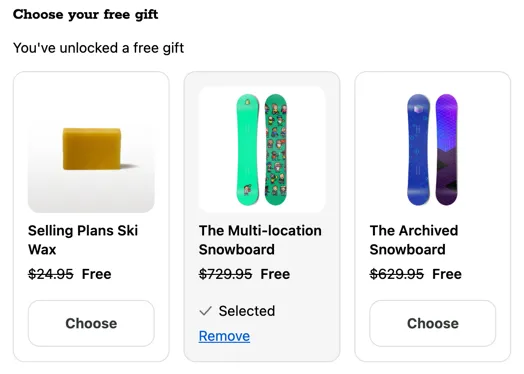
How gifts follow the cart
Section titled “How gifts follow the cart”The offer keeps its gifts matched to the cart while the buyer is in checkout:
- The cart reaches a tier: that tier’s gifts are added, next to the gifts of the tiers below. A product the tier gives again grows.
- The cart moves down a tier: that tier’s gifts come out, or shrink back to what the lower tiers give.
- With Replace the earlier gifts: moving up a tier resizes the gift, so 25, 50 and 75 samples is one line whose quantity changes, and takes out a product the higher tier doesn’t list. Moving down, the gift shrinks or switches to the variant that tier lists.
- The gift comes out when the cart drops below the first tier, when the offer’s conditions stop passing, or when the offer is set to Draft or deleted.
- Gifts buyers choose: when the tier changes, picks the new tier also gives are kept and resized, and the others come out.
A gift is never added twice, even with the app block placed twice or after the page reloads. While checkout is still loading something the offer needs to decide, such as the products, an address a condition reads, or a currency rate, nothing is added or taken out.
When a buyer removes a gift
Section titled “When a buyer removes a gift”A buyer can remove an automatic gift with the Remove link, on your cart page, or with another app. The offer respects that:
- It doesn’t come back by itself. With the offer shown, the gift shows an Add button instead, so the buyer can change their mind.
- It stays out while the offer still gives it, across reloads and other tiers that list it, also a higher tier that gives it again. A different gift in a higher tier is still added. The Add button adds all the tiers give of it.
- It’s forgotten once the offer stops giving it, for example when the cart drops below its tier or the conditions stop passing. The next time the cart reaches a tier that lists it, it’s added again.
- It’s forgotten after 24 hours with no activity on the checkout, so a buyer who comes back another day gets the gift again.
If a buyer lowers a gift’s quantity, the lower quantity is kept until the tier changes, and a shown offer’s row says “Add 5 more” so they can top it back up. If they raise it above the tier’s quantity, it’s set back down once.
Gifts that aren’t free
Section titled “Gifts that aren’t free”By default, a gift stays in the cart once it’s added, even if no discount makes it free. Buyers then pay its price, and its row shows that price instead of “Free”.
To take such gifts out instead, tick Remove gifts that aren’t free on the offer’s Discount at checkout card. The offer then keeps checking what checkout charges for each gift:
- A gift that isn’t free is removed. It’s tried again once the cart spends more, for example past the discount’s own minimum, or the buyer applies another discount code. It’s tried at most twice per gift in a checkout.
- A bigger quantity that isn’t free goes back to the last quantity that was, or to what your discounts cover together, and the gift stays. This happens when the discount has a quantity limit below the new tier’s quantity.
It works the same on product and cart pages: a gift the cart charges for comes out. An automatic gift then stops showing for the rest of the visit; a gift buyers chose stays in the offer, which says “This gift isn’t available right now”. Unticked, it stays at its price there too.
The Discount at checkout card shows whether a discount makes each gift free. For a published automatic gift that no discount makes free, Status warns “Buyers pay full price for this gift until a discount makes it free”, or “Buyers won’t get this gift until a discount makes it free” with the box ticked. See discounts for product offers.
An offer made by a Buy X get Y discount has the same box on its Buy X get Y card. It starts ticked when the discount has conditions the offer can’t check, such as customer segments or active dates, so an item the discount doesn’t make free for that customer comes back out. Untick it to keep those items in the cart at their price.
Gift products
Section titled “Gift products”- Price: $0, or a 100% discount. A product priced $0 needs no discount.
- Status: Unlisted, if buyers shouldn’t find the gift in your store. Gifts from a collection must be active, because checkout shows only a collection’s active products.
- Weight: none, so shipping rates don’t change when the gift is added.
- A draft or archived gift product stops an automatic gift offer from saving.
- A gift that needs shipping isn’t added to a cart where nothing else ships.
- Bundles and products sold only as a subscription are skipped as gifts.
Things to know
Section titled “Things to know”- Up to 12 automatic changes per checkout. Checkout adds, grows or switches gifts by itself up to 12 times in one checkout. After that, buyers tap Add for the rest, if the offer shows in checkout. More than 12 gift products, in one tier or in the tiers that add up, leaves the rest for buyers to add the same way.
- A gift that fails to be added twice isn’t tried again in that checkout.
- Low stock: when checkout adds fewer than the tier’s quantity because of stock, the gift stays at what checkout added, and the offer doesn’t ask again until the tier changes. Buyers’ own units of the gift use the same stock: with 50 in stock and 1 in the cart already, the gift gets 49, and grows back to 50 if the buyer takes theirs out.
- B2B buyers get gifts only from offers whose Who sees it includes B2B order or Company.
- Where the offer doesn’t run, only the discount decides. With Apple Pay or Google Pay from the cart, with Buy it now, in draft orders, and on your cart page when the offer shows in checkout only, the offer can’t correct gifts, so the discount’s own conditions are the only limit. An offer that also shows on product or cart pages, with the app embed on, keeps its gifts right in the cart too. See Apple Pay, Google Pay and Shop Pay.
- Older blocks: if an older Product offers block’s free gift of the same variant is in the cart, the new offer leaves that gift to it, so buyers get only one. Turn off older Product offers, Checkbox product offers and Line item removers that add or remove the same products, so they don’t undo each other.
- In Shopify’s checkout editor, offers never add gifts.