
Bundles: kits, multipacks and build a box
A bundle sells products together as one product in your store, with its own page, picture and price:
- Kit: products sold as one, like a shampoo and conditioner set, a snowboard with two ski waxes, or a 3-pack of one candle.
- Multipack: one product in two or more pack sizes buyers choose from, like socks in a 2-pack and a 6-pack, each with its own saving.
- Build a box: buyers fill a box with the items they pick, like any 3 candles for $50. See Build a box.
Plan: Deals & Rules or Buddy. Kits and multipacks work on all Shopify plans. Build a box works on every Shopify plan except Starter, whose theme editor can’t add app blocks, so Starter stores aren’t offered it.
Which bundle to use
Section titled “Which bundle to use”| You want to sell | Use | Buyers add to the cart | Your theme needs |
|---|---|---|---|
| A fixed set as one product, like a shampoo and conditioner set | Kit | The kit, one product | Nothing |
| One pack on its own, like a 3-pack of a candle | Kit, with that product at a quantity of 3 | The kit, one product | Nothing |
| One product in a choice of packs, like a 2-pack and a 6-pack | Multipack | The pack they pick, one product | Nothing |
| A box buyers fill at one price, like any 3 candles for $50 | Build a box | One box with their picks | The Build a box block on the product page |
| A set buyers build in steps at one price, like 2 from one collection and 1 from another | Build a box with steps | One box with their picks | The Build a box block on the product page |
| A lower price for buying more of a product, like Buy 2, save 10% | Quantity breaks | The product, in the quantity they pick | The Quantity breaks block on the product page |
| A bundle discount on items bought together, like any 3 shirts for $50, or a shirt with pants | Mix and match | The items, as separate lines | The Mix and match block on a product page or its own page |
Kits, multipacks and boxes are products. Quantity breaks and mix and match are discounts on separate products, shown on your product pages: see quantity breaks and mix and match.
All five start in the same place: in Checkout Buddy, open Customizations, and on the Bundles tab click Create customization. Kit, Multipack and Build a box are cards there, and Quantity breaks, Mix and match: any 3 for $50 and Buy the set, save 20% are templates.
For a kit or multipack, Checkout Buddy makes the bundle a product in Shopify with Shopify’s own bundles. Its stock comes from its items, so a kit is sold out when an item is. Shopify splits it into those items in the cart, checkout and orders, and shows them under it in checkout. It works with every theme, with nothing to add to your store’s pages.
Create a kit
Section titled “Create a kit”-
In Checkout Buddy, open Customizations. On the Bundles tab, click Create customization and choose Kit.
-
Its Title is the product’s name in your store. Checkout Buddy fills it in from the products you add, like
Snowboard + Ski Wax kit; type your own, likeSnowboard starter kit, if you like. -
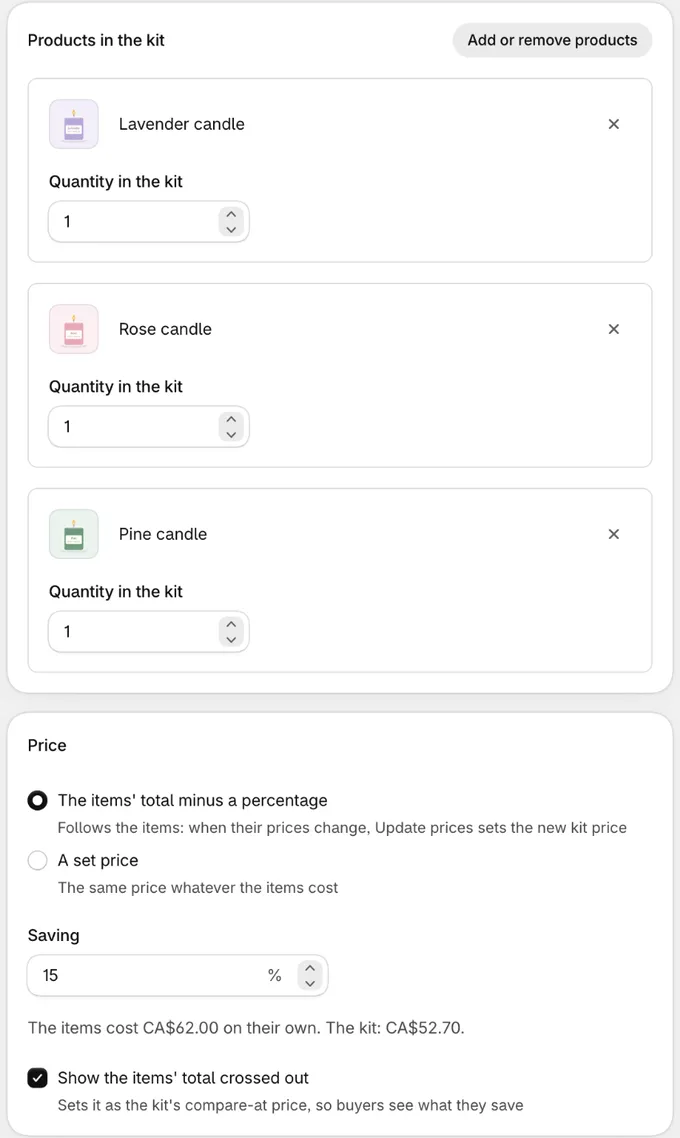
Click Add products and pick the products in the kit. For a product with sizes or colors, tick the ones in the kit in the picker: buyers choose from those on the kit’s page. Each choice then shows on the kit’s page in Checkout Buddy, like Size: buyers pick from, where you can tick or untick its values.
-
Set each product’s Quantity in the kit, like 2 ski waxes. A kit has at least 2 items in all, so one product at a quantity of 3 makes a 3-pack.
-
Under Price, choose how the kit is priced (see prices).
-
Click Save. Checkout Buddy makes the kit a product in Shopify, as a draft.
-
Click Edit product in Shopify to add photos and a description, set its Status to Active and publish it to Online Store. While it’s a draft, buyers can’t see it.
Create a multipack
Section titled “Create a multipack”-
In Checkout Buddy, open Customizations. On the Bundles tab, click Create customization and choose Multipack.
-
Its Title fills in from the product you pick, like
Socks multipack; change it if you like. -
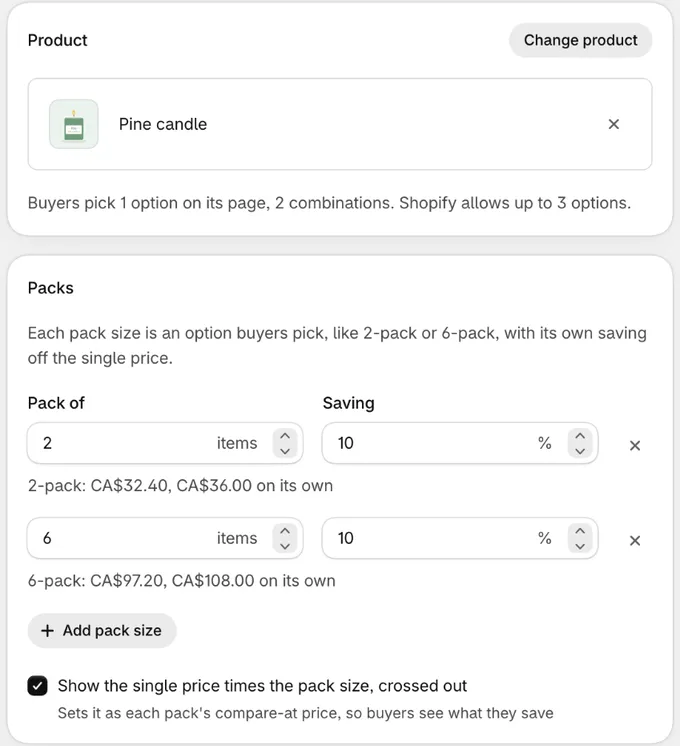
Click Pick product and pick the product. For a product with sizes or colors, tick the ones buyers can choose from.
-
Under Packs, set each pack size (Pack of, 2 or more) and its Saving, like a 2-pack at 5% and a 6-pack at 15%. A new multipack starts with a 2-pack at 5% and a 3-pack at 10%. Click Add pack size for another, up to 10. Buyers pick the pack on the multipack’s page.
Shopify requires at least 2 pack sizes. For a single pack, like a 3-pack, make a kit with that product at a quantity of 3.
-
Click Save, then Edit product in Shopify to add photos, set its Status to Active and publish it to Online Store.
Prices
Section titled “Prices”A kit’s price is one of:
- The items’ total minus a percentage (the default, with a Saving of 10%): with a $700 snowboard and two $25 waxes, 10% off makes the kit $675. When an item comes in several prices (a size that costs more), each choice gets its own price.
- A set price: the Kit price you type, the same whatever the items cost.
A multipack’s price is the single item’s price times the pack size, minus that pack’s saving.
Show the items’ total crossed out (on a multipack, Show the single price times the pack size, crossed out) sets that total as the bundle’s compare-at price, so buyers see the saving, like $750 $675. It’s on by default; it shows only when the bundle costs less than its items.
While you edit, the page shows what the items cost on their own and what the bundle will cost, from your products’ prices. The Summary card lists the items, the prices and how many choices buyers get.
When item prices change
Section titled “When item prices change”A bundle’s price changes only when you say so. If an item’s price changes in Shopify, the bundle keeps its price. The Bundles tab then marks the bundle Prices out of date and shows Some prices are out of date, and the bundle’s page shows Prices are out of date. Click Update prices to set the prices from your settings again, like the items’ new total minus 10%: on the bundle’s page for that bundle, or on the tab for all of them at once. A set price never goes out of date, but its crossed-out total can.
Edit or delete a bundle
Section titled “Edit or delete a bundle”On the Bundles tab of Customizations, click the bundle. The tab shows each one’s status in Shopify: Active, Draft or Archived. You can change its title, products, quantities, choices, packs and prices. Changing the products, quantities, choices or packs has Shopify rebuild the bundle, which takes a few seconds.
Its photos, description, status, sales channels, SEO and collections are edited in Shopify: click Edit product in Shopify. There, the bundle’s Bundled products card shows what’s in it, with Edit in Checkout Buddy to come back.
To delete a bundle, click Delete kit (or Delete multipack, or Delete box) at the bottom of its page. This deletes its product in Shopify. Its items and past orders stay.
Discounts on bundles
Section titled “Discounts on bundles”Discounts see a bundle as one item, the bundle product: a discount on the kit’s product applies to it, and Shopify shares the discount across its items on the order. A discount on a single item (the snowboard on its own) doesn’t apply to a kit that contains it. Volume discounts and Group price count a bundle as one item.
A kit or multipack isn’t showing
Section titled “A kit or multipack isn’t showing”- Buyers can’t find it. A new bundle is a Draft. Click Edit product in Shopify, set its Status to Active and publish it to Online Store.
- It won’t save. The top of the page lists what to fix. The usual ones: a kit needs at least 2 items in all, a multipack needs at least 2 pack sizes, a pack size can be used once, and Shopify allows up to 3 options (like size or color) and 100 combinations on a bundle, so untick some sizes or colors.
- “This product is a bundle.” Shopify doesn’t allow a bundle inside another bundle. Remove it and add its products instead.
- “Not on your plan.” Bundles are on the Deals & Rules and Buddy plans. On the Free plan, the kits and multipacks you made keep selling, since they’re products in Shopify; you can delete them here, but not change them.
Things to know about kits and multipacks
Section titled “Things to know about kits and multipacks”- Up to 30 products in a kit, and up to 3 choices (like a size and a color) on its page: Shopify limits. A bundle can also have up to 100 combinations of choices.
- Quantities and pack sizes go up to 2,000. A multipack has 2 to 10 pack sizes, each with a saving from 0 to 99%. One pack size on its own is a kit with that many of the product.
- Two products with the same choice name (both have a Size) each get their own choice on the kit’s page, named after the product: “Shampoo Size” and “Conditioner Size”.
- No subscriptions or pre-orders on bundles, and no bundles inside bundles (Shopify limits).
- Only the app that made a bundle can change its items. Bundles made in another app, like Shopify Bundles, are counted on the Bundles tab but opened in that app.
- Stock: a bundle’s stock is how many of it its items’ stock can make. It sells out when one of its items does.
- Orders, returns and reports show the bundle’s items, each with its share of the price, and which bundle they came in.
- A new bundle uses an item’s picture to start with. Replace it with your own in Shopify.
Build a box
Section titled “Build a box”A box is a product buyers fill themselves: on the box’s page they pick the items, as many as fill it, and add one box to the cart at the box’s price. “Candle trio: any 3 candles for $50” sells as one product, whichever 3 the buyer picks:
- Product page: the Build a box block shows the items to pick from, how many are picked, the box’s price and what the picks cost on their own, crossed out. Its Add box to cart button turns on once the box is full.
- Cart: one line, Candle trio, with In this box: Vanilla candle, Cedar candle × 2 under it. Its quantity buttons add or remove whole boxes with the same picks.
- Checkout: one line at the box’s price, which opens to list the items in it.
- Orders: the items, each marked Part of: Candle trio, with its share of the box’s price (Shopify shares it by the items’ prices).
A box can also have steps: groups of products, each with its own count, like 2 from one collection and 1 from another, at one price.
A box needs three things besides its settings: Build a box turned on for your store, the Build a box block on your product page, and its product Active and on Online Store. The Setup card on the box’s page ticks each one off.
Create a box
Section titled “Create a box”-
In Checkout Buddy, open Customizations. On the Bundles tab, click Create customization and choose Build a box.
-
Its Title is the product’s name in your store. Checkout Buddy fills it in, like
Build your own box of 3; type your own, likeCandle trio, if you like. -
Click Add products and pick the products buyers choose from. For a product with sizes or colors, tick the ones that can go in the box, in the picker or on the box’s page in Checkout Buddy. You can also add Collections or Product tags: their products go in with every size and color (see collections and tags).
-
Under Box, set Items in a box (2 to 30) and the Box price. Buyers can pick the same item more than once.
-
Click Save. Checkout Buddy creates the product in Shopify as a Draft. You don’t create it yourself. Its page in Checkout Buddy now has a Setup card that ticks off the steps below as you finish them.
-
Turn on Build a box for your store: in Setup, click Turn on. You do this once: it’s one switch for all your Build a box products.
-
Add the item picker to your product page: in Setup, click Add to product page. Shopify’s theme editor opens on your product page with the picker added: the Build a box app block, listed under Apps. Drag it under the price, then click Save. You do this once too. The picker shows only on Build a box products, so it can stay on the product template every product uses.
-
Click Edit product in Shopify to add a photo and a description, set the product’s Status to Active, and add Online Store under Publishing. Buyers see only Active products published to Online Store.
Steps split the picks into groups, each with its own products and how many to pick, like 2 from one collection and 1 from another, at one price. A box has up to 5 steps.
-
On the box’s page in Checkout Buddy, click Add a step, under the products.
-
Each step has its own Items to pick, and its own products, collections and tags. A product can be in more than one step.
-
Give each step a Name if you like, like
Candles: it shows on your store as Step 1: Candles. -
Set the Box price and click Save. A box holds 2 to 30 items across all its steps.
On the product page, the block shows each step with its own count, like Step 1: Candles · 2 of 3 picked, and turns on Add box to cart once every step is full. The cart and checkout show one line, as for any box. A box with steps shows no heading unless you type one in the block’s settings, since the steps say what to pick.
To go back to one step, delete the others with the trash button on each step.
Collections and tags
Section titled “Collections and tags”A step (or a box without steps) can take its products from Collections and Product tags as well as products you pick one by one. Every active product in those collections, or with any of those tags, goes in with all its sizes and colors. Draft and archived products, gift cards and other bundles are left out.
Checkout Buddy reads those products when you save. It doesn’t change the box on its own: products added to the collections or tags later, or new sizes and colors, show once you click Update products on the box’s page. When the box’s products are out of date, a banner there says so, with the same button. They count toward the 50 products a box can offer.
How the box page works
Section titled “How the box page works”On a box’s page, the block hides your theme’s Add to cart and Buy it now buttons (a block setting), since a box needs its picks: Shopify turns away a box added without them, with a message. Buyers pick with + and − on each item, see their picks listed, and add the box once it’s full. After adding, they go to the cart page; you can send them to checkout or keep them on the page instead.
The block’s settings, in the theme editor:
- Box: on a product page, that product’s box shows. Leave it as it is.
- Heading and Description: leave the heading empty for “Pick any 3”, with your box’s size, in the buyer’s language. A box with steps shows no heading unless you type one.
- Columns on desktop, Columns on mobile and Image shape (Square, Portrait or Like the image).
- Show each item’s price: on by default. What the picks cost on their own shows crossed out next to the box’s price either way.
- Link item titles to their pages.
- Keep the total and button on screen while scrolling: for long lists.
- Hide the theme’s Add to cart and Buy it now buttons on box pages: on by default.
- After adding: Go to the cart page (the default), Go to checkout or Stay on the page.
- Button: your own text for the button.
- Style: Buttons, picked items and progress color, Item background and Corner radius. For anything else, add CSS for
.cb-boxin your theme editor’s Theme settings → Custom CSS.
A box can’t be added to the cart
Section titled “A box can’t be added to the cart”Open the box in Checkout Buddy and look at its Setup card. Each step that isn’t ticked says what’s missing:
- Build a box is off for your store. Buyers can’t add any Build a box product to the cart, and carts that already have one can’t check out. Click Turn on in Setup, or in the warning on the Bundles tab.
- The item picker isn’t on your product page. Click Add to product page and save in the theme editor. A theme without app blocks (made before Online Store 2.0) can’t show the picker.
- The product is a Draft, or isn’t on Online Store. Click Edit product in Shopify, set its Status to Active and add Online Store under Publishing.
- A Line item price changer is in the way. Shopify allows Checkout Buddy one cart transform per store, and both need it. Delete the price changer, then turn on Build a box.
- The box was added another way, like a collection page’s quick add button. A box needs its picks, so Shopify turns it away: buyers add it from the box’s page.
- The store moved to the Free plan. That turns Build a box off. On the Deals & Rules or Buddy plan, click Turn on again.
Things to know about boxes
Section titled “Things to know about boxes”- The price is the box’s own, set in Checkout Buddy, whatever the buyer picks. Shopify converts it for other currencies like any product’s price. If the price is changed in Shopify, the box’s page shows Prices are out of date: Update prices sets it back to your Box price.
- No stock of its own: Shopify checks the stock of the items buyers pick. Items that are sold out don’t show on the box’s page.
- Up to 50 products and 500 sizes and colors per box, across all its steps, including those from collections and tags.
- Picks are checked at checkout. Only the items you chose, and exactly as many as fill the box (or each step), go in.
- Discounts see a box as one item, like a kit: a discount on the box’s product applies to it, and a discount on one candle doesn’t apply to candles in a box.
- Build a box and a Line item price changer can’t be used together: Shopify allows Checkout Buddy one cart transform per store, and both need it. Delete one to use the other.
- One switch for all your Build a box products: the Setup card on any of their pages shows whether Build a box is on for your store, with Turn on and Turn off. Only you turn it on or off: creating or deleting products doesn’t change it. While it’s off, your products and their settings stay.
- Moving to the Free plan turns Build a box off. Your products stay in Shopify. After upgrading to Deals & Rules or Buddy, click Turn on in the Setup card on any Build a box product’s page.