
Copy display rules
Building the same rules twice is slow and easy to get wrong. You can save a customization’s display rules to a file and load them into another one.
Export rules
Section titled “Export rules”- Open the block or function whose rules you want to copy.
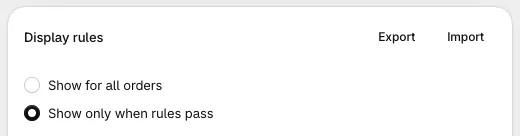
- On the Display rules card, click Export.
A .json file downloads to your computer. Export is greyed out when there are no rules to copy, for example when the block is set to Show for all orders.
For functions with several settings, each setting has its own Export and Import.
Import rules
Section titled “Import rules”- Open the block or function you want to copy the rules into.
- On the Display rules card, click Import and choose the exported file.
- Check the rules, then save.
Importing replaces the rules that were there. It doesn’t add to them. Nothing is saved until you click Save block or Save function, so you can click Cancel to undo.
What you can import where
Section titled “What you can import where”| From | To | Allowed? |
|---|---|---|
| Any block | Any other block | Yes, even a different block type |
| A function | The same function type, created on the same rule set | Yes |
| A function | A different function type, or another rule set | No |
| A block | A function, or a function to a block | No |
Because a function’s rule set is fixed when you create it, importing function rules from Rule Set 2 means creating the new function on Rule Set 2 first.
Importing into another store
Section titled “Importing into another store”Exported files work in any store with Checkout Buddy installed, which is handy for agencies and for copying between a development store and a live store.
Products, variants, and collections are different in every store. If the file comes from another store and uses a product or collection picker, Checkout Buddy shows Re-select products or collections and names the rules to fix. Open each one, pick the right products or collections in this store, then save.
Text values such as tags, zip codes, and attribute keys copy across unchanged.
Duplicate a function
Section titled “Duplicate a function”To copy a whole function, not just its rules, open it and click Duplicate. The copy is saved straight away, with the original’s name followed by “(copy” and a random number, for example “Hide COD (copy 42)”. Open the copy and rename it so you can tell them apart.
Duplicate isn’t available for code discounts (product, collection, and order discount codes), because each code must be unique. Blocks can’t be duplicated; export the block’s rules and import them into a new block instead.