
Quantity breaks and mix and match on product pages
Two blocks for your Online Store theme show your deals before checkout, so buyers see them where they choose what to buy:
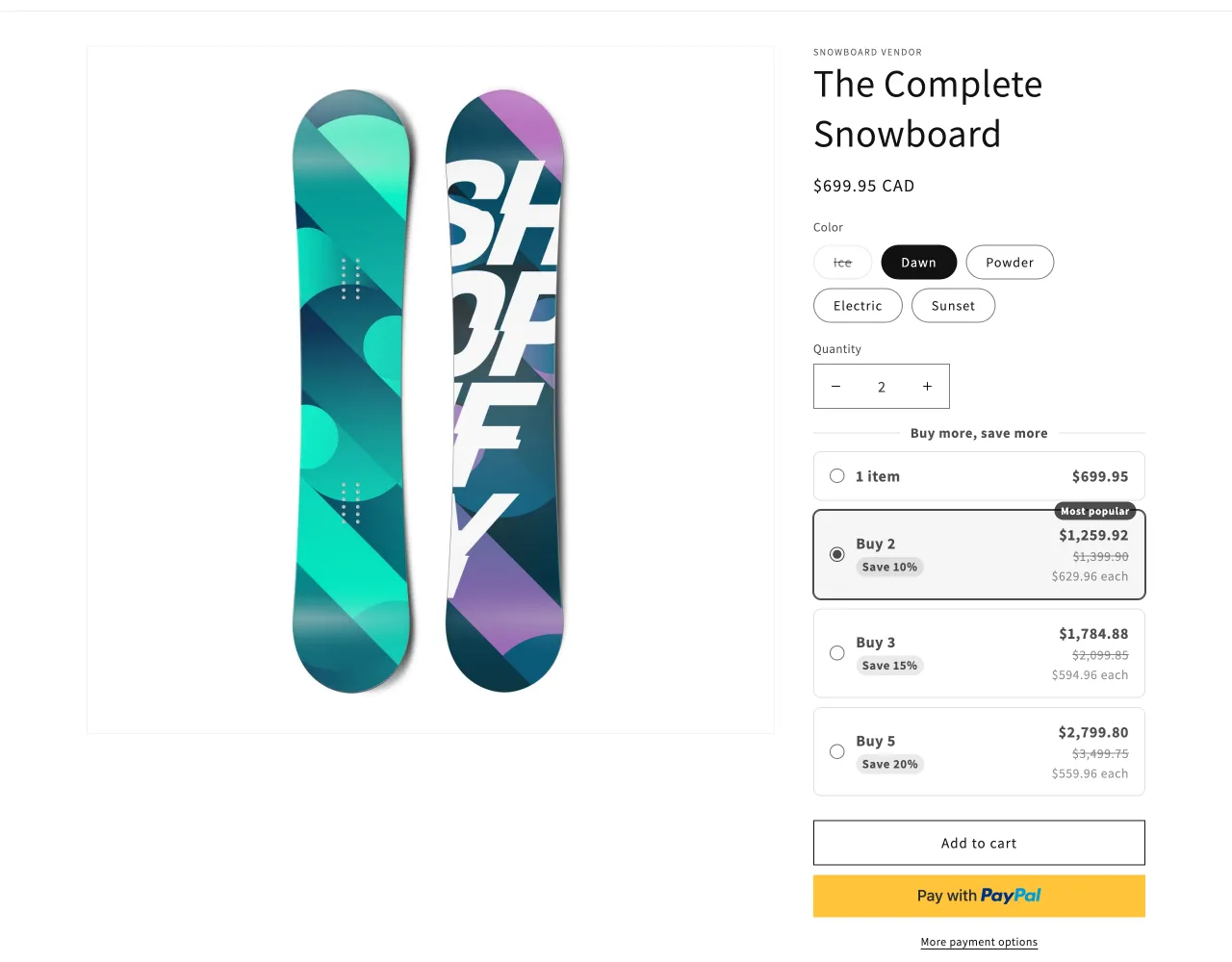
- Quantity breaks: the tiers of a Volume discount or Group price as cards on the product page, like Buy 2, save 10%, with the price for each. Picking a card sets the quantity.
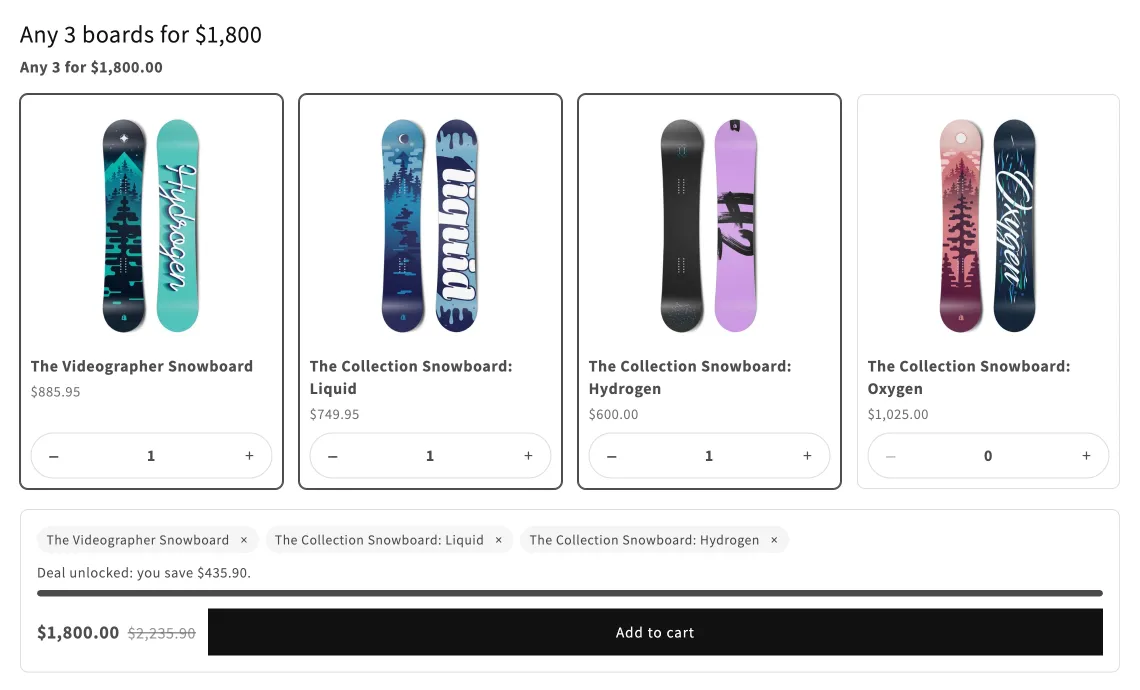
- Mix and match: the products of a deal to pick from, like Any 3 for $1,800, or a board and a wax for a Combo, with a running total and one Add to cart button. On a product page, or on its own page as a build-a-box.
The discount itself is still given at checkout, by the same discount. The blocks show it and add the items to the cart. Without them, buyers see the discount only once their cart reaches a tier.
For products buyers add next to the one they’re viewing, free gifts and add-ons, see Product offers on product and cart pages.
Plan: Deals & Rules or Buddy, like the discounts they show. Works on every Shopify plan except Starter, with a theme that takes app blocks (Shopify’s free themes and most themes made since 2021).
Each one has two parts: the discount, made in Checkout Buddy, and the block, added to your theme. The fastest way to both is a template.
Start from a template
Section titled “Start from a template”-
In Checkout Buddy, open Customizations. On the Bundles tab, click Create customization and pick a template:
- Quantity breaks: Buy 2, save 10%; buy 3, save 15%, each product on its own. A Volume discount for the Quantity breaks block.
- Mix and match: any 3 for $50: a Group price for the Mix and match block.
- Buy the set, save 20%: one item from each group, like a shirt and pants. A Combo for the Mix and match block.
-
The discount opens filled in, with a Set up in 2 steps card at the top. Pick or check the products and the deal, then click Save.
-
In Set up in 2 steps, click Add to product page. Shopify’s theme editor opens on your live theme’s product page with the block added. Drag it where you want it, then click Save there.
-
Open a product the discount covers to see it.
A discount you already have works too: see add a block to your theme.
Which discounts show
Section titled “Which discounts show”| Discount | Quantity breaks | Mix and match |
|---|---|---|
| Volume discount, Count by set to Each product separately or Each variant separately | Yes | No |
| Volume discount, Count by set to All items together (mix and match) | Yes, with “Mix and match with other items in this deal.” | Yes |
| Group price | Yes, like 3 for $50 | Yes |
| Combo | No | Yes, one step per group |
A discount shows when all of these are true:
- It’s automatic, not a discount code.
- Eligibility is All customers.
- Discount applies to is The same items, not Different items or The whole order.
- It has no limits (a Purchase type of one-time purchases only or subscriptions only counts as one).
- It has no condition on the cart, like Cart subtotal or Number of items: a product page can’t tell whether the cart will meet it.
Spend tiers, Buy X get Y and flex discounts don’t show.
Conditions on the customer are checked on the page: a discount with Customer tags shows only to logged-in customers with the tags, and User is a customer only to logged-in customers. A discount with Active dates shows from its start until its end.
Add a block to your theme
Section titled “Add a block to your theme”-
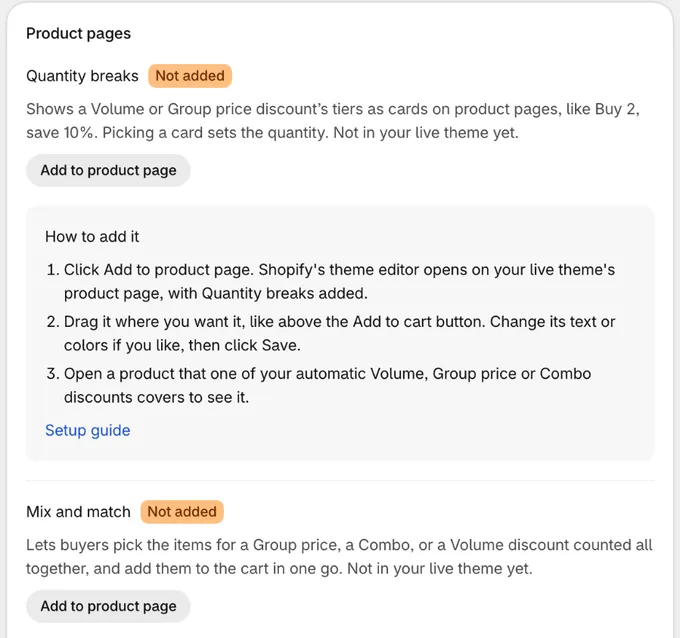
Open the discount in Checkout Buddy. Its Product pages card lists the blocks that can show it, and whether each is in your live theme. Home has them too, in the Online Store theme card.
-
Click Add to product page. Shopify’s theme editor opens on your live theme’s product page, with the block added. Quantity breaks goes inside the product information section. Mix and match goes in its own section, under the product.
-
Drag the block where you want it. Quantity breaks reads best above Add to cart. Change its text or colors if you like (see the settings below), then click Save.
-
Open a product that the discount covers to see it. The card in Checkout Buddy now shows Added.
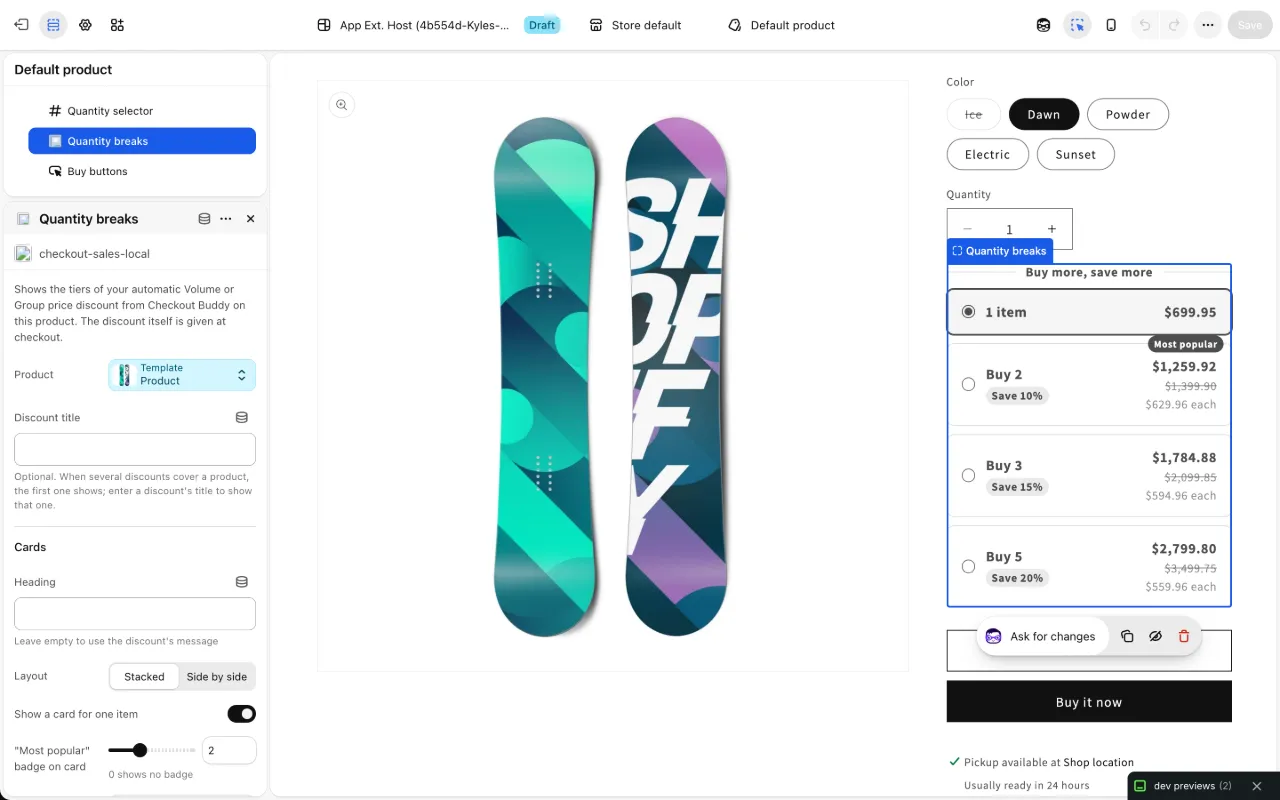
You can also add them yourself: in the theme editor, open a product template, click Add block in the product information section (or Add section for Mix and match), and pick the block under Apps. A block shows nothing on products without a deal, so one block on your product template covers every product.
To remove a block, select it in the theme editor, click the trash icon, and save.
Quantity breaks
Section titled “Quantity breaks”Quantity breaks shows one card per tier, with the price for that many of the chosen variant, the full price crossed out and the price each. When the buyer picks a card, the theme’s quantity box changes to match, and the theme’s Add to cart button adds that many. When the buyer changes the quantity box or the variant, the cards follow.
A Group price shows a card per group, like 3 for $1,800. A Volume discount counted all together says “Mix and match with other items in this deal.”, since the other products in the deal count toward the tier too.
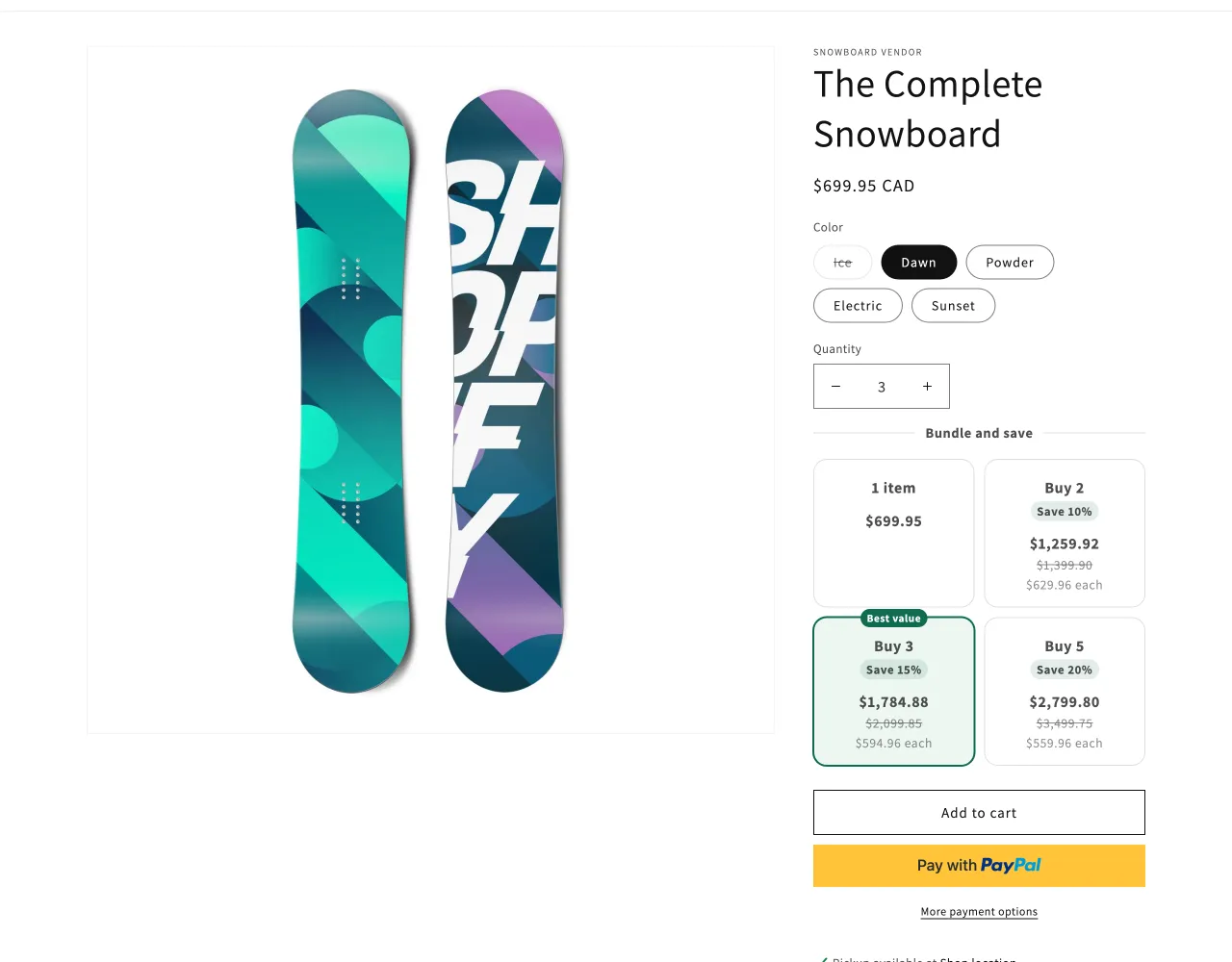
Its settings, in the theme editor:
- Product: the product it shows the deal for. Leave it as it is on product pages. In a Featured product section on another page, it follows that section’s product.
- Discount title: leave empty to show the deal that covers the product. When several cover it, the first one shows; enter a discount’s Title to show that one.
- Heading: leave empty to use the discount’s Message at checkout.
- Layout: Stacked (one card per row) or Side by side (two per row).
- Show a card for one item: a first card for buying one, at the full price.
- “Most popular” badge on card: which card has the badge, counting from the first.
0shows no badge. - Card picked at first: The first card or The “Most popular” card.
- Say when items can be mixed and matched: the line under deals counted all together.
- Picking a card: Sets the theme’s quantity (the default), or Shows this block’s own Add to cart button. Use the block’s own button if your theme has no quantity box, or ignores the one the card sets. It adds the chosen card’s quantity of the chosen variant.
- After the block’s own button adds: Go to the cart page, Go to checkout or Stay on the page.
- Text: your own words for One item card, Tier cards (
{quantity}is the tier’s quantity, likeBundle of {quantity}), Badge and Button. Leave them empty to use Checkout Buddy’s text in the buyer’s language. - Style: Picked card and badge color, Card background, Picked card background and Corner radius. Colors left empty follow your theme’s text color.
Mix and match
Section titled “Mix and match”Mix and match shows the deal’s products, each with its price, a variant choice and a quantity. The buyer picks their items, sees what’s left to reach the deal (“Pick 1 more to get the deal.”), then the total with the saving, and adds them all with one click.
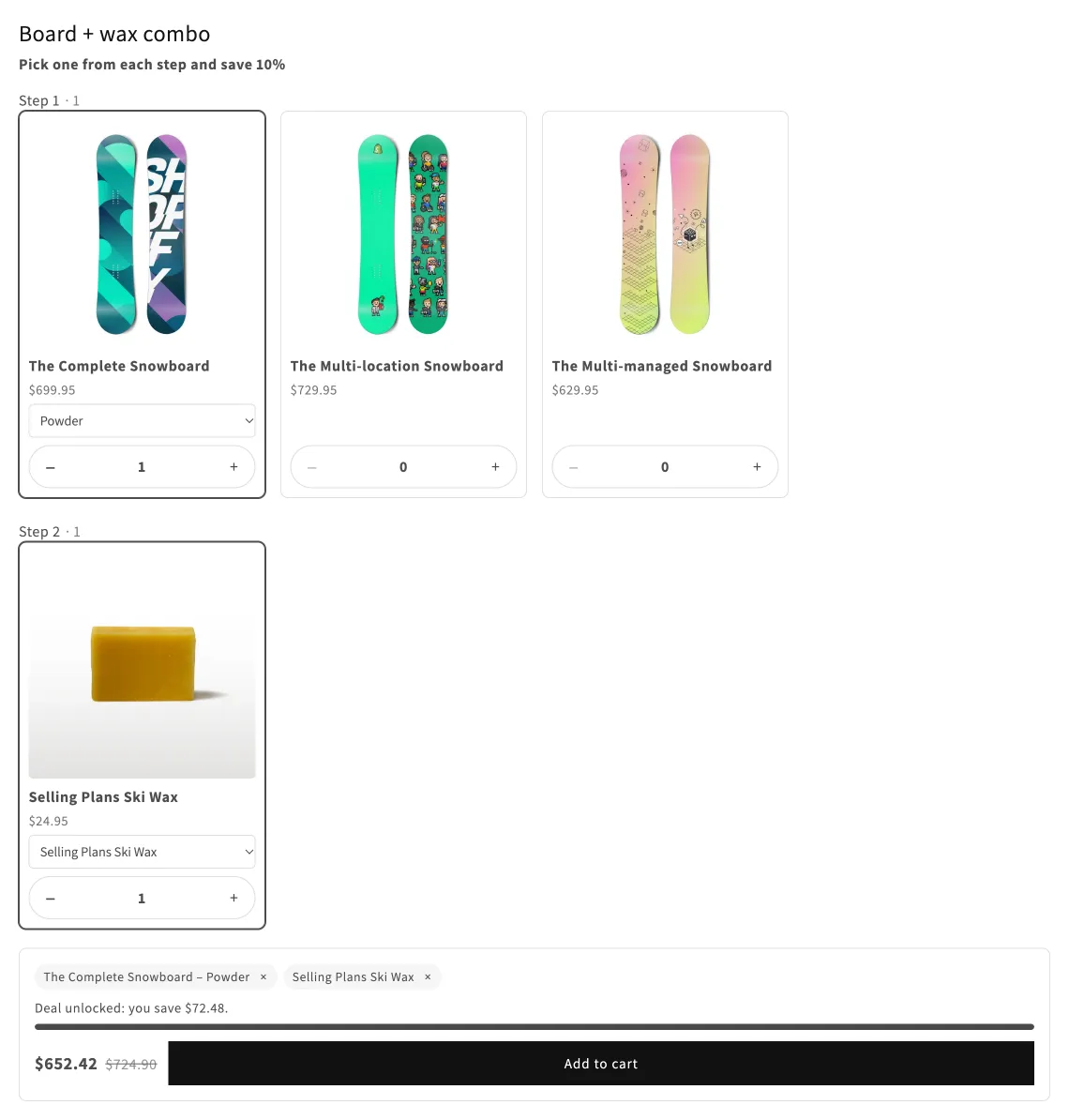
A Combo shows one step per group, like a board in step 1 and a wax in step 2. The deal is reached once the buyer has one from each step.
The products come from, in order:
- The block’s Or pick products, if you pick some, or its Products from a collection. Only the ones the discount covers show.
- Otherwise, the discount’s own products: the first 50 products of each of its collections, or up to 20 of its picked products.
A discount by Product tags or on All items has no list of its own, so pick products or a collection in the block.
A page of its own
Section titled “A page of its own”To give a deal its own page, like “Pick any 3”:
-
In Shopify admin, go to Online Store → Pages and add a page, like
Pick any 3. Under Theme template, pick a page template you won’t use for other pages, or make one in the theme editor (Create template in the template list). -
In the theme editor, open that page template, click Add section, and pick Mix and match under Apps.
-
Pick the products under Or pick products or Products from a collection, and enter the discount’s Title in Discount title. Add a Heading and Description if you like, then click Save.
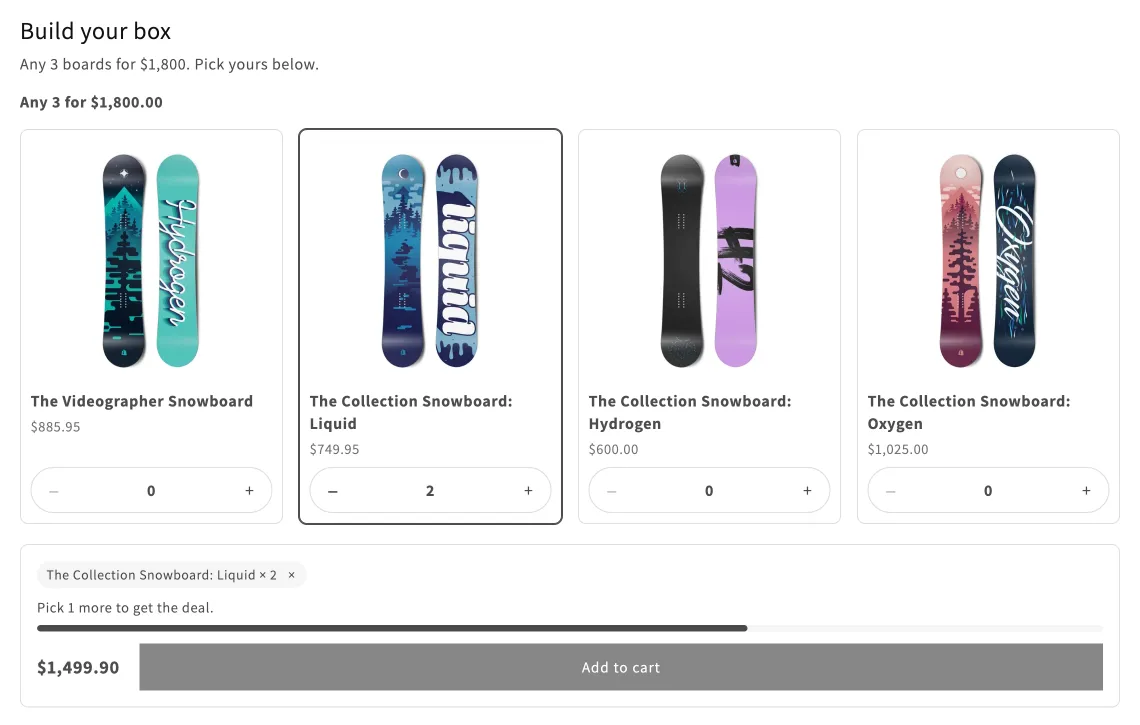
Its settings, in the theme editor:
- Product: on a product page, the deal that covers this product shows. Leave it as it is.
- Products from a collection and Or pick products: the products to pick from (see above).
- Discount title: enter a discount’s Title to show that one. Needed on a page that isn’t a product page.
- Heading and Description: leave the heading empty to use the discount’s Message at checkout.
- Products shown at most, Columns on desktop, Columns on mobile and Image shape (Square, Portrait or Like the image).
- Link product titles to their pages.
- Keep the total and button on screen while scrolling: for long lists.
- Add only once the deal is reached: on by default. Turn it off to let buyers add fewer items, at full price.
- After adding: Go to the cart page, Go to checkout or Stay on the page.
- Button: your own text for the button.
- Style: Buttons, picked items and progress color, Product background and Corner radius.
Prices on the blocks
Section titled “Prices on the blocks”The blocks show the prices checkout gives, worked out the same way:
- In the buyer’s currency, converted at Shopify’s exchange rate like checkout converts the discount.
- Rounded like checkout: a percentage comes off each item and is rounded down to the cent, so 2 × $699.95 at 10% off is $1,259.92, not $1,259.91.
- Group prices and combos discount the same items checkout does, like the cheapest ones when a buyer picks more than a group.
The product’s own price at the top of the page stays as your theme shows it.
Look and custom CSS
Section titled “Look and custom CSS”The blocks use your theme’s fonts and text color, so they fit most themes as they are. For anything the settings don’t cover, add CSS for .cb-qb (Quantity breaks) or .cb-mm (Mix and match) in your theme editor’s Theme settings → Custom CSS, for example .cb-qb__card { border-width: 2px; }.
A block shows nothing
Section titled “A block shows nothing”A block stays empty on a product that no deal covers, so check, in this order:
- The discount is on and automatic. A discount that’s turned off, a discount code, or one whose Active dates haven’t started or have ended doesn’t show.
- The product is in the deal. Open a product the discount covers, not one it leaves out.
- The discount is one the blocks show (see which discounts show): for All customers, on The same items, with no limits and no conditions on the cart.
- You’re the right customer. A discount with Customer tags shows only to logged-in customers with the tags.
- The block is on this template. In the discount’s Product pages card, the block should say Added. If your products use several templates, add it to each.
- It was changed in Shopify. After turning a discount on or editing it on Shopify’s Discounts page, open Checkout Buddy once to bring your product pages up to date.
Things to know
Section titled “Things to know”- The discount is given at checkout either way. The blocks only show it: removing a block doesn’t change who gets the discount.
- Two deals on one product: the block shows the first one, unless you enter a Discount title. At checkout, Shopify gives the buyer the bigger discount, so they never pay more than the block shows.
- Changes made outside Checkout Buddy: if you turn off, delete or edit a discount on Shopify’s Discounts page, open Checkout Buddy to bring your product pages up to date. Changes saved in Checkout Buddy show right away.
- Collections that aren’t on your Online Store (hidden collections) can’t be read by your theme. For a discount on one, Checkout Buddy keeps a list of its first 100 products, updated when you save the discount or open Checkout Buddy. Mix and match shows up to 20 of them.
- Saved in your store: the deals the blocks show are kept in your store’s
checkout_buddy.storefront_dealsmetafield. Your product pages don’t call Checkout Buddy’s servers, so they stay fast. - Languages: the blocks’ own text comes in English, French, German, Spanish, Italian, Dutch, Portuguese and Japanese, in the language the customer shops in.
- Older themes: themes without app blocks (made before Online Store 2.0) can’t show them. Home shows Not available then.