
Upsell / Cross sell
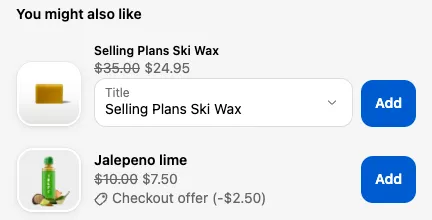
The Upsell / Cross sell block shows a list of products with an add button. It’s the main way to raise order value at checkout.
Requires: Shopify Plus and the Business plan.
Cross sell or upsell?
Section titled “Cross sell or upsell?”Offer type decides what the button does:
- Cross sell (Add product to cart): Adds the offered product as a new item. Use it for accessories, add-ons, and free gifts.
- Upsell (Replace product in cart): Swaps a product already in the cart for the offered product, for example a larger size or a premium version.
An upsell needs to know which cart product to replace, so it must have a Cart products display rule that lists the products to upgrade from. You’ll see Order product display rule required if it’s missing.
Choose which products to offer
Section titled “Choose which products to offer”Choose products by has five options:
| Option | What customers see |
|---|---|
| Select products manually | The products and variants you pick, in a random order each time |
| Select products by collections | Products from the collections you pick (up to 50 per collection). Untick Randomize order to keep the collection’s order. |
| Select products by tags | Products with any of the tags you enter, separated by commas (up to 50) |
| Select related products (Shopify algorithm) | Shopify’s related product recommendations for a product in the cart |
| Select complementary products (Shopify Search & Discovery) | The complementary products you’ve set up in Shopify’s Search & Discovery app |
When you pick products manually, only the variants you tick are offered. If you tick more than one variant, customers get a dropdown to choose. Tick one variant to hide the dropdown.
Recommendations
Section titled “Recommendations”For the two recommendation options:
- Recommend based on: Which cart item to get recommendations for: First item in cart, Last item in cart, Highest priced item in cart, or Lowest priced item in cart.
- Exclude products and Excluded tags: Products you never want recommended. Tags are comma-separated and not case-sensitive.
Exclusions only apply to recommendations. For the other options, just don’t pick those products.
Link a product instead of adding it
Section titled “Link a product instead of adding it”For manually picked products, click Manage next to a product to set a Call-to-action link. The button then opens that link instead of adding the product to the cart. It’s useful for products that need personalizing on the product page first.
Cart behavior
Section titled “Cart behavior”| Setting | What it does |
|---|---|
| Add quantity | How many to add: 1, 2, 3, Match the sum of all line item quantities, or Match the sum of all triggered line item quantities (Order’s products display rule). The last one matches the quantity of the cart products listed in your Cart products rule, which is handy for “one per item” add-ons like protection plans. |
| Hide product if already in cart | Hides each offered product once any variant of it is in the cart |
| Hide customization if cart already contains offer product | Hides the whole block once any offered variant is in the cart |
| Add free products to cart automatically | Adds the product without a click, if its price at checkout is $0. Use it with a 100% product discount for free gifts. |
| Add products only once per checkout session (if automatically added) | Stops a free product from being added again after the customer removes it |
Layout
Section titled “Layout”| Setting | What it does |
|---|---|
| Layout | Linear, Classic, Compact, Compact 2, or Compact (columns). A preview shows under the setting. |
| Products shown at once | How many products show at a time. Defaults to 2. |
| Image size | Product image size in pixels, for Classic and Compact. Defaults to 130. |
| Apply borders | Draws a border around the block |
| Enable pagination | Adds arrows to page through all products. Show page count adds the page number, such as “1 / 3”. |
Text and button
Section titled “Text and button”| Setting | What it does |
|---|---|
| Heading | Optional heading above the products |
| Body text | Optional text. Supports dynamic text, links, and bold. |
| Text under each product | Optional short line under every product, such as “Ships with your order” |
| Button text | Defaults to “Add” |
| Button style | Primary, Secondary, or Plain |
Product details
Section titled “Product details”- Show vendor
- Show product description (Classic and Compact layouts)
- Show quantity selector (Linear layout; Classic always has one)
- Show checkmark upon adding product: Replaces the button with a check mark once the product is in the cart. The block hides itself once every product shown is in the cart.
- Hide discount copy: Hides the discount line under discounted products.
- Hide price: Only use this if you show the price somewhere else, such as in the heading.
A/B testing
Section titled “A/B testing”Tick Enable A/B testing and choose a second set of products under Variant B products. Each time the block is shown, it picks set A or set B at random, 50/50.
Compare the two sets in analytics, which reports orders from each set separately.
Show a discounted price
Section titled “Show a discounted price”Products can show a discounted price, with the original price struck through, when they have an automatic product discount that applies to Checkout components (upsells, cross-sells, etc.). See discounted upsells.
Visibility
Section titled “Visibility”Under Visibility, choose Always show or Show on selected devices only, then tick Mobile / tablet and/or Desktop. The device type comes from the customer’s browser, so resizing a desktop window doesn’t change it.
Things to know
Section titled “Things to know”- The block hides itself when there’s nothing to offer. This happens when every product is sold out, already in the cart (with the hide options on), excluded, or unavailable in the customer’s market. It also happens when Shopify has no recommendations, or when the checkout doesn’t allow adding products, which can happen with some B2B and draft order checkouts.
- Sold-out variants are never offered. They’re removed automatically.
- Subscription products: products that can only be bought on a subscription are only offered when you pick products manually. The first selling plan is preselected, and customers can switch if there’s more than one.
- Prices and titles match the customer’s market and language. Products that aren’t available to the customer’s market aren’t shown.
- Upsell with several matching cart items: if more than one cart item matches the Cart products rule, the offered product is added and one unit of each matching item is removed. For clean swaps, list one product per upsell block.
- Products shown at once on the block takes priority over Number of products shown in the Checkout Editor.
- “Cart includes component product” rules only work when products are picked manually. With collections, tags, or recommendations, the block doesn’t know its products until checkout.
- Every product added records the block in the order’s
_buddy_dataline item property, for analytics and product discounts.