
Selected customers choose a free gift
The question: “We want selected customers to choose one free product from one of our collections when they check out.”
The answer: mark the selected customers with a customer metafield, then make a Product offer where buyers pick 1 product from your collection, shown only to customers with that metafield, and one Collection discount that makes their pick free.
Requirements: an offer and its discount. In checkout: Shopify Plus and the Buddy plan, with selected customers logged in at checkout. On your cart page and in your cart drawer: any Shopify plan except Starter, with the Deals & Rules or Buddy plan, and customer tags in place of the metafield.
Not on Shopify Plus, or would you rather use customer tags? See with customer tags, on your cart page.
-
Mark the selected customers. Checkout can’t read customer tags, so the offer reads a customer metafield instead. In Shopify admin, go to Settings → Metafields and metaobjects → Customers:
- If no definition uses
custom.field, click Add definition. Typefieldas the Name: the line under it readscustom.field. Set Type to Single line text, and save. You can rename it, such as toFree gift, once it’s saved. - Open each selected customer. Under Metafields, click Add next to your definition, type
vip, and save.
To set it automatically when you tag a customer, use Shopify Flow: the trigger Customer tags added, a condition on your tag, and the action Update customer metafield with the value
vip. - If no definition uses
-
Create the offer. In Checkout Buddy, go to Customizations → Upsells → Create customization → Product offers, and choose the Choose your free gift template. It’s a Choice of free gifts offer, with gifts side by side in Tiles. Give it a Name. Only you see it.
-
Remove the minimum spend. Under Offers, untick Use tiers. The template unlocks at a cart amount, so leave it ticked only if you want one.
-
Choose the collection. In the offer, set Products from to From a collection, click Choose collection, and pick the collection buyers choose from. Keep Order on the collection’s own order, and set Number of products to
100, the most: checkout shows only what the collection has, and products you add later show up by themselves. Buyers choose up to is already 1. -
Show it only to selected customers. Under Who sees it, choose Only checkouts that match conditions, then Customer metafield. Type
custom.fieldas the Name, keep is, and typevipas the Value.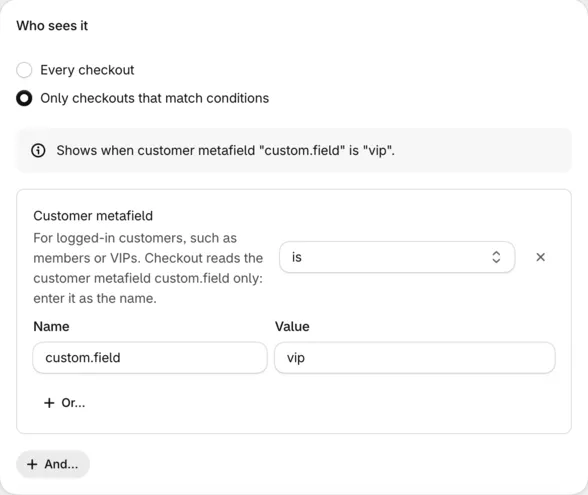
-
Choose how many show at once. Under Layout, Products shown at a time starts at 2. Set it to 6, for example: buyers see three rows of two and page through the rest with arrows and a count such as “1 / 4”.
-
Save. The offer saves as a Draft.
-
Create the discount. On the Discount at checkout card, click Create gift discount. The Discount page opens filled in: a Collection discount, 100% off each product in your collection, only on items Product offers add. Save it, then click Back to the offer. The collection now reads Free with and your discount’s name.
-
Publish. Under Status, turn on the switch so it reads Published, and save.
-
Add the app block if your checkout doesn’t have it yet: in Shopify’s checkout editor, add the Product offers app block to the main column, and save. See where to place it.
-
Test it. Log in at checkout as a selected customer: “Choose your free gift” shows the collection’s products with Choose buttons. Tap one: it’s added to the order for free and marked Selected, with a Remove link. Choosing another swaps it. Customers without the metafield don’t see the offer.
With customer tags, on your cart page
Section titled “With customer tags, on your cart page”On product and cart pages, a Product offer can read customer tags, so there’s no metafield to set up. It works on every Shopify plan except Starter, with the Deals & Rules or Buddy plan. Customers pick their gift on your cart page or in your cart drawer, before checkout.
-
Tag the selected customers in Shopify admin, for example
vip. -
Create the offer as in steps 2 to 4 above: the Choose your free gift template, Use tiers unticked, and your collection under Products from.
-
Show it on the cart page. Under Where it shows, tick Cart page, and untick Checkout if it’s ticked. The Customer tags condition is offered only while Checkout is unticked. Shopify doesn’t share customer tags with checkout.
-
Show it only to tagged customers. Under Who sees it, choose Only buyers who match conditions, then Customer tags. Choose has any of and type
vip. -
Save, then create the discount. On the Discount card, click Create gift discount, save the discount, and click Back to the offer.
-
Publish. Under Status, turn on the switch so it reads Published, and save.
-
Add the block and the app embed. On the Product and cart pages card, click Add to cart page, then Save in Shopify’s theme editor. Then click Turn on beside Turn on Product offers in your theme’s app embeds, and save there too.
-
Test it. Log in to your store as a tagged customer and add a product to the cart: the cart page shows “Choose your free gift” with Choose buttons. Customers without the tag, and guests, don’t see it.
- Tags ignore capitals:
VIPmatchesvip. - Guests have no tags. Customers need to log in to your store before they open the cart.
- Up to 50 products of the collection show on the cart page.
- See Product offers on product and cart pages.
Good to know
Section titled “Good to know”- Guests never see it, even with a selected customer’s email. They need to sign in first, from the Contact section of checkout.
- New products join by themselves. Add one to the collection and it shows in the offer, and the Collection discount makes it free too. Checkout shows the collection’s active products only, so keep them active, not Unlisted.
- Up to 100 products. A collection offer loads up to 100 products. In a bigger collection, the Order decides which 100 show.
- The value ignores capitals. is matches
VIPandvip. Use contains when the field holds several words, such asvip wholesale. - Checkout reads one customer metafield,
custom.field. It holds one value per customer, so use it for one purpose, or store several words in it and use contains. - To take the gift away, clear the customer’s value. In Flow, the trigger Customer tags removed and the action Remove customer metafield do it when the tag comes off.
- Products they buy stay full price. The discount covers only the one the offer adds.
Learn more
Section titled “Learn more”- Gifts buyers choose
- Who sees it: every condition
- Layouts: Tiles, List and paging
- Gifts from a collection: the Collection discount