
Product offers: upsells, add-ons and free gifts
Product offers shows products buyers can add, in checkout and on your store’s product pages, cart page and cart drawer. One editor makes four kinds of offer: an upsell with an Add button, an add-on buyers tick like gift wrap or shipping protection, a free gift that’s added by itself, and a free gift the buyer picks. An offer can unlock more as the cart grows, by amount spent or by number of items, and show the buyer a progress bar toward the next tier.
| Where it shows | What it needs |
|---|---|
| Checkout | Shopify Plus and the Buddy plan, and the Product offers app block in Shopify’s checkout editor |
| Product pages, the Cart page and your theme’s cart drawer | Any Shopify plan except Starter, with an Online Store 2.0 theme and the Product offers block in your theme. On the Deals & Rules or Buddy plan |
One offer can show in any mix of these: tick them under Where it shows.
This page covers the editor, with checkout as the example. For the theme block, the cart drawer and what works outside checkout, see Product offers on product and cart pages. The thank you page and customer accounts have their own offers: see thank you page offers and customer account offers.
What do you want to make?
Section titled “What do you want to make?”| You want | Start from | Guide |
|---|---|---|
| An upsell in checkout (Shopify Plus) | Start blank, or Discounted add-on for a % off | Add an offer, or the discounted upsell recipe |
| An upsell on the product page or the cart page | Goes well with | Upsells on product and cart pages |
| Frequently bought together, with one button that adds the set | Bought together on product pages, Frequently bought together in checkout | Bought together |
| An add-on buyers tick, like gift wrap, shipping protection or a donation | Gift wrap, Shipping protection or gift wrap, Protection levels or Donation per item | Add-ons, checkbox upsells |
| A free gift over an amount, such as a free tote over $75 | Free gift over a spend | Free gift recipe |
| Another gift, or more of one gift, at each amount | Tiered free gifts | Tiers |
| Buyers pick their free gift | Choose your free gift | Gifts buyers choose |
| Buy X get Y or buy one get one (BOGO), with the free item added to the cart | Buy X, get Y free, under Templates → Free gifts | Buy X get Y |
| A cart progress bar toward a free gift | An offer with tiers, such as Tiered free gifts, with Cart page ticked under Where it shows | Progress |
| “You’re $12 away from free shipping”, with products that get the buyer there | Close the gap | Close the gap |
Not sure which gift setup fits? See which gift setup to use.
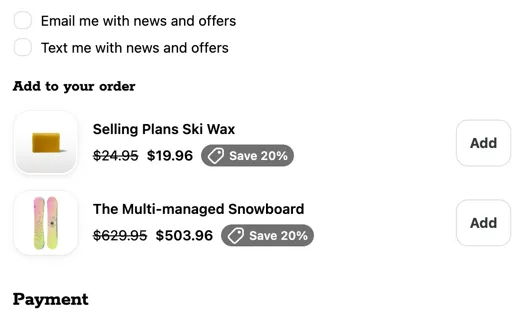
Add an offer
Section titled “Add an offer”These steps work for every offer type. To watch an upsell with an Add button made and placed in checkout, see the setup video, from 0:36.
- In Checkout Buddy, go to Customizations → Upsells → Create customization → Product offers. Choose Start blank or a template, and give the offer a Name. Only you see it.
- Under Offer type, choose how buyers get the products. See offer type.
- Under Where it shows, tick Checkout, Product pages, Cart page, or any mix. A new offer starts in checkout on Shopify Plus stores on the Buddy plan, and on product and cart pages on other stores.
- Under Offers, pick the products. To give more at higher cart totals or item counts, tick Use tiers and add tiers. The Preview shows the offer as buyers will see it.
- Save the offer. A free gift, a % off, an amount off or a fixed price also needs a discount: the offer shows the price, and a discount applies it. Set it up on the Discount at checkout card, called Discount when the offer also shows on product or cart pages. An upsell or add-on at its regular price needs none. For gifts, a % off and a fixed price, Set up in 2 steps at the top of the editor shows both parts, the offer and its discount, until they’re done. See discounts for product offers.
- Under Status, turn on the switch so it reads Published, and save. New offers start as Draft.
- Place it, once. The block you add shows every published offer, so later offers need no placing.
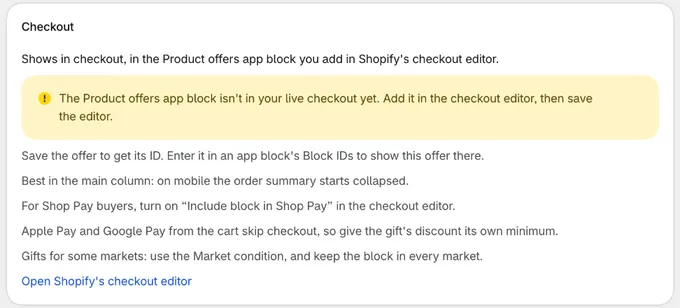
- In checkout: on the Checkout card beside the editor, click Open Shopify’s checkout editor, add the Product offers app block, and save the editor. The card warns you while the app block isn’t in your live checkout.
- On product and cart pages: on the Product and cart pages card, click Add to product page or Add to cart page, then Save in Shopify’s theme editor. See set it up.
Which offers an app block shows
Section titled “Which offers an app block shows”In Shopify’s checkout editor, the Product offers app block has two settings, Block IDs and Show first match only:
- Block IDs empty: every published offer whose conditions pass shows, oldest first, one under the other. There’s no random pick: if three offers pass, buyers see all three.
- Block IDs with offer IDs, separated by commas: only those offers, in that order. An offer’s ID is in its Status card once you’ve saved it.
- Show first match only ticked: the block shows only the first offer whose conditions pass, in Block IDs order (oldest first when empty), and adds nothing for the others, gifts and fees included. For example, with Block IDs
12, 15, 9and a cart that meets 15’s and 9’s conditions but not 12’s, buyers see only 15.
If you add the app block more than once, list IDs in each, so no offer shows twice.
The theme block for product and cart pages has Offer IDs only, with no Show first match only: see which offers a block shows.
Where to place it
Section titled “Where to place it”- The main column works best, because on phones the order summary starts collapsed and offers there are easy to miss.
- Sections work too, like above or below the shipping address or the shipping methods, but not under each line item or shipping option.
- Shop Pay buyers: turn on Include block in Shop Pay in the checkout editor.
- Gifts for some markets: use the Market condition under Who sees it, and keep the app block in every market. Only the app block can take a gift back out, so a buyer who moves to a market without it would keep a gift they no longer qualify for.
- Apple Pay and Google Pay from the cart skip checkout, and your offers with it. See Apple Pay, Google Pay and Shop Pay.
Templates
Section titled “Templates”Start blank is an offer with an Add button, no tiers and the List layout. Each template opens as a draft with its settings and text filled in, and its products, collections, codes and amounts left for you to fill in.
| Template | What it sets up |
|---|---|
| Complementary products | Your complementary products from Search & Discovery, with an Add button. |
| Close the gap | How far the buyer is from free shipping, and only the products that get them there. |
| Spend more, unlock more | Products at 10% off from one amount, and more at 20% off from a higher one. |
| Discounted add-on | Products you pick at 20% off, with an Add button. |
| Frequently bought together | Products you pick at 10% off each, with a total and one button that adds them all. |
| Shipping protection or gift wrap | One product in its own box, with a switch buyers turn on. Off to start. |
| Protection levels | One product’s levels, like protection or a warranty. Buyers pick one or No thanks. |
| Donation per item | A checkbox that adds one donation for every item in the cart. |
| Free gift over a spend | A gift added automatically once the cart reaches an amount. |
| Tiered free gifts | Spend more, get more: another free gift at each cart amount. |
| Choose your free gift | Buyers pick one of your gifts once the cart reaches an amount. |
| Free gift for first orders | A welcome gift for logged-in customers placing their first order. |
| Free gift with a code | A gift added automatically when the buyer enters one of your discount codes. |
| Free sample with every order | A sample added to every order, which buyers can remove. |
Three more templates are made for product and cart pages: Goes well with, Bought together and Gift wrap. See templates for product and cart pages.
- Where a template opens: Complementary products and Frequently bought together open in checkout. Start blank and the other templates above open in checkout on Shopify Plus stores on the Buddy plan, and on product and cart pages on other stores. Change it under Where it shows.
- Without Shopify Plus, the window leaves out Complementary products and Frequently bought together. Use Goes well with and Bought together instead, or Start blank with Products from set to Complementary products.
- Buy X, get Y free isn’t in this window. It’s under Templates → Free gifts on the Select customization page, and opens a Buy X get Y discount that makes its own offer: see offers made by a Buy X get Y discount.
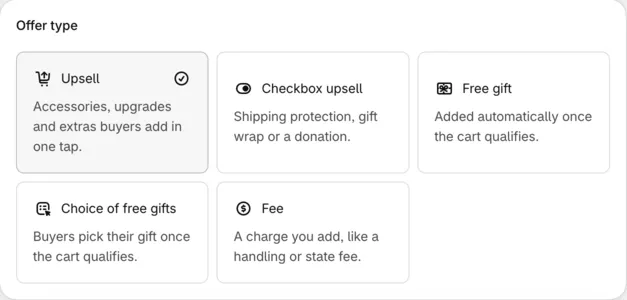
Offer type
Section titled “Offer type”| Type | Use it for | Products can come from |
|---|---|---|
| Upsell | Accessories, upgrades and extras buyers add in one tap | Manually selected products, a collection, a tag, the cart’s product types, or complementary or related products |
| Checkbox upsell | Shipping protection, gift wrap or a donation | Manually selected products |
| Free gift | Added automatically once the cart qualifies | Manually selected products |
| Choice of free gifts | Buyers pick their gift once the cart qualifies | Manually selected products, or a collection |
| Fee | A charge you add, like a handling or state fee. Switched on per store | One manually selected product |
Only automatic gifts, and fees set to be added automatically, are added without a tap. Other paid products are never added or ticked for the buyer.
You can change the type later. Tiers are kept, but tiers whose products the new type can’t use are emptied. Only Upsell offers can suggest products that reach a goal, so changing to another type turns that off.
Upsells
Section titled “Upsells”- A tap on Add adds the product, in the variant the buyer chose, with the quantity and subscription if those pickers are on. See each product.
- Button opens a page, on a product you pick, opens that page instead of adding the product. Use it for a product that needs options chosen on your store.
- % off, amount off and fixed prices need a matching discount. If checkout charges more than the row showed after the tap, it removes the item, and the row shows its regular price with “This price isn’t available right now”. On an offer shown only on product and cart pages, nothing removes the item: buyers pay the regular price. See % off upsells and checkbox upsells.
- Once the product is in the cart, its row shows what checkout charges for it. Once a product is in the cart sets whether it stays, marked Added, or hides.
- Added items stay in the cart, with any discounted price, even if the cart later stops meeting the offer’s conditions or tier. To limit the % off, give its discount its own minimum.
Checkbox upsells
Section titled “Checkbox upsells”- Unticked to start. Shopify’s buyer consent rules don’t allow apps to add paid products to the cart without the buyer’s explicit consent, so the buyer ticks it.
- Unticking removes only the line the offer added. If the product is already in the cart from elsewhere, such as your store or another offer, the row shows “In your cart” and leaves it alone.
- Only one can be ticked, under Layout, makes ticking one untick the others, for a choice like standard or premium gift wrap. The Choose one layout always works this way.
- When the quantity should change, because the cart reached another tier or, with one per item, the number of items changed, the line is updated by itself if it costs the same or less. Otherwise the buyer sees “Update to cover N items” (or “Update to” another variant) with the extra amount, and taps it to agree. If checkout can only add what’s in stock, the add-on keeps that many and the buyer isn’t asked again.
- A ticked add-on keeps its row if the cart stops meeting the offer’s conditions, or the product sells out, so the buyer can untick it. The rest of the offer hides.
Free gifts
Section titled “Free gifts”Free gift adds the gift by itself once the cart qualifies, changes its quantity between tiers, and takes it out when the cart no longer qualifies. Choice of free gifts shows Choose buttons, and the buyer picks up to the number you set. See gift offers.
Fee adds one product you charge for, automatically while the conditions pass or when the buyer ticks it, at its price, its price for every few items, or a percentage of the cart. It has its own Fee card instead of Offers, Text and Layout. We switch fees on per store: see fees.
Offers made by a Buy X get Y discount
Section titled “Offers made by a Buy X get Y discount”A Buy X get Y discount with Add the items customers get to their cart ticked makes its own Product offer, which adds the free item for buy X get Y, BOGO or a gift with a certain product. The Buy X, get Y free template sets one up.
- The discount decides the deal. The offer’s page shows a Buy X get Y card linking to the discount, in place of Offer type, Offers, the discount card and Who sees it. To change what’s added, when, or for whom, change the discount and save it.
- The offer’s page keeps the rest: its name, Where it shows, Text, Layout, Translations and, for free items, Remove gifts that aren’t free on the Buy X get Y card.
- To stop adding the items, untick Add the items customers get to their cart on the discount. That deletes the offer.
Products
Section titled “Products”Under Offers, each tier (or the offer, with no tiers) has its products under Products from:
| Products from | What it offers | For |
|---|---|---|
| Manually selected | The products and variants you choose, in your order | Every choice |
| From a collection | A collection’s products, in the Order you choose | Upsells, gifts the buyer picks |
| With a tag | Products with any of the Product tags you enter | Upsells |
| Same product type as the cart | Products with the same Product type as any item in the cart | Upsells |
| Complementary products | Products you set as complementary in Shopify’s Search & Discovery app, for an item in the cart | Upsells |
| Related products | Products Shopify recommends for an item in the cart, set automatically or in Search & Discovery | Upsells |
Choices that can’t be used are greyed out with the reason. Automatic gifts and checkboxes use manually selected products, so checkout knows exactly what it adds. For gifts the buyer picks from a tag, use an automated collection with that tag.
- Manually selected: click Choose products and tick the variants to offer. Each product can have its own Title and Description, shown under the title in place of the product’s own. Checkbox upsells also have Description while ticked, and upsells Button opens a page. Use the same products as the tier below copies a lower tier’s products.
- A collection or a tag: choose the Order (the collection’s own, Best selling, Newest, or by price), the Number of products to load (up to 100), and Leave out products tagged. The layout sets how many show at once, and buyers page through the rest.
- Same product type as the cart: a candle in the cart shows your other candles; a candle and a soap show both, in one list. It matches each product’s Type (under Product organization) exactly, and skips items without one. Choose the Order, the Number of products and Leave out products tagged, as for a tag. With Once a product is in the cart set to Hide the whole offer, the offer hides once the buyer adds one of its products; the cart items it matches don’t count.
- Complementary or related products: choose what they’re Based on (the first, last, highest priced or lowest priced item in the cart). Shopify suggests up to 10. Use Leave out products tagged and Leave out products to skip some.
- Quantity: a set number of each product (1 to 999), or One for every few items in the cart, such as one donation per item. See quantity per item.
- Offer name, such as “a second free gift”, fills
{{reward}}in the heading, text and progress: “Spend $20 more to get a second free gift”. - Different text for this tier (Different text for this offer without tiers) gives a tier its own price text, badge and note. The rest comes from the Text card.
For tiers, items that count and progress, see tiers and goals.
| Setting | What it does |
|---|---|
| Heading | Above the products, such as “Your free gift” or “Add to your order” |
| Text | Under the heading. Bold and links work. |
| Price | What the row says before the product is in the cart: see the choices below |
| Badge | A short tag such as “Free gift” or “Save 20%”, with an Icon and a Color (Gray or Red) |
| Note under each product | Such as “Free with orders over {{threshold}}” or “Ships with your order” |
| Labels | The button and state text, such as Add button, Added, Choose button, Remove link, Free and, with tiers, Unlocks at. Untick Show “Free” on products that cost nothing to show no price on them, such as a free trial whose text already says it’s free. |
Price depends on the offer type:
- Gifts: Free, Your text instead of the price or No price.
- Upsells and checkbox upsells:
- Regular price
- % off: 1 to 99, off each product’s live price
- Amount off: the same amount off each product, such as $20 off
- Fixed price: every product at one price, such as $100, whatever its own. A product already at or below it keeps its own price.
- Label next to the price (upsells and checkbox upsells, optional): such as “Member price”.
- Strike through the regular price: for Free, % off, Amount off and Fixed price. Ticked to start.
The price text is only text: what buyers pay comes from your discounts. Once the product is in the cart, the row shows what checkout charges. See why offers need a discount.
Empty labels show defaults in the buyer’s language: English or French in checkout, and eight languages on product and cart pages. For other languages, write your own and translate them.
Tokens
Section titled “Tokens”Use these in the heading, text, progress, note and Unlocks at label:
| Token | Shows |
|---|---|
{{remaining}} |
What’s left to the next tier or goal, such as $12.00 or 2 items |
{{reward}} |
The tier’s Offer name, or the goal’s Name. Without one, “a free gift” for gifts and “this offer” for the others. |
{{threshold}} |
Where the tier starts, such as $50.00 |
{{percent}} |
The % off |
{{count}} |
The quantity |
Amounts show in the buyer’s currency, converted at Shopify’s rate. See amounts in other currencies. The {{ }} expressions older blocks use for dynamic text don’t work here.
Layout
Section titled “Layout”The Layout card sets how the offer looks: List, Featured, Tiles, Slider or Bought together for upsells; List, Featured and Tiles for gifts, plus Slider for gifts buyers pick; Line, Card or Choose one for checkbox upsells. It also sets what each product shows, what happens once a product is in the cart, and on which devices the offer shows. See layouts.
Preview
Section titled “Preview”The Preview card, under Status, draws the offer with your products, text and layout as you edit. Its tabs follow Where it shows:
- Phone, Order summary and Computer show the offer in checkout, at those widths.
- Product page shows it as your product and cart pages draw it. Your theme’s fonts and colors apply on your store, not in the preview.
For an offer with tiers, a goal or a quantity per item, a sample cart under the preview lets you move the subtotal or the number of items, to walk through each tier. Add, Choose and the tick boxes work on the sample cart. If your store has more than one language, pick one at the top of the card to check its translations. Prices and amounts show in your store’s currency. Buyers see theirs.
Who sees it
Section titled “Who sees it”Under Who sees it, choose Every checkout or Only checkouts that match conditions. For an offer that shows on product or cart pages, they read Every buyer and Only buyers who match conditions. Conditions inside a group are “or”: any one of them is enough. Groups are joined with “and”: every group must pass. Use Or… to add to a group and And… to add a group.
Some conditions work in one place only. Customer tags is for product and cart pages; the Delivery conditions, Discount applied, No discount applied, Customer metafield and Company are for checkout. See what works on product and cart pages.
| Group | Conditions |
|---|---|
| Cart | Cart total (what they’d pay now, with shipping and taxes once known), Cart subtotal (items after discounts, before shipping and taxes), Number of items, Cart contains, Product type, Vendor, Product tag, Has a subscription, No subscription, Cart has items from (collections), Discount applied, No discount applied, Discount code, Cart attribute (an answer saved by a form or another checkout block, by its key) |
| Delivery | Delivery method, Shipping country (two-letter codes), Shipping province or state, Shipping postal code (the start is enough: 90 matches 90210) |
| Customer | Logged in, Guest, First order (logged-in customers with no orders yet), Returning customer, Number of previous orders, Customer metafield (custom.field), Customer tags (product and cart pages only), B2B order, Isn’t B2B, Company |
| Market, language and schedule | Market (follows the shipping country in checkout, and your store’s country selector on product and cart pages), Market country, Language (“fr” also matches “fr-CA”), Date, Day and time |
- Conditions read the buyer’s own items. Free gifts and checkbox upsells from any offer never count.
- Product type and Vendor: add each type or vendor on its own, so a name with a comma like
Acme, Inc.stays one name. - Amounts and counts: Cart total, Cart subtotal, Number of items and Number of previous orders compare with is more than, is at least, is less than, is at most, is exactly or is not. Is at least $100 includes $100 itself; is more than $100 doesn’t.
- To give more from an amount, use a tier instead of a Cart total, Cart subtotal or Number of items condition. A tier also shows the buyer’s progress.
- Date and Day and time use your store’s time zone, which is saved with the offer. If you change the time zone in Shopify, save your offers again. They’re checked again while the buyer is in checkout, so a gift whose time window ends comes back out.
- Customer tags (has any of or has none of the tags you type, capitals ignored) is offered while Checkout is unticked under Where it shows, because Shopify doesn’t share customer tags with checkout. Guests have no tags. In checkout, use Customer metafield instead.
- B2B buyers get free gifts only from offers with a B2B order or Company condition.
- Market: in checkout, it follows the shipping country. On product and cart pages, it follows the country buyers shop in, from your store’s country selector, and so does Market country. A market inside another counts on its own, so tick both. An offer with a Market condition stays hidden if checkout doesn’t report a market.
- Shipping postal code ignores capitals, spaces and dashes, and matches the start of the code: “SW1” also matches SW10, so use SW1A.
- Discount code: each code must be a Shopify discount of any kind, like 10% off or free shipping. Checkout drops codes that don’t exist.
Translations
Section titled “Translations”Translate an offer in its editor’s Translations card: pick a Language and fill in the fields. Leave a field empty to show your default text. Product offers aren’t on the Translations page under App settings.
You can translate the heading, text, progress lines, goal names, price text, badge, note and labels, each tier’s Offer name and its own text, and each picked product’s title and descriptions. Translations stay with their tier when you add, remove or reorder tiers.
To check a translation, pick the language in the Preview.
Analytics
Section titled “Analytics”Under Analytics, Record views for Analytics counts how many buyers saw each offer. It’s on for offers made since November 8, 2026, and off for older ones until you tick it. It adds a hidden order attribute, __buddy_offers_seen, listing the IDs of the offers the buyer saw (such as 12,40), under Additional details on the order.
- An offer counts as seen once its products have been on screen for a second. A collapsed offer counts once the buyer opens it, or sees its Next reward box.
- Nothing is recorded in Shopify’s checkout editor, or from Apple Pay and Google Pay.
- Views count in checkout only. An offer that shows only on product and cart pages has no Record views for Analytics box.
- Without it, Analytics still reports orders with added products, sales from them and free gifts. For offers on product and cart pages, it reports them by where buyers added them: see analytics on product and cart pages.
See analytics.
What’s different from older offers
Section titled “What’s different from older offers”- Tiers in one offer, instead of one block per tier kept apart with conditions and Fixed block ID.
- Gifts that keep themselves right: added, resized and removed as the cart changes, never added twice, and a buyer’s removal respected. No Line item remover needed.
- Gift discounts shown: the editor shows which discount makes each gift free, and can take out a gift checkout charges for.
- The price text you type (Free, % off, a badge with an icon, a note), instead of discount markings.
- Every offer that passes shows, one under the other, instead of one picked at random.
- Four ways to add products in one editor, with templates, progress, close the gap, and amounts converted to the buyer’s currency.
- Product pages, the cart page and the cart drawer, on every Shopify plan except Starter. Older offers show in checkout only.
- Newer conditions, such as a Market picker, First order, Returning customer, Number of previous orders and Customer metafield, with schedules in your store’s time zone.
Not in Product offers:
- Replacing a product in the cart, the older Replace a product in the cart (upsell) offer type.
{{ }}expressions in text. The tokens cover their uses.- Discount markings for prices. Your price text and the discount check replace them.
- Some older conditions:
- Accepts marketing: it reads only a logged-in customer’s saved consent, not the box ticked in this checkout, and rewarding consent is a policy risk. For member offers, use a Customer metafield.
- Line item price, quantity and title: use tiers with Only cart items from…, or Cart contains, Product type or Vendor. Titles also change with translations.
- Cart weight: rarely used, and slow to check at checkout.
- Cart tax: unknown until the address is in, so offers would flicker.
- City: spelled many ways. Use the postal code.
- Item and collection counters: tiers count them, with progress.
Older offers keep all of these.
Things to know
Section titled “Things to know”- Limits: up to 5 tiers. Per tier, 25 products and 100 variants you pick, 1 to 100 products from a collection or tag, or up to 10 suggestions. Past 10 variants, the editor suggests a collection or tag for upsells and gifts the buyer picks, since they’re easier to keep up to date, and fewer variants for automatic gifts, since Shopify may skip a discount that lists many in big carts.
- All your offers share one storage space in Shopify. Near the limit, the editor says “Your offers are close to Shopify’s metafield size limit. Delete offers you no longer use to make room.” A save that doesn’t fit says “Your offers have reached Shopify’s metafield size limit. Delete or shorten some offers, then save again.”
- In Shopify’s checkout editor, offers never add gifts. Notes only you see explain which offers show, why others are hidden, and gifts that can’t be found or aren’t free.
- Turn off older Product offers, Checkbox product offers and Line item removers that add or remove the same products, so they don’t undo each other. If an older block’s free gift of the same variant is in the cart, the new offer leaves that gift to it, so buyers get only one.
- Items Product offers add count as added by Checkout Buddy, for older blocks’ conditions such as Line item added by Checkout Buddy, and for order discounts that count Quantity of items added by Checkout Buddy.
- Deleting a published offer hides it right away. Gifts it added come out of carts still in checkout, and on product and cart pages with the app embed on, on the buyer’s next page. Orders already placed keep their items.
- In checkout, on plans other than Buddy, offers can’t be saved with Checkout ticked, though you can still turn an offer off. Without Shopify Plus, the Product offers card offers product and cart pages only, and an offer with Checkout ticked shows a Needs Shopify Plus warning. See plans.
- Fees show in checkout only. The other four offer types also work on product and cart pages.