
Product discounts
A product discount, Amount off products in the app, takes a percentage or an amount off the products you pick, or sells them at a fixed price. It applies automatically when its conditions pass, or when the customer enters a code. It works on every Shopify plan and every Checkout Buddy plan, Free included.
Use a product discount to:
- Put a few products on sale, such as 10% off two sweaters.
- Put a featured product on sale when the cart is over a certain amount.
- Make an item free when it’s offered as a free gift.
- Discount products only when buyers add them from a Product offer.
For a whole collection, a collection discount is simpler, and isn’t limited by how many products the collection has. For a lower price the more customers buy, such as 10% off 2 or more, use a volume discount. For buy 2, get 1 free, BOGO, or a free gift added to the cart when customers buy something, use Buy X get Y.
Create a product discount
Section titled “Create a product discount”-
In Checkout Buddy, open Customizations. On the Discounts tab, click Create customization, then the Discounts card.
-
Under Type, choose Amount off products. Under Method, choose Automatic discount or Discount code.
-
Give it a Title, choose the Discount type and its value, and pick the Variants applied to.
-
Set conditions if it should only apply sometimes, and click Save.
The discount shows on the Discounts page in Shopify admin, titled with its Title. Clicking it there opens it in Checkout Buddy.
Settings
Section titled “Settings”Discount configuration
Section titled “Discount configuration”- Discount type: Percentage, Fixed amount (an amount off, such as $20 off) or Fixed price.
- Discount value: The percentage or amount. It has to be above 0, and a percentage can’t be over 100.
- Convert to the customer’s currency (Fixed amount): the amount is in your store’s currency and converted for other currencies. On for new discounts; older discounts start with it off, see Things to know.
- Fixed price: Every selected item sells for the Price. At $100, a $430 item and a $1,000 item both sell for $100. Items already at or below it keep their price. It’s in your store’s currency and converted for other currencies. It works on Condition set 1 only. It doesn’t work with Checkout components: use Cart or Product offers.
- Discount message: The label customers see next to the discount at checkout. Defaults to
DISCOUNT. Code discounts don’t have this field; customers see the code instead.
Target products
Section titled “Target products”- Variants applied to: The products and variants that get the discount. Only the variants you tick are discounted. Pick at least one: saving asks for one.
- Areas applied to: Which cart lines get the discount. Only on the automatic Product discount.
| Choice | What it discounts |
|---|---|
| Cart | Any cart line with a selected variant, however it got there, including items Product offers add. |
| Checkout components (upsells, cross-sells, etc.) | Selected variants only when a Checkout Buddy block added them, Product offers included. Under it, the page reads “Legacy · For older Product offers and Checkbox offers. New Product offers use “Product offers”.” It’s also what Line item upsell and the cart line editor use to show a discounted price. |
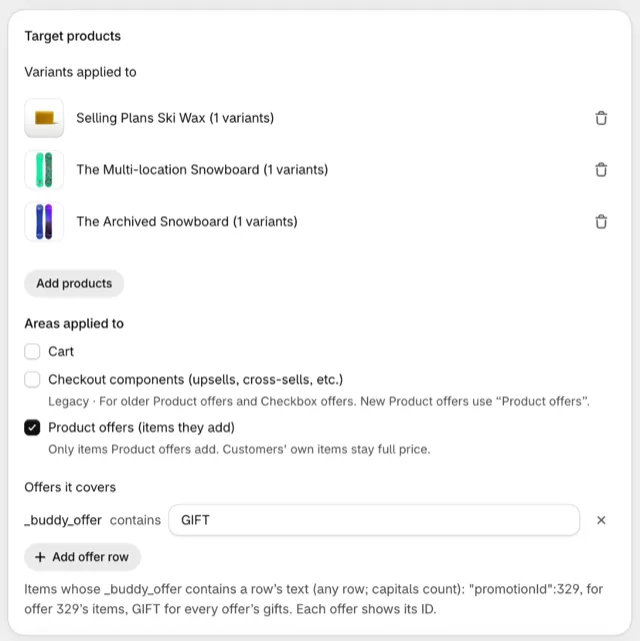
| Product offers (items they add) | Selected variants only when a Product offer added them. Customers’ own items stay full price. |
Cart is ticked by default. To discount an item only when buyers add it from a Product offer, tick Product offers (items they add):
- It can’t be combined with Cart or Checkout components: ticking it unticks them, and ticking either of them unticks it.
- Only automatic discounts on Condition set 1 can use it. Condition set 2 and code discounts can’t.
- Line attribute conditions are disabled while it’s ticked, since Product offers uses the discount’s line attribute. To cover only some offers, add rows under Offers it covers:
_buddy_offercontains"promotionId":329,for one offer’s items, orGIFTfor every offer’s gifts. See which offers a discount covers. - One discount can cover every offer: list the products of each. Free gifts and % off items are set up from the offer’s Discount at checkout card. See discounts for product offers.
For an older Product offers block, tick Checkout components and untick Cart, as here:
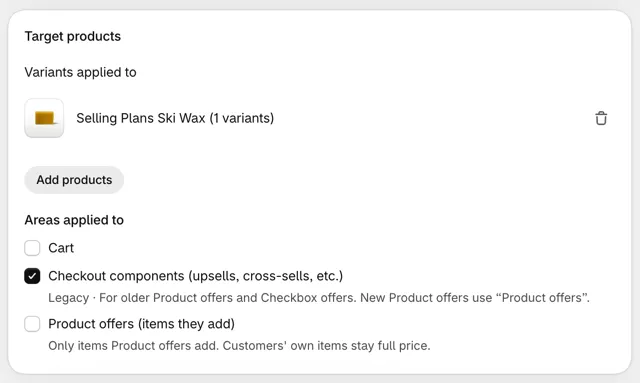
On stores without Shopify Plus, the field has Cart and Product offers (items they add).
Quantity limits
Section titled “Quantity limits”- Set discount quantity limit → Line discount quantity limit: The most units discounted on each cart line, a whole number from 1. With a limit of 1, a customer buying 3 pays full price for 2 of them. Leave it blank for no limit.
- Apply discount to each item: For fixed amounts (a fixed price is always each item’s, so it’s hidden then). When ticked, the amount comes off every unit. When unticked, the amount is shared across all the discounted items. Older Product discount codes didn’t keep the tick and shared the amount: tick it again and save.
Combinations
Section titled “Combinations”- Combines with order discounts, Combines with product discounts, Combines with shipping discounts: Whether this discount can be used together with other discounts of each kind. All are off by default, which means Shopify picks the best single discount for the customer.
- Enable stacking of product discounts (after ticking Combines with product discounts): Lets several product discounts apply to the same cart line, but only discounts that share a tag. Shopify only supports this on Shopify Plus.
- Discount tags (comma-separated): The shared tags.
- Shopify automatic product discount IDs (comma-separated) and Shopify product discount code IDs (comma-separated): Add the IDs of Shopify’s own amount-off discounts if they should stack with this one. Checkout Buddy tags them for you.
Subscription
Section titled “Subscription”- Purchase type: One-time purchases and subscriptions (the default), One-time purchases only, or Subscriptions only. Shopify leaves the discount off the other purchases.
- Recurring cycle limit (when subscriptions are included): How many subscription orders get the discount.
1, the default, is the first order only,0is every order, and3is the first three. Left blank, it saves as1.
Discount code (code version only)
Section titled “Discount code (code version only)”- Discount code: What customers type at checkout. Required.
- Limit to one use per customer
- Apply usage limit → Usage limit: The total number of times the code can be used. Leave unticked for no limit.
Schedule and eligibility
Section titled “Schedule and eligibility”In Active dates, tick Set specific start date and Set specific end date to schedule the discount. Without a start date, it starts when you first save it, and saving it again keeps that date.
Eligibility: All customers, or only Specific customer segments or Specific markets, which Shopify checks itself. See segments and markets.
Showing the discounted price inside blocks
Section titled “Showing the discounted price inside blocks”This section is for older Product offers, Checkbox product offers, Line item upsell and the cart line editor. New Product offers don’t use it: they show the price text you write, and their editor checks a discount covers it. See discounts for product offers.
When a product discount applies to Checkout components, these blocks show the discounted price with the original price crossed out: older Product offers blocks, checkbox product offers, line item upsells, and the cart line editor’s add-on button in the Cart line item app block.
For blocks to read the discount, your store needs the variant metafield definition checkout_buddy.markings with Storefront API access. Checkout Buddy creates it when you save a product discount with Checkout components ticked, and turns on Storefront API access if you created the definition yourself without it. Without the definition the discount still applies at checkout, but blocks show the full price and free gifts aren’t added automatically.
To check it exists, in Shopify admin go to Settings → Metafields and metaobjects → Variants and look for checkout_buddy.markings. Checkout Buddy names it Checkout Buddy: Discount markings. Open it and check Storefront API access is on.
If it isn’t there, create it:
-
In Shopify admin, go to Settings → Metafields and metaobjects → Variants.
-
Click Add definition. If you’ve saved a product discount before,
checkout_buddy.markingsmay already be listed under metafields without a definition; select it. -
Set Namespace and key to
checkout_buddy.markingsand Type to JSON. Any name works. -
Turn on Storefront API access, then save.
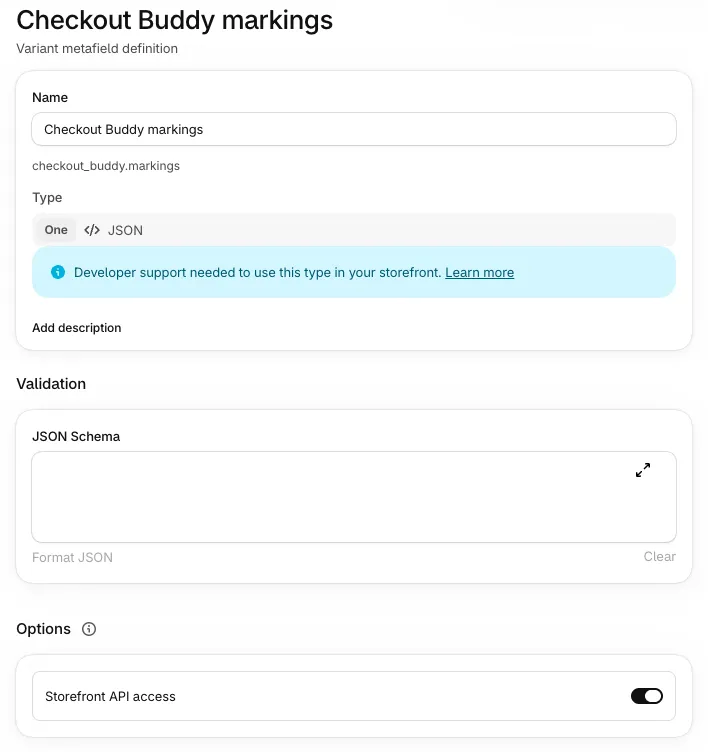
Only the automatic Product discount shows its price in blocks. Code discounts, collection discounts, order discounts, volume discounts, Buy X get Y and flex discounts apply at checkout but don’t change the price a block displays.
Conditions
Section titled “Conditions”Product discounts have two condition sets. Choose one when you create the discount; it can’t be changed later.
Condition set 1
- Cart total, Cart subtotal
- Cart total (excluding selected variants), Cart subtotal (excluding selected variants): the cart total minus the variants this discount applies to. Useful for “spend $50 on other items and get this one discounted”.
- Cart products, Quantity of variants
- User is a customer, User is authenticated as a customer, Customer tags
- Line attribute key, Line attribute key and value: only lines that carry the attribute are discounted. Key and value can be is equal to, is not equal to, is more than, is less than or contains: the line’s value has the text in it, capitals included
- Total cart weight (kg)
Condition set 2
- Customer metafield, Company metafield
- Is POS checkout, Is not POS checkout, POS location ID
Things to know
Section titled “Things to know”- “Checkout components” depends on a line attribute. Older blocks mark the items they add with a hidden
_buddy_dataline property. If Disable custom attributes is turned on for the app block in the Checkout Editor, that property isn’t added and “Checkout components” discounts stop applying, even though blocks still show the discounted price. To keep__buddy_dataoff your orders without this problem, use Disable __buddy_data order attribute under Misc. features instead. See keep__buddy_dataoff your orders. - Any Checkout Buddy block counts. A “Checkout components” discount applies to a selected variant added by any Checkout Buddy block, new Product offers included, not just one particular block.
- One automatic product discount per variant for price display in older blocks. The price shown in older blocks comes from the variant, so if two automatic product discounts include the same variant, the block shows whichever was saved last. Deleting one, or removing the variant from it, can stop the other from showing its price and from applying to Checkout components items until you save the other one again.
- Older blocks don’t check your conditions. An older block can show a discounted price even when the discount’s conditions, like a minimum cart total, aren’t met yet. The discount itself only applies when they are.
- “Product offers” changes no prices in older blocks. A discount set to Product offers (items they add) doesn’t make older blocks show a discounted price. New Product offers take back out a % off item that checkout doesn’t discount as shown.
- Older fixed amounts aren’t converted until you tick it. A Fixed amount discount made before Convert to the customer’s currency existed takes off the same number in every currency: $10 off takes ¥10 off in yen. Tick it, unless you typed the amount in one market’s currency on purpose. Older blocks show the amount as typed either way.
- Big selections. A product discount with about 200 or more variants goes over Shopify’s limit, and then it doesn’t apply. The edit page warns with “Close to Shopify’s function limit” before that. For big selections, use a collection discount. An older product discount with 20 or more products that doesn’t apply needs one more save: open it and save it again.
- Only one setting is allowed per product discount. Create another product discount for a different discount value.
- The Duplicate action isn’t available for code discounts.
- If a discount isn’t applying, work through discount not applying.