
Thank you and order status pages
Some content blocks can also show on the thank you page (right after purchase) and the order status page (where customers track their order). They’re useful for post-purchase messages, support contacts, and next steps.
Blocks that work here
Section titled “Blocks that work here”| Block | Notes |
|---|---|
| Banner | Can’t block anything on these pages. |
| Image | Subheading and device visibility aren’t used. |
| Text | |
| Trust badges | Also older Text and trust badges blocks. |
| Contact info | |
| Frequently asked questions | |
| Line item text | Place it under the items. Prices and compare-at prices aren’t available here. |
Other blocks, such as offers, form fields, and progress bars, can’t run on these pages because Shopify doesn’t let apps change an order after it’s placed.
Add a block to these pages
Section titled “Add a block to these pages”These pages use their own app block, Checkout Buddy - Thank You & Order Status Page.
-
Create the block in Checkout Buddy and note its ID on the Customizations page.
-
In Shopify admin, go to Settings → Checkout and click Edit next to your active checkout configuration.
-
Use the page selector at the top of the Checkout Editor to switch to Thank you or Order status.
-
Click Add block in the section where you want it and choose Checkout Buddy - Thank You & Order Status Page.
-
Enter the block’s ID in Fixed component ID, then drag the app block where you want it and click Save.
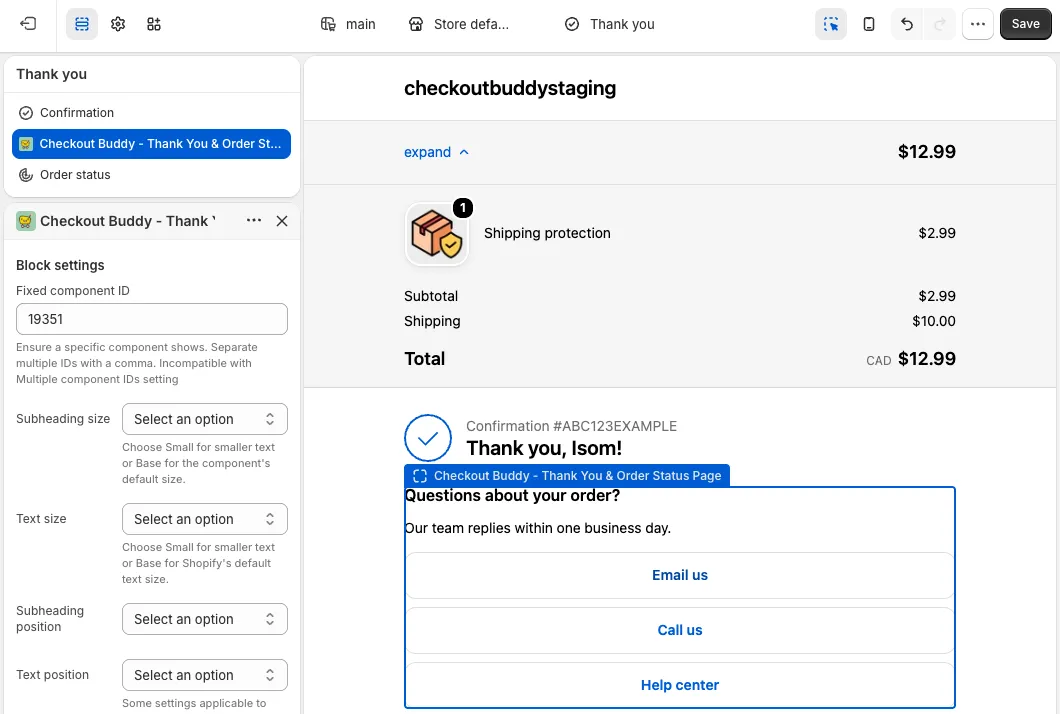
App block settings
Section titled “App block settings”| Setting | What it does |
|---|---|
| Fixed component ID | The block ID to show. You can list several IDs separated by commas, but only one shows at a time. |
| Subheading size, Text size | Small or Base. |
| Subheading position, Subheading emphasis | Where and how subheadings appear. |
| Text position | Text alignment and trust badge layout. |
| Heading/subheading appearance, Text appearance | Colors that follow your checkout branding. |
| Call to action appearance | Button style for Contact info. |
There’s no Multiple block IDs setting here. To show several blocks on one page, add one app block for each.
Display rules on these pages
Section titled “Display rules on these pages”These pages can only check a subset of display rules. If a block uses any other rule, it won’t show on these pages at all. Supported rules:
- Show for all orders
- Cart products, Cart total, Cart subtotal, Total tax amount, Number of line items, Number of items, Quantity of variants
- Cart attribute key, Cart attribute value, Cart attribute key and value
- Line item title, product type, vendor, tags, price, quantity, discount, product metafield, variant metafield
- Line item attribute key, Line item attribute key and value
- Line item added by Checkout Buddy, No line item added by Checkout Buddy
- A line item subscription exists / does not exist
- Quantity of items with product tags, Quantity of line items with product tags
- Cart includes line items of the same product, Cart includes / excludes component product
- Target line item tags, attribute key, attribute value, variant metafield (under items only)
- Discount code, Discount code exists / does not exist
- Customer account exists / does not exist, Customer accepts / does not accept marketing
- B2B customer exists / does not exist
- Shipping country, province, city, zip/postal code
- Selected shipping option title and type, Selected payment option type
- Date, Day, Time
Markets settings on the block still apply.
Things to know
Section titled “Things to know”- No analytics. Views on these pages aren’t counted, because apps can’t add data to an order after it’s placed.
- Fewer text options. Body text in Banner, Text, Trust badges, Contact info, and FAQ blocks supports links, bold, red, subdued, and size operators, but not tooltips, strikethrough, or discount tags. Variables work, and checkout attributes are available as
attributes['Key']. See dynamic text. - Form answers can be shown back to the customer. For example,
Your delivery date: {{ attributes['Delivery date'] }}in a Text block. - Like all Checkout Buddy blocks, these need a Shopify Plus store.