
Buy X get Y (BOGO and free gifts)
A Buy X get Y discount gives items free or discounted when a customer buys enough items, or spends enough on them. It’s the type for a BOGO (buy one, get one), buy 2, get 1 free, or a free gift that comes with certain products, and it can add the free item to the cart for customers. The deal repeats: every time the cart has another full set, another item gets the discount. It applies automatically when its conditions pass, or only when the customer enters its code, such as BOGO50.
Plan: Deals & Rules or Buddy. Works on all Shopify plans. It appears on the Discounts page in Shopify admin, titled with the discount’s Title. Clicking it there opens it in Checkout Buddy.
For a gift once the cart reaches an amount, with tiers of gifts or a progress bar, use a free gift offer instead.
Create a Buy X get Y discount
Section titled “Create a Buy X get Y discount”These steps make buy 2, get 1 free: the cheapest of every 3 items is free.
-
In Checkout Buddy, open Customizations. On the Discounts tab, click Create customization, then the Discounts card.
-
Under Type, choose Buy X get Y (under Tiers and combos). Searching “bogo”, “buy one get one” or “buy x get y” before you click the card opens it with Buy X get Y chosen.
-
Under Method, keep Automatic discount, or choose Discount code and enter the code in the Discount code card. Give the discount a Title.
-
In Customer buys, keep Minimum quantity of items and set Quantity to
2. Under Any items from, pick the products with Add products, or choose Product tags, Collections or Any product. -
In Customer gets, keep Quantity
1, Same items and Free. -
Click Save in the bar at the top of the page. The discount is live straight away.
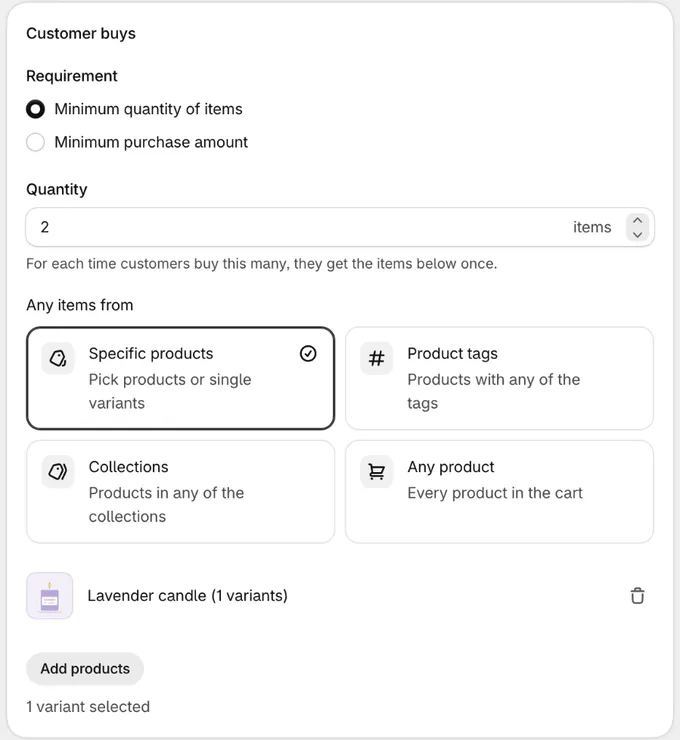
On the same items, buy 2, get 1 free needs 3 items in the cart: see how sets are counted. The discount applies once the free item is in the cart. To put it there for customers, see the example below.
| You want | Set |
|---|---|
| Buy one, get one 50% off | Quantity 1 on both sides, and At a discounted value to Percentage off 50 |
| A free or cheaper item from other products, such as buy a snowboard, get a wax free | Customer gets → Any items from: Specific products, Product tags or Collections |
Spend and get, such as spend $50 on products tagged tea, get a mug for $5 |
Requirement: Minimum purchase amount, and At a discounted value: Set price each |
| A deal store-wide | Any product on both sides |
| The most expensive item free, not the cheapest | Which items get it first: Most expensive first |
| The free item added to the cart, on product and cart pages on any Shopify plan except Starter | Add to the cart |
You can also start from a template:
- Buy X, get Y free (under Templates → Free gifts): a free item for buying the products you choose, with Add to the cart ticked so it’s added for customers. Pick the products on both sides.
- Buy 2, get 1 free (under Templates → Discounts): the cheapest of every 3 items is free, store-wide. Narrow it to your products.
- Buy one, get one 50% off code (under Templates → Discounts): a code,
BOGO50, that takes 50% off every second item, the cheaper one of each pair.
Or start from Shopify admin: on the Discounts page, click Create discount and choose Checkout Buddy’s Buy X get Y. Shopify’s own Buy X get Y is a different discount.
Example: a BOGO or free gift that’s added to the cart
Section titled “Example: a BOGO or free gift that’s added to the cart”-
Start from the Buy X, get Y free template (Templates → Free gifts), or create a Buy X get Y discount as above.
-
In Customer buys, keep Minimum quantity of items and Quantity
1, and pick the product customers buy with Add products. -
In Customer gets, keep Quantity
1and Free. For buy one, get one of the same product, choose Same items. For a free gift, choose Specific products and pick the gift. -
In Add to the cart, tick Add the items customers get to their cart. The template has it ticked already.
-
Click Save. The Add to the cart card now links to the Product offer that adds the item. Open it and follow its steps to add it to your theme, and to checkout on Shopify Plus.
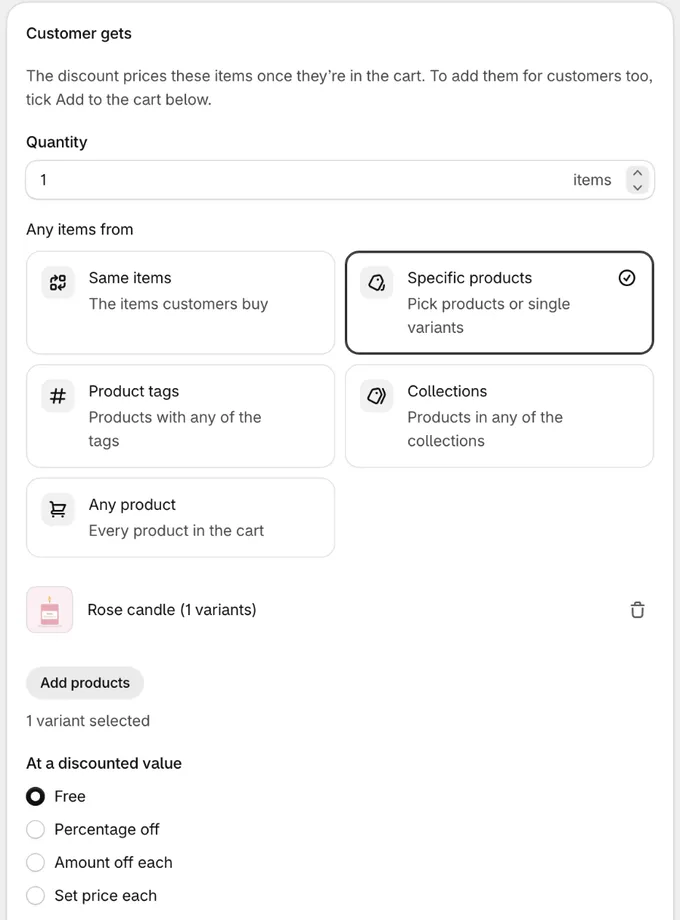
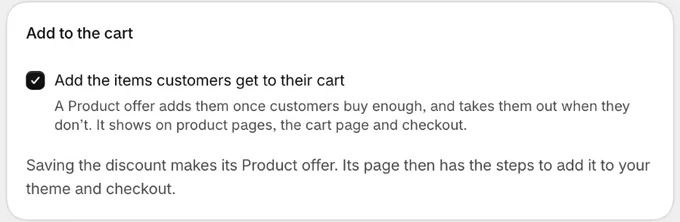
A customer who adds the product then gets the free item put in their cart, and the discount makes it free. See Add to the cart for what it can and can’t do.
Settings
Section titled “Settings”Discount
Section titled “Discount”- Type: Buy X get Y. Click Change to pick another type until you save.
- Method: Automatic discount applies at checkout when the conditions pass. Discount code applies when the customer enters the code.
- Title: Shown on Shopify’s Discounts page, and to customers on an automatic discount if the message is blank. Must be unique among your customizations.
After you save, the type and method can’t change.
Customer buys
Section titled “Customer buys”- Requirement: Minimum quantity of items (the default) or Minimum purchase amount.
- Quantity: how many items customers buy for each set, such as 2. With Minimum purchase amount, it’s Amount instead: what they spend for each set, in your store’s currency.
- Any items from: Specific products (the default, picked with Add products), Product tags, Collections or Any product. Only the variants you pick count.
Customer gets
Section titled “Customer gets”- Quantity: how many items get the discount for each set, such as 1.
- Any items from: Same items (the default: the items under Customer buys), Specific products, Product tags, Collections or Any product.
- At a discounted value: Free (the default), Percentage off, Amount off each or Set price each, with the percentage, Amount off each or Price each beside it. An amount off never takes an item below zero, and a set price above an item’s own price takes nothing off.
- Which items get it first: Cheapest first (Shopify’s way, and the default) or Most expensive first. An item the deal takes nothing off, such as one already at or under a Set price each, is passed over for the next one. With “buy 1, get 1 wax for $15”, a $12 wax and a $30 wax in the cart give $15 off the $30 one.
- Maximum uses per order (optional): the most sets one order gets. Leave it blank for no limit.
- Purchase type: One-time purchases and subscriptions (the default), One-time purchases only or Subscriptions only. See purchase type.
- Message at checkout: Shown next to the discounted items, such as
Buy 2, get 1 free. Leave it blank to use the Title.
Amounts are in your store’s currency and are converted for customers who pay in another one.
Add to the cart
Section titled “Add to the cart”Tick Add the items customers get to their cart to add them for customers, not just price them. Saving the discount also saves a Product offer that adds them once customers buy enough, and takes them out when they don’t. It shows on product and cart pages (any Shopify plan except Starter) and, on Shopify Plus with the Buddy plan, in checkout.
- Only items picked by product can be added: pick them under Customer gets → Specific products, or use Same items when customers buy one product. Product tags, collections and Any product can’t be added for customers.
- Up to 25 products, with up to 100 variants between them, can be added for customers.
- Free items are added automatically. With one product, it goes in on its own; with several, customers choose their free item. Percentage off at 100 and Set price each at 0 count as free. Items that aren’t free (a lower percentage, an amount off or a set price) show with an Add button at the discount’s price. Shopify doesn’t let apps add paid items.
- The discount keeps the offer in step. What it adds, when and who sees it are set on the discount. Saving the discount updates the offer. The offer’s own page has its text, layout and where it shows, plus the steps to add it to your theme and checkout. The card links to it.
- One item for every few bought is added for every set. With 2 or more items per set, or a purchase amount, the offer adds items for up to 5 sets (or your Maximum uses per order). Free items customers choose, and items with an Add button, are offered for one set. Customers add more themselves, at the discount’s price. The card says when.
- Conditions are copied where the offer can check them: Cart subtotal and Number of items with is more than, products, collections, product tags, product types and vendors in the cart, logged-in or B2B buyers, the discount’s code, and Specific markets. Customer tags are copied when the offer doesn’t show in checkout. Shopify doesn’t share them with checkout. To check them, untick Checkout under Where it shows on the offer’s page.
- Unticking deletes the offer, and so does deleting the discount.
What the offer can’t copy
Section titled “What the offer can’t copy”The offer adds the items before the discount prices them, so anything it can’t check means it can add an item for a customer the discount then leaves out. The card names each one that applies to your discount:
- Customer segments and Active dates. The offer is on whenever the discount is enabled.
- Cart subtotal or Number of items with is less than, is equal to or is not equal to. The items the offer adds count toward them too, so it could add an item that takes the cart past your limit.
- Conditions that count some products, tags or collections, such as Quantity of variants or Quantity of items in collections, plus Number of line items, Cart has items on sale, Cart currency, Is POS checkout and POS location ID.
- Customer buys with only some of a product’s variants picked. The offer counts every variant of the product.
- Customer tags, while the offer shows in checkout.
With any of these, a new offer for free items starts with Remove gifts that aren’t free ticked, so it takes back out an item the discount doesn’t make free for that customer. The box is on the offer’s page, if you’d rather keep those items in the cart. If you add one of these to the discount later while the box is unticked, the card suggests ticking it and changes nothing itself. Items with an Add button have no such check. Customers who don’t qualify still see the discount’s price, but pay full price if they add them.
Two more limits:
- Not with Subscriptions only. The offer adds one-time purchases, which a discount with Purchase type set to Subscriptions only skips. The box can’t be ticked then.
- Unique codes aren’t followed. On a code discount, the offer adds the items only for customers who enter the discount’s own code. Customers with one of its unique codes add the items themselves, at the discount’s price.
Discount code
Section titled “Discount code”Only with Discount code.
- Discount code: The code customers enter at checkout to get the deal, such as
BOGO50. - Limit to one use per customer
- Apply usage limit: The number of times the code can be used in total.
A code can also have unique codes: many single-use codes for the same deal.
Combinations
Section titled “Combinations”Combines with order discounts, Combines with product discounts, Combines with shipping discounts: Whether this discount can be used together with other discounts of each kind. All are off by default. Shopify only combines two discounts when both allow it.
Conditions
Section titled “Conditions”The same conditions as a volume discount, such as customer tags, cart subtotal, POS, B2B buyers or the cart’s currency. When the conditions don’t pass, no item gets the discount.
Active dates and Eligibility
Section titled “Active dates and Eligibility”Tick Set specific start date and Set specific end date to schedule the discount. In Eligibility, give it to All customers, or only to customer segments or markets you pick.
Summary
Section titled “Summary”The Summary card shows what the discount does as you fill it in, for example “Buy 2 from any product, get 1 more free”, “The cheapest items get it first” and “Customers add the items they get to the cart” (or, with Add to the cart, “A Product offer adds the items they get to the cart”).
How sets are counted
Section titled “How sets are counted”Each set is the items customers buy plus the items they get. Every item counts once: it’s either bought or got, never both. The cart gets as many sets as its items allow, and Which items get it first then decides which items those are. So buy 2, get 1 free on the Same items needs 3 items:
| Cart, with buy 2, get 1 free on the same T-shirts | Free |
|---|---|
| 2 T-shirts | None: a set needs 3 |
| 3 T-shirts | 1 |
| 6 T-shirts | 2 |
| 7 T-shirts | 2: the seventh doesn’t make a new set |
With different items on each side, such as buy 2 snowboards, get 1 wax free, 2 boards and 2 waxes give 1 free wax, and 4 boards and 2 waxes give 2.
With a purchase amount, the items that get the discount don’t count toward it. One $50 item never both reaches “spend $50” and comes free. With spend $50, get 1 of the same items free, a cart with one $50 item gets nothing, and a $50 item and a $10 item get the $10 one free.
Purchase type
Section titled “Purchase type”With One-time purchases only or Subscriptions only, only items of that type get the discount. Every item still counts toward what customers buy. Shopify counts an item as a subscription when it’s bought on a selling plan with recurring deliveries: pre-orders and try before you buy count as one-time purchases.
Compared with Shopify’s Buy X get Y
Section titled “Compared with Shopify’s Buy X get Y”Shopify’s own Buy X get Y covers the simple deal. Checkout Buddy’s adds:
- Product tags and Any product on either side.
- Same items, so “buy 2, get the cheapest free” on a whole collection is one pick.
- Set price each, such as the third item for $5.
- Most expensive first.
- The conditions of a volume discount, such as customer tags, POS or cart currency.
- Add to the cart: the free item added for customers, on your product and cart pages and in checkout. Shopify’s only prices it once customers add it.
Things to know
Section titled “Things to know”- The items customers get aren’t added for you unless you tick Add to the cart. Without it, tell customers about the deal on your store.
- Every item is bought or got, never both. On the same items, buy 2, get 1 needs 3 items in the cart.
- One deal per discount. For a second deal, create another Buy X get Y discount. Each automatic one counts toward Shopify’s limit of 25 active automatic discounts; codes don’t.
- Gift cards and custom items never count and are never discounted.
- Converted prices aren’t rounded like your market prices. In another currency, a Set price each is your price converted at Shopify’s exchange rate. On multi-currency stores, percentages are the simplest choice.
- Product page blocks don’t show it. The Quantity breaks and Mix and match blocks show volume discounts, group prices and combos.
- Use product tags or collections for big selections. The same limits as a volume discount apply to both sides and the conditions together, and the page warns you the same way.
- If a discount isn’t applying, work through discount not applying.