
Text, trust badges, and icons
Three blocks put simple content into checkout:
| Block | Use it for | Plan |
|---|---|---|
| Text | A heading and a paragraph, such as a delivery promise or a returns note | Business |
| Trust badges | Payment logos and your own badge images, with optional text | Free, Business |
| Icons with text | A short list of benefits, each with an icon, such as “Free returns” or “Ships in 24 hours” | Free, Business |
Like every block, these need Shopify Plus, and you add them in the Checkout Editor after saving. Text and Trust badges also work on the thank you and order status pages.
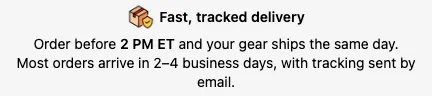
| Setting | What it does |
|---|---|
| Subheading | Optional heading above the text. |
| Subheading image URL | Optional small image shown right before the subheading, for example a truck icon. The Image size (pixels) setting on the app block caps its size. |
| Body text | The paragraph. Supports dynamic text: links, bold, colors, tooltips, and variables such as the order total. |
The Text block has the widest range of variables of any block. It’s the only content block (along with Banner and Line item text) that can read product and variant metafields, SKUs, and compare-at prices.
Examples
Orders placed before 2 PM ship today.You're saving {{ toMoney(cartCompareAtPrice - orderSubtotal, currencyCode) }} today.- Placed under each item in the cart, a Text block can show a metafield for that product. For a single line of text under items, Line item text is usually a better fit.
Trust badges
Section titled “Trust badges”
| Setting | What it does |
|---|---|
| Subheading | Optional heading. |
| Body text | Optional text. Supports links, formatting, and order variables. |
| Payment icons | Search Shopify’s library of payment icons (for example Visa, PayPal, Klarna), or pick from the Popular row. Icons show in the order you pick them. |
| Custom icons | Your own badge images. Each has a Label (used as alt text) and an Image source URL. Click Add custom icon to add more. |
Custom icons show at 64 px unless you set Image size (pixels) on the app block. To get an image URL, upload the image in Shopify admin under Content → Files and copy its link.
Layout. The app block’s Text position setting controls the layout:
- Right: icons on the left, text on the right.
- Left: text on the left, icons on the right.
- Anything else: text on top, icons centered below. Choose Misc. appearance → Position text and icons left to left-align the icons instead.
Icons with text
Section titled “Icons with text”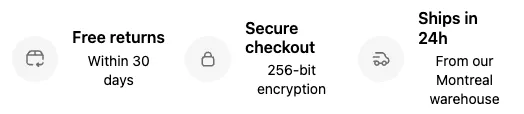
Choose a layout first:
- Horizontal (default): all items in one row, each with an icon, a title, and a label.
- Vertical: a list of icon and label rows, with an optional Subheading and Body text above.
| Setting | What it does |
|---|---|
| Icon appearance (color) | Base, Accent, Decorative, Interactive, Subdued, Info, Success, Warning, Critical, or Monochrome. |
| Icon size | Extra small, Small, Base, or Large. |
| Icon positioning | Vertical only. Left, Center, or Right. |
| Apply borders | Adds a border around the block. |
| Apply gray backgrounds to icons | Horizontal only. |
| Apply dividers in-between | Horizontal only. Draws a line between items. |
| Center content | Horizontal only. |
| Icons | One row per item: an Icon from Shopify’s icon set, a Title (horizontal only), and a Label. Click Add field for more. |
Labels in the vertical layout can use links, formatting, and order variables. Titles and labels in the horizontal layout support formatting but not variables.
Things to know
Section titled “Things to know”- The app block’s Image size applies to several blocks. Image size (pixels) sizes Text subheading images, custom trust badges, and Icons with text. If it’s set to 50 or less, or above 75, Icons with text uses it instead of its own Icon size. Place blocks that need different sizes in separate app blocks.
- Text and trust badges is an older block that combined both. It can no longer be created, but existing ones keep working and edit the same way as Trust badges.
- Trust badges and Icons with text can’t read metafields, SKUs, or prices. Use a Text block for those.
- Text in these blocks isn’t translated automatically. Add translations under Translations.