
Text under a shipping method
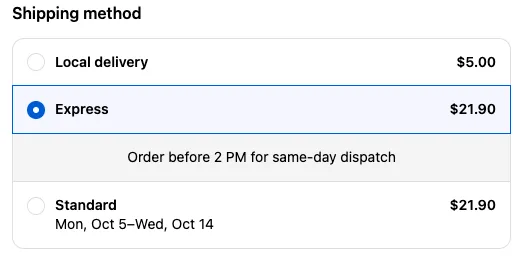
What you’ll build: “Order before 2pm for same-day dispatch” shown only under the Express shipping option.
Requirements: Business plan and Shopify Plus (the Text block isn’t on the Free plan).
-
Create the text. Click Create customization and choose Text. Enter your note in Body text.
-
Target the shipping option. In Display rules, choose Show only when rules pass and add Target shipping method title, includes,
Express.This rule compares the whole option name (ignoring capitals), so enter it exactly as customers see it, for example
Expressrather thanExpr. -
Save and note the block’s ID.
-
Place it under the shipping options. In the Checkout Editor, go to the shipping step and add a Checkout Buddy app block in the slot under each shipping method. Enter the block’s ID in Fixed block ID, then save.
-
Test it. The text appears only under Express. Use Text position in the app block’s settings to align it.
How it works
Section titled “How it works”The slot under the shipping methods repeats once for every option. Each copy of the block checks Target shipping method title against the option it’s sitting under, so the text only appears where the name matches.
Variations
Section titled “Variations”- A different note for each option: create one Text block per option, each with its own Target shipping method title rule, and enter all the IDs in the app block’s Fixed block ID, for example
51, 52, 53. Each option shows the one that matches. - Dynamic delivery estimates: the body text can use
selectedDeliveryOptionLowerEstimateandselectedDeliveryOptionUpperEstimate. See dynamic text examples. - Text for the selected option only: place the block below the shipping method list and use Selected shipping method title instead.