
Tiers, progress bars and goals
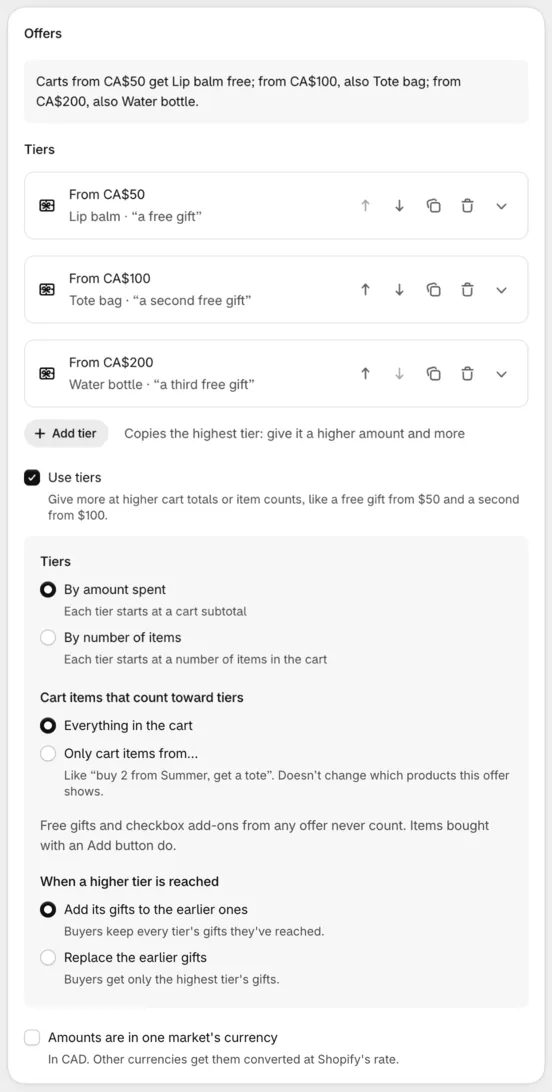
Tiers let one Product offer give more as the cart grows, such as a free gift from $50, a second from $100 and a third from $200. A progress bar shows buyers how far they are from the next tier: “Spend $20.00 more to get a free gift”. Close the gap does the opposite job: it shows how far the cart is from a goal, such as your free shipping minimum, and suggests only the products that get it there.
Requires: in checkout, Shopify Plus and the Buddy plan. On product and cart pages, see plans. Tiers, progress and Close the gap work there too.
The quickest start is a template: Tiered free gifts has three tiers of one gift each, and Spend more, unlock more two tiers of upsell prices. To add tiers to any offer:
- In the Offers card, tick Use tiers, under the offer. The offer becomes the first tier.
- Under Tiers, choose what unlocks each one: By amount spent, where each tier starts at a cart subtotal, or By number of items, where each tier starts at a number of items in the cart.
- Open each tier and set where it starts, under Cart subtotal of at least or Items in the cart, at least, then its products and quantity. A cart at that amount or above has reached the tier.
- Click Add tier for the next one. It copies the highest tier, so give the copy a higher amount and more. An offer can have up to 5 tiers, from lowest to highest.
- For gifts, save, then make them free with one gift discount. One discount covers every tier, because the offer sets the quantity.
Left unticked, the offer is the same in every checkout that shows it. Unticking Use tiers keeps only the lowest tier.
What counts. Amount spent is the subtotal of the buyer’s own items: after their product discounts and before order discounts, as checkout’s Subtotal row shows it. Free gifts and checkbox upsells from any offer don’t count, and neither do gifts from older blocks. Items bought with an Add button do. Number of items counts the quantity of those same items. To count only some products, see items that count: the tier’s fields then read Subtotal of counted items, at least and Counted items, at least.
Which tiers apply depends on how the offer adds products:
- Automatic gifts add up: the cart gets the gifts of every tier it has reached, so a gift at $50, $100 and $200 is 1, then 2, then 3 gifts. A product two tiers give is one line with both quantities. To give only the highest tier’s gifts, set When a higher tier is reached, under Use tiers, to Replace the earlier gifts: 25, 50 and 75 samples is then one line whose quantity changes. The choice shows for automatic gifts with 2 or more tiers.
- Gifts buyers choose and checkbox upsells use only the highest tier the cart has reached. To keep a lower tier’s products, add them to the higher tier too.
- Upsells show every tier reached, highest first.
Before the first tier, its products show “Unlocks at $50.00” (or “Unlocks at 3 items”) with no button. To change that text, or write it in your buyers’ language, fill in Unlocks at under Text → Labels, such as “Free from {{threshold}}”.
For more of one gift at each amount, such as 25, 50 and 75 samples, give each tier the same product and those quantities, and choose Replace the earlier gifts: see more free units as the cart total grows.
Items that count
Section titled “Items that count”Cart items that count toward tiers (Cart items that count toward quantities, under the offer, without tiers) narrows what the tiers measure:
- Everything in the cart
- Only cart items from…: products, collections or product tags you list. Counts items with any of these products, collections or tags. Use it for offers like “buy 2 from Summer, get a tote”. It doesn’t change which products the offer shows.
Free gifts and checkbox upsells from any offer never count. Items added from upsells do. The setting shows when the offer has tiers or a quantity per item.
Quantity per item
Section titled “Quantity per item”Each tier sets how many of each product the offer gives or adds, under How many of each gift, How many the checkbox adds or How many the button adds:
- A set number of each product: 1 to 999.
- One for every few items in the cart: One for every a number of items, Counting Items or Products (cart lines), and Up to a maximum. With one for every 2 items and up to 3, a cart of 5 items gets 2, and a cart of 9 gets 3. On product and cart pages, it’s for gifts and checkbox upsells only, not Upsell offers.
Free gifts and checkbox upsells never count here either. For upsells with the quantity picker on in Layout, buyers choose how many to add instead.
The Donation per item template uses this: a checkbox that adds one donation for every item in the cart. A Buy X get Y discount with Add to the cart sets it up for its free item too.
Progress
Section titled “Progress”In the Text card, offers with tiers have Show progress toward the next tier, on by default: a line and a bar above the products.
- Progress: the line. It reads
Spend {{remaining}} more to get {{reward}}by default, orAdd {{remaining}} more items to get {{reward}}for tiers by number of items. - At the top tier: shown once the cart reaches the last tier. It reads
You've unlocked {{reward}}by default.
{{reward}} is the next tier’s Offer name, such as “a second free gift”. See tokens. For the bar’s style, such as steps or each reward marked under the bar, see show progress as.
For a progress bar on your cart page or in your cart drawer, tick Cart page under Where it shows: the same line and bar show there, on every Shopify plan except Starter. See progress bars on product and cart pages. The bar comes with an offer: it shows above the gift or products the tier unlocks.
Close the gap
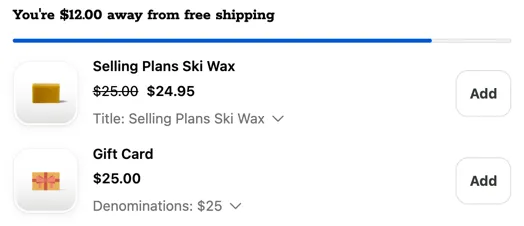
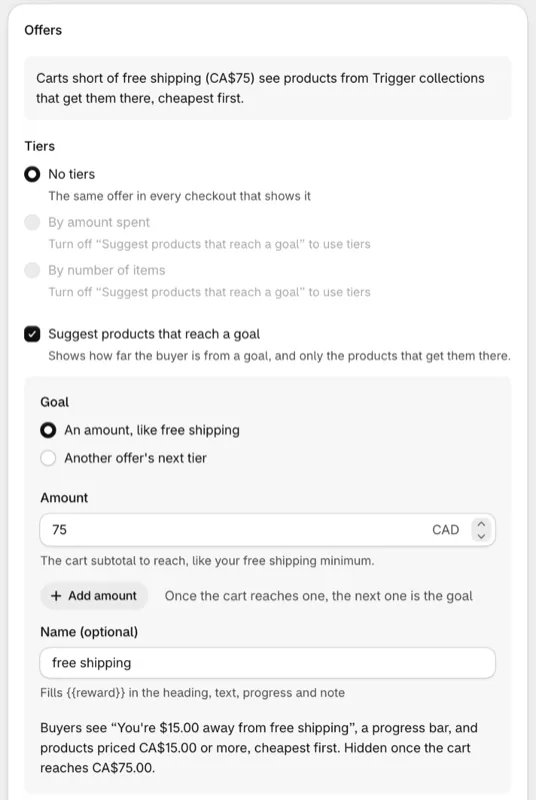
Section titled “Close the gap”At checkout, buyers can’t browse your store. Close the gap puts something they can add next to “You’re $12.00 away from free shipping”. In an Upsell offer without tiers, tick Suggest products that reach a goal at the bottom of Offers: “Shows how far the buyer is from a goal, and only the products that get them there.” The Close the gap template sets this up. It works in checkout and on product and cart pages.
Under Goal, choose:
- An amount, like free shipping: the Amount is the cart subtotal to reach, such as your free shipping minimum. Add amount adds up to 5: once the cart reaches one, the next is the goal. Name fills
{{reward}}, for examplefree shipping. - Another offer’s next tier: one of your Product offers with tiers by amount spent, such as a free gift offer. This works only while that offer is published, its conditions pass and it has a tier left. If it has conditions, this offer shows only to buyers who also see it. The two offers don’t need to be in the same app block.
Under the goal, the editor sums up what buyers see, for example: Buyers see “You’re $12.00 away from free shipping”, a progress bar, and products priced $12.00 or more, cheapest first. Hidden once the cart reaches $75.00.
How it behaves:
- Only products that close the gap show, cheapest first: those whose price, with the offer’s % off and quantity, covers what’s left. Each shows its cheapest variant that does and isn’t already in the cart.
- A progress bar shows under the heading, toward the goal. Turn it off with Show progress toward the goal in Text. Progress adds an optional line above the bar.
- The heading
You're {{remaining}} away from {{reward}}is filled in when you turn the goal on with an empty heading. - Once the goal is reached, the offer disappears, or moves on to the next amount. There’s no success message: the new item in the order summary says it.
- Nothing shows when there’s no goal, for example the other offer is at its top tier, or no product closes the gap.
While it’s on, Use tiers is greyed out, and the shuffle, the quantity picker and Only cart items from… are off. Changing the offer type turns it off.
To give the free shipping itself, add a shipping discount. See the free shipping recipe.
Amounts in other currencies
Section titled “Amounts in other currencies”You type amounts in your store’s currency: tiers, goal amounts, and Cart total and Cart subtotal conditions in Who sees it. When checkout sells in another currency, they’re converted at Shopify’s rate. It’s the same rate Shopify’s discounts use, so a converted tier and its discount’s minimum agree. Prices aren’t converted, because they’re already in the buyer’s currency.
- Rounding: tiers and goals are rounded up to the currency’s smallest unit, such as a cent.
{{threshold}}and{{remaining}}show the converted amount. - Is at least and is at most conditions include the converted amount itself. If 100 CAD converts to $71.7733, Cart subtotal is at least 100 passes from $71.78, and is at most 100 up to $71.77.
- While the rate loads, offers that need it stay hidden and gifts don’t change on amounts. Offers without amounts don’t wait.
- Amounts are in one market’s currency (shown when the offer has amounts): tick it to compare the amounts as typed, in the buyer’s currency, for an offer made for one market. Create gift discount then gives the discount no minimum.
- B2B buyers: amounts are compared as typed.
- The editor’s Preview shows your store’s currency, unconverted.
Older blocks, and the Progress bar blocks, compare amounts as typed, without converting.
Things to know
Section titled “Things to know”- Amount goals count every line, as checkout’s Subtotal row does, checkbox upsells included: $48 of products and a $3 protection add-on reach a $50 goal. Tiers by amount spent leave add-ons out.
- Taxes and shipping never move a tier, and a gift can’t push the cart into a tier or out of one.
- Tiers or conditions? Cart total, Cart subtotal and Number of items in Who sees it decide whether the offer shows at all. To give the reward from an amount and show progress toward it, use a tier instead.
- The gift discount’s minimum should be at or below the lowest tier. Create gift discount uses the lowest tier’s amount.