
Discounted upsell
What you’ll build: an upsell at a discount: a Product offer that shows a product at 20% off, with the regular price struck through and a “Save 20%” badge, and a discount that gives buyers that price only when they add it from the offer.
Requirements: an offer and its discount.
- In checkout: Shopify Plus and the Buddy plan. See in checkout.
- On product pages, the cart page and the cart drawer: any Shopify plan except Starter, with the Deals & Rules or Buddy plan. See on product and cart pages.
In checkout
Section titled “In checkout”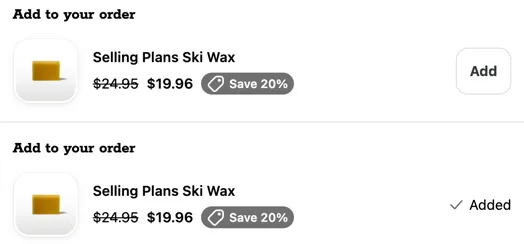
-
Create the offer. In Checkout Buddy, go to Customizations → Upsells → Create customization → Product offers, and choose the Discounted add-on template. It’s an Upsell offer, with Price set to % off at 20.
-
Pick the products. In Offers, under Products, click Choose products and pick the products and variants to offer.
-
Set the text. In Text:
- % off:
20, or your own percent. - Keep Strike through the regular price ticked.
- Badge: for example
Save 20%, with an Icon such as Discount tag.
- % off:
-
Name the offer and save.
-
Create the discount. On the Discount at checkout card, click Create discount. The Discount page opens filled in, with Areas applied to set to Product offers (items they add). Save it, then click Back to the offer. Or make it by hand: Create customization → Discounts → Amount off products, with:
- Discount type: Percentage. Discount value: the same percent as the offer,
20. - Variants applied to: the variants you offer.
- Areas applied to: Product offers (items they add).
- Discount type: Percentage. Discount value: the same percent as the offer,
-
Publish and place it. Under Status, turn on the switch so it reads Published, and save. In Shopify’s checkout editor, add the Product offers app block and save the editor. See where to place it.
-
Test it. The offer shows the product at 20% off. Add it from the offer: the discount applies at checkout. Add the same product from your store instead: no discount.
On product and cart pages
Section titled “On product and cart pages”The same offer works as an upsell on your product pages, cart page and cart drawer, without Shopify Plus.
-
Create the offer. In Checkout Buddy, go to Customizations → Upsells → Create customization → Product offers, and choose the Discounted add-on template.
-
Pick the products and set the text, as in steps 2 and 3 for checkout: the products under Offers, and the % off and Badge under Text.
-
Choose where it shows. Under Where it shows, tick Product pages, Cart page, or both. On stores that can’t show offers in checkout, the template opens with both ticked. Under Show with these products, pick the products, collections or tags the offer goes with, or leave it empty for every product.
-
Name the offer and save.
-
Create the discount. On the Discount card, click Create discount, save the discount, then click Back to the offer. It applies in the cart too, so buyers see the 20% off before checkout.
-
Publish. Under Status, turn on the switch so it reads Published, and save.
-
Add the block to your theme. On the Product and cart pages card beside the editor, click Add to product page or Add to cart page, then Save in Shopify’s theme editor.
-
Test it on your store. Add the product from the offer: the cart shows it at 20% off. Add it from its own product page instead: no discount.
See Product offers on product and cart pages.
Things to know
Section titled “Things to know”- The percents must match. If checkout charges more than the offer shows, checkout removes the item right after it’s added, and the row shows the regular price with “This price isn’t available right now”. On an offer shown only on product and cart pages, nothing removes it: buyers pay the regular price.
- The offer doesn’t check the discount’s conditions. If the discount has a minimum or other conditions, give the offer the same ones under Who sees it, so buyers aren’t shown a price they won’t get.
- One discount can serve many offers at the same percent: it applies to the products it lists whenever any Product offer adds them.
- Customers’ own items stay full price. The discount never applies to a product buyers add from your store.
- Products from a collection: Create discount makes a Collection discount at Percentage (each product), with Areas applied to set to Product offers (items they add), and the card checks it. Products by tag, product type or Shopify’s suggestions can’t be checked by the card: give them a Collection discount set up the same way, on a collection that holds them. See % off upsells and checkbox upsells.
- A fixed price or an amount off work the same way: set Price to Fixed price or Amount off. See fixed price and amount off.
With an older Product offers block
Section titled “With an older Product offers block”Older Product offers blocks, made before the new Product offers editor, keep working as before and show the discounted price their own way. To check or change one:

- The discount: an Amount off products discount on the offered variants, with Areas applied to set to Checkout components (upsells, cross-sells, etc.) only. Its Discount message shows under the product in the block and next to the discount at checkout.
- The metafield definition: blocks show the discounted price only with the
checkout_buddy.markingsvariant metafield definition, type JSON, with Storefront API access. Check it exists. - The block: the same variants picked with Select products manually, placed with a Checkout Buddy (v1) app block and its ID in Fixed block ID.
Things to know for older blocks:
- Keep “Disable custom attributes” off in the app block’s settings. The discount only recognizes items the block marks as added by Checkout Buddy.
- The discount applies to items added by any Checkout Buddy block, Product offers included. It also applies to a line the customer changes with a cart line editor block, even if they added it from your store.
- The block doesn’t check the discount’s conditions. Give the block the same conditions, so customers aren’t shown a price they won’t get.
- Only automatic product discounts show in blocks. Collection discounts, codes and order discounts still apply at checkout, but the block shows the full price.
- Two discounts on one variant: blocks show whichever automatic product discount was saved last.
- Works the same way in checkbox product offers, line item upsells and the cart line editor.