
Product offers on product and cart pages
Product offers can show on your store’s product pages and cart page, not only in checkout. Buyers add products with one tap, tick add-ons like gift wrap, get free gifts as the cart grows, and see how far they are from the next reward. The cart page’s offers also show in your theme’s own cart drawer.
It’s the same editor and the same offer: under Where it shows, tick Product pages, Cart page, or both, beside Checkout or instead of it. Product and cart pages don’t need Shopify Plus, because the offers show through your theme, not checkout.
Requires: an Online Store 2.0 theme, like Shopify’s free themes, on any Shopify plan except Starter. On Checkout Buddy, the Deals & Rules or Buddy plan. See plans.
| You want | Use | On |
|---|---|---|
| An upsell on the product page: “Goes well with” | An Upsell offer, from the Goes well with template. See upsells | Product pages, cart page |
| Frequently bought together, with one button for the set | The Bought together template. See bought together | Product pages |
| An add-on with the product, like gift wrap or a warranty | A Checkbox upsell, from the Gift wrap template. See add-ons | Product pages |
| An add-on for the whole order, like shipping protection | The Shipping protection or gift wrap template | Cart page |
| A free gift over an amount, or a gift buyers choose | Free gift over a spend, Tiered free gifts or Choose your free gift. See free gifts | Cart page, product pages |
| Buy X get Y or buy one get one (BOGO), with the free item added to the cart | A Buy X get Y discount with Add to the cart, from the Buy X, get Y free template | Cart page, product pages |
| A cart progress bar: “Spend $20.00 more to get a free gift” | Any offer with tiers. See progress bars | Cart page, product pages |
| “You’re $12.00 away from free shipping”, with products to add | The Close the gap template. See close the gap | Cart page |
| Offers in the cart drawer | Tick Cart page, and turn on the app embed. See the cart drawer | Cart drawer |
Screenshot needed
A product page with a Goes well with offer under the Add to cart button: two products with their prices and Add buttons
A Dawn product page, offer from the Goes well with template
Set it up
Section titled “Set it up”- In Checkout Buddy, go to Customizations → Upsells → Create customization → Product offers. Choose a template, such as Goes well with, or Start blank, and give the offer a Name.
- Under Offer type, check how buyers get the products: Upsell, Checkbox upsell, Free gift or Choice of free gifts. A template sets it for you.
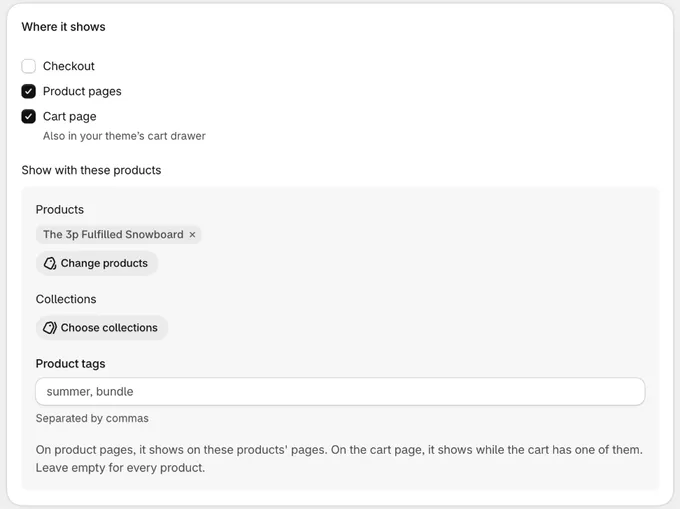
- Under Where it shows, tick Product pages, Cart page, or both. On stores that can’t show offers in checkout, a new offer starts with both ticked.
- Under Show with these products, in the same card, pick the products, collections or tags the offer goes with, or leave it empty for every product. See show with these products.
- Under Offers, pick the products to offer. Text, Layout and Who sees it work as they do for checkout: see Product offers.
- Save. For a free gift, a % off or a fixed price, then create its discount on the Discount card, with Create gift discount or Create discount. An upsell or add-on at its regular price needs none.
- Under Status, turn on the switch so it reads Published, and save.
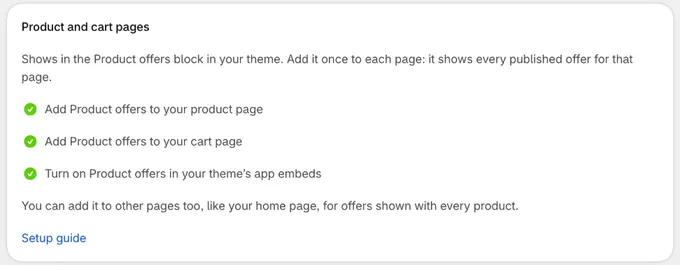
- Add the Product offers block to your theme. The Product and cart pages card beside the editor shows whether it’s on your live theme’s product page and cart page. Click Add to product page or Add to cart page: Shopify’s theme editor opens with the block added. Drag it where you want it, like under the Add to cart button, then click Save there.
- For offers on the cart page, free gifts and add-ons on product pages, the card has one more step: Turn on Product offers in your theme’s app embeds. It shows cart page offers in your theme’s cart drawer and keeps gifts and add-ons right on every page. Click Turn on: Shopify’s theme editor opens on App embeds with Product offers turned on. Click Save there.
You add the block once per page. It shows every published offer for that page, so the next offer you make needs no theme changes.
The block and the app embed
Section titled “The block and the app embed”Your theme gets two things from Checkout Buddy, both called Product offers:
| Where | What it does | |
|---|---|---|
| The block | Add block → Apps in a page’s section, in Shopify’s theme editor | Shows your offers where you place it: on product pages, the cart page, or other pages like your home page |
| The app embed | App embeds in Shopify’s theme editor, one switch for the whole store | Shows the cart page’s offers in your theme’s cart drawer, adds and removes free gifts wherever the cart changes, and keeps add-ons in step with their product. Nothing of it shows by itself |
Without the app embed, offers still show where the block is, and the block adds gifts on the pages it’s on. With it, gifts are right on every page, including a cart drawer, so a buyer who never opens the cart page still gets them.
The Online Store theme card on Checkout Buddy’s Home page shows whether each is on your live theme.
Which offers a block shows
Section titled “Which offers a block shows”The block’s one setting, Offer IDs: “Leave empty to show every offer for this page, or list some (12, 40) to show only those, in that order.”
- Empty: every published offer for that page whose conditions pass, oldest first, one under the other.
- Offer IDs: only those offers, in that order. An offer’s ID is in its Status card once saved. Use IDs to put different offers in different places on one page, such as one block under Add to cart and another lower down.
In Shopify’s theme editor, a page with no offer for it shows “Product offers: no offer from Checkout Buddy shows on this page.” Buyers see nothing there.
The theme block has no Show first match only: that’s a setting of the checkout app block. To show one offer where several pass, list its ID in Offer IDs.
Where it shows
Section titled “Where it shows”| Choice | Shows |
|---|---|
| Checkout | In the Product offers checkout app block. Needs Shopify Plus and the Buddy plan |
| Product pages | In the block on product pages, and on other pages you add the block to |
| Cart page | In the block on the cart page, and in your theme’s cart drawer with the app embed on. Only while the cart has items |
Tick any mix. An offer made before November 2026 shows in checkout only until you change it.
- Other pages: add the block to your home page, a collection page or any other page, and it shows your product page offers that have nothing under Show with these products. Add-ons don’t show there: they need a product or the cart to go with.
- Not on product and cart pages: if something in the offer can’t show there, Where it shows says It won’t show on product and cart pages, and why. See what works on product and cart pages.
Show with these products
Section titled “Show with these products”Show with these products sets which products the offer goes with: products, collections or tags.
- On product pages, it shows on these products’ pages.
- On the cart page, it shows while the cart has one of them.
- Empty, it goes with every product.
For example, to suggest Brandy Custard to buyers of Christmas pudding, pick Brandy Custard under Offers and the pudding under Show with these products.
The product being viewed is never offered on its own page.
Match the variant
Section titled “Match the variant”For Upsell offers, Match the variant offers “the variant that matches the product they’re viewing, like the same color.” On a black jacket’s page, a beanie with a black variant is offered in black. When the option name and value don’t match, the beanie’s first available variant is offered as usual.
Templates
Section titled “Templates”These templates are made for product and cart pages:
| Template | What it sets up |
|---|---|
| Goes well with | Products you pick, with an Add button, on product pages and the cart page. |
| Bought together | Products you pick, ticked, with a total and one button that adds them all, on product pages. |
| Gift wrap | A box buyers tick to add gift wrap with the product, on product pages. Unticked to start. |
The other templates work on product and cart pages too, such as Free gift over a spend, Tiered free gifts, Choose your free gift, Discounted add-on, Close the gap and Shipping protection or gift wrap. See all templates.
- On stores that can show offers in checkout, they open in checkout: tick Product pages or Cart page under Where it shows to add those.
- On other stores, they open on product and cart pages, or on the cart page only for Close the gap and Shipping protection or gift wrap.
- Without Shopify Plus, the window leaves out the two templates that open in checkout, Complementary products and Frequently bought together. Goes well with and Bought together do the same job here. For Shopify’s complementary products, choose Start blank and set Products from to Complementary products.
Upsells
Section titled “Upsells”An Upsell offer shows its products with an Add button. A tap adds the product to the cart without leaving the page: the button says Added, and the block says “Added to cart.” with a View cart link. On themes built on Shopify’s Dawn or Horizon, your theme’s cart count and cart drawer update too.
Shopify shows each product with its live price, in the buyer’s currency and language. Products that are sold out, drafts, unpublished, or sold only as a subscription are left out.
Bought together
Section titled “Bought together”The Bought together layout shows a set: on a product page, This item (the product viewed) and your products, each with a tick box, the total, and one button that adds the ticked ones, such as Add 3 items · $84.00.
To give a discount on the set, such as “Buy together, save 10%”, use the Bundle discount card, below Offers. Save the offer first. Create bundle discount then opens a Combo discount filled in with the set, at the offer’s own % off, or 10%: each product gets the % off only while the cart has the whole set. Save it there. A Combo discount needs the Deals & Rules or Buddy plan. The card says when a set can’t have one:
- On product pages, the set includes the product viewed. Under Show with these products, pick exactly one product and no collections or tags.
- Only for products you pick. With a collection, tag or suggestions, the set can change.
- Not with tiers.
- 2 to 5 products, the product viewed included. With more, lower Products in the bundle under Layout.
When the offer shows regular prices, the card reminds you to tell buyers in the heading, like “Buy together, save 10%”. With Price set to % off instead, the offer shows that % off on each product, ticked or not, and the Discount card asks for a discount that gives it to each product by itself. It doesn’t count a bundle discount, which applies only with the whole set.
Free gifts
Section titled “Free gifts”Gift offers work on product and cart pages as they do in checkout: see gift offers. Turn on the app embed so gifts are right wherever the cart changes, not only on pages with the block.
- Free gift adds the gift once the cart earns it, changes its quantity between tiers, and takes it out when the cart no longer qualifies. The cart shows it at $0 once its discount applies.
- Choice of free gifts shows Choose buttons once the cart reaches a tier. Only the buyer’s tap adds one.
- Before the first tier, the offer shows the gift with “Unlocks at $50.00” and, with progress on, “Spend $20.00 more to get a free gift”. On a product page, that’s a gift teaser for buyers still deciding.
- A buyer who removes a gift keeps it out, as in checkout. Emptying the cart starts over.
- A gift the cart charges for stays, at its price, as in checkout. To take it out instead, tick Remove gifts that aren’t free on the Discount card: the gift then comes out. An automatic gift stops showing for the rest of the visit, and a gift buyers chose says “This gift isn’t available right now”. See gifts that aren’t free.
- Gifts unlocked by a code: the Free gift with a code template, with the Discount code condition.
- Buy X get Y and BOGO: a Buy X get Y discount with Add the items customers get to their cart ticked makes its own offer, which adds the free item on product and cart pages. The discount makes it free, so that offer has no Discount card.
- Turned off or deleted: with the app embed on, an offer you set to Draft or delete takes its gifts out of buyers’ carts on their next page.
Gifts need a discount to be free, in the cart and at checkout. Under Discount, Create gift discount sets one up, as for checkout. See discounts for product offers.
On a Shopify Plus store with the same offer in checkout, checkout recognises a gift the cart page added, so buyers never get two.
Progress bars
Section titled “Progress bars”Offers with tiers show their progress on product and cart pages too, such as “Spend $12.00 more to get free shipping”, in the style you pick under Show progress as. See progress.
Add-ons
Section titled “Add-ons”A Checkbox upsell is an add-on buyers tick, like gift wrap, shipping protection or a warranty. It’s never ticked for them.
- On product pages, the tick box shows in the block, for the product on the page. When the buyer adds the product with your theme’s Add to cart, a ticked add-on is added and removed with it, attached to its item. With the app embed on, the add-on’s quantity follows its item’s. Buy it now takes ticked add-ons too. On themes whose Add to cart the block can’t follow, it shows its own button, such as Add to cart with Gift wrap.
- On the cart page, ticking adds the add-on as its own line, and unticking takes it out. Use it for the whole order, like shipping protection: the Shipping protection or gift wrap template opens there.
- Choose one shows the add-on’s choices as radio buttons, with No thanks, such as protection levels.
Close the gap
Section titled “Close the gap”Suggest products that reach a goal works on product and cart pages: “You’re $12.00 away from free shipping”, a progress bar, and only the products that get the buyer there. See close the gap. On stores that can’t show offers in checkout, the Close the gap template opens on the cart page.
If the goal is another offer’s next tier and that offer has a condition that works in checkout only, Where it shows says so, and the offer doesn’t show on product and cart pages.
The cart drawer
Section titled “The cart drawer”Many themes open a cart drawer instead of the cart page. The app embed shows your cart page’s offers inside your theme’s own drawer, above the subtotal, on themes built on Shopify’s Dawn or Horizon. It doesn’t replace your drawer.
- The drawer needs the block on your cart page. The drawer shows what that block shows, in the same order.
- Turn it off in the app embed’s settings, in Shopify’s theme editor: untick Show cart page offers in the cart drawer.
- Other themes: if your drawer shows no offers, enter your drawer’s CSS selector under Cart drawer container (advanced) in the app embed’s settings. Offers go at its end. Email kyle@keylayapps.com if you’d like a hand finding it.
The offers load the first time the buyer opens the drawer, so nothing extra loads on pages where they don’t.
What works on product and cart pages
Section titled “What works on product and cart pages”| Product and cart pages | Checkout only | |
|---|---|---|
| Offer type | Upsell, Checkbox upsell, Free gift, Choice of free gifts | Fee |
| Products from | Manually selected, From a collection, With a tag, Complementary products, Related products | Same product type as the cart |
| Quantity | A set number; One for every few items in the cart for gifts and checkbox upsells | One for every few items in the cart on Upsell offers |
| Who sees it | Cart total, Cart subtotal, Number of items, Cart contains, Product type, Vendor, Product tag, Has a subscription, No subscription, Cart has items from, Discount code, Cart attribute, Logged in, Guest, First order, Returning customer, Number of previous orders, Customer tags (product and cart pages only), B2B order, Isn’t B2B, Market, Market country, Language, Date, Day and time | Discount applied, No discount applied, Delivery method, the shipping address conditions, Customer metafield, Company |
Tiers, by amount spent or by number of items, work everywhere, with their progress. So do the Layout card’s settings, except Subscriptions and Shuffle the products: on these pages, products are one-time purchases and keep the order you set.
- Layouts look as they do in checkout: List, Featured, Tiles, Slider, Bought together, Line, Card and Choose one, with your theme’s fonts and colors. The editor’s Preview has a Product page tab that shows them.
- Paging works too. Upsells and gifts buyers choose show Products shown at a time from the Layout card, and buyers page through the rest with arrows and a count such as “1 / 3”. An upsell pages through up to 10 products here.
- Who sees it reads the cart and the buyer as your store sees them, and its choices read Every buyer and Only buyers who match conditions. First order, Returning customer and Number of previous orders need a logged-in customer; guests don’t pass them.
- Customer tags is offered while Checkout is unticked under Where it shows, because Shopify doesn’t share customer tags with checkout. Guests have no tags, so they pass has none of and never has any of.
- What works in checkout only isn’t offered while Checkout is unticked: Same product type as the cart, One for every few items in the cart on Upsell offers, and the conditions in the last column. An offer that already has one keeps it, and Where it shows names it.
- Market and Market country follow the country buyers shop in, from your store’s country selector.
- Discount code reads codes already on the cart, such as from a discount link or a discount field your theme’s cart has.
- Complementary and related products: on a product page they’re for the product viewed; on the cart page, for the item set under Based on. An offer shown only on product pages has no Based on.
- B2B buyers get free gifts only from offers with a B2B order condition, as in checkout.
Button looks
Section titled “Button looks”On product and cart pages, offers take your theme’s fonts and colors. To change their buttons, open Layout → Buttons on product and cart pages:
| Setting | What it does |
|---|---|
| Button color | The buttons’ color. Empty: Follows your theme |
| Button text color | The text on Primary buttons |
| Corners | Theme default, Square, Rounded or Pill |
Button style (Secondary, Primary or Plain link) sets the Add, Choose and Bought together buttons, here and in checkout. In checkout, the buttons’ colors and corners come from your checkout branding instead.
The Preview’s Product page tab shows these button settings in a plain font: your theme’s own fonts and colors apply on your store.
Translations and currencies
Section titled “Translations and currencies”- Your text comes from the offer’s Translations card, in the buyer’s language, as in checkout.
- Checkout Buddy’s own words, such as Add, Added, View cart and the progress lines, come in English, Dutch, French, German, Italian, Japanese, Portuguese and Spanish. For another language, write the labels in the Text card and translate them.
- Amounts you type, like tiers and goals, are converted at Shopify’s rate in other currencies, as in checkout. See amounts in other currencies.
Analytics
Section titled “Analytics”Analytics shows what each offer sold, and the free gifts it gave, by where buyers added them: Product pages, Cart page, Other store pages or Checkout. Only orders count: an item added and removed before checkout counts nothing.
- Views count in checkout only. Record views for Analytics has no effect on product and cart pages.
- Add-ons bought with Buy it now aren’t counted: Shopify doesn’t let them carry Checkout Buddy’s mark.
| Checkout Buddy plan | Product offers on product and cart pages |
|---|---|
| Free | Not included. |
| Deals & Rules | Included, as many as you need. |
| Buddy | Included, as many as you need. |
Product offers were on the Free plan until November 12, 2026. If your Free plan’s one customization is an offer from then, you can keep editing it.
Offers in checkout need Shopify Plus and the Buddy plan. Without Shopify Plus, Where it shows offers product and cart pages only; on Shopify Plus without the Buddy plan, the card says checkout needs the Buddy plan. Product and cart pages work either way.
Switching to Free deletes your Product offers, wherever they show. See plans and billing.
If an offer doesn’t show
Section titled “If an offer doesn’t show”Work down this list:
- The offer is a Draft. Under Status, turn on the switch so it reads Published, and save.
- The block isn’t on that page of your live theme. The Product and cart pages card beside the editor shows each page as done or not. Click Add to product page or Add to cart page, then Save in Shopify’s theme editor. A block added to an unpublished theme doesn’t show on your store.
- The page isn’t ticked. Under Where it shows, tick Product pages or Cart page. An offer made before November 2026 shows in checkout only until you do.
- Where it shows has a warning, It won’t show on product and cart pages. Something in the offer is for checkout only, and the warning names it: a Fee, Same product type as the cart, One for every few items in the cart on an Upsell offer, or a checkout-only condition. See what works on product and cart pages.
- Show with these products doesn’t match. On a product page, the product viewed must be one of them. On the cart page, the cart must have one of them.
- The cart is empty. Cart page offers show only while the cart has items.
- Who sees it doesn’t pass for you. First order, Returning customer and Number of previous orders need a logged-in customer, and so does Customer tags with has any of.
- The block lists other offers. Open the block in Shopify’s theme editor and check Offer IDs: empty shows every offer for the page.
- The products can’t be offered. Products that are sold out, drafts, not published to your online store, or sold only as a subscription are left out, and so is the product being viewed. An offer with no product left shows nothing.
- A free gift isn’t added. Turn on Product offers under App embeds, so gifts are added on every page. Without it, they’re added only on pages with the block. Check the cart has reached the tier, and that the buyer didn’t remove the gift earlier.
- A free gift isn’t free. Its discount is missing, turned off, or doesn’t combine with a code the buyer used. See discounts for product offers.
- Nothing in the cart drawer. The drawer needs the block on your cart page and the app embed on. On a theme that isn’t built on Shopify’s Dawn or Horizon, it also needs your drawer’s CSS selector. See the cart drawer.
- Your theme isn’t an Online Store 2.0 theme. Older themes can’t take app blocks or app embeds. The Product and cart pages card says so.
- Your store is on Shopify Starter. Its theme can’t take app blocks.
Things to know
Section titled “Things to know”- Not on Shopify Starter. Starter’s theme editor can’t add app blocks, so Checkout Buddy doesn’t offer product and cart page offers there. If your store moved to Starter after making some, the Upsells tab stays so you can turn them off or delete them. They show again on Basic or higher.
- Online Store 2.0 themes only. Older themes can’t take app blocks or app embeds; the setup card says so.
- A collection’s or tag’s products are read when you save the offer, and again each time you open Checkout Buddy, so a product you add to the collection later shows after one of those. Prices and stock are always live.
- How many products show. Gifts and add-ons show every product of the tier, up to 50. An upsell pages through up to 10 products, or one page’s worth when Products shown at a time is higher. Close the gap picks from up to 50. Checkout loads up to the Number of products you set, to 100.
- Nothing loads on pages without an offer. Buyers never wait on Checkout Buddy’s servers: Shopify serves the offers with your theme.
- Buy it now and express buttons like Shop Pay, Apple Pay and Google Pay skip the cart, so they don’t get free gifts. Ticked add-ons do go with Buy it now. On Shopify Plus, the same offer in checkout adds the gift there. See Apple Pay, Google Pay and Shop Pay.
- Uninstalling removes the block and the app embed from your theme. There’s no theme code to clean up.