
Discounts for product offers
A Product offer says “Free”, “20% off” or “$100”, and a discount makes it true at checkout. Checkout Buddy’s product and Collection discounts can apply to Product offers (items they add) only, so gifts and add-ons are discounted while the same products bought from your store stay full price. The offer’s editor creates the discount for you, and shows which discount covers each gift.
Requires: in checkout, Shopify Plus and the Buddy plan. On product and cart pages, the Deals & Rules or Buddy plan. See plans.
On product and cart pages the same discount applies in the cart too, so buyers see the gift at $0 or the % off before checkout. There, the card is called Discount.
Two kinds of offer get their discount another way:
- An offer made by a Buy X get Y discount has no discount card: the Buy X get Y discount prices its items.
- A Bought together set can have a discount on the whole set, from the Bundle discount card. See bought together.
Why offers need a discount
Section titled “Why offers need a discount”- The price text is only text. The offer’s Price (with its percent, amount or fixed price), badge and note are what buyers read before the product is in the cart. The price itself comes from your discounts.
- Gifts need a discount to be free. Without one, a gift stays in the cart at its price, or is removed if you tick Remove gifts that aren’t free. See gifts that aren’t free.
- % off, amount off and fixed prices need a matching discount. If checkout charges more than the offer showed, it removes the item, and the row shows the regular price with “This price isn’t available right now”. On an offer shown only on product and cart pages, nothing removes the item: buyers pay the regular price.
Create a gift discount
Section titled “Create a gift discount”The offer’s editor fills in the discount for a gift offer. For a % off or a fixed price, the steps are the same with Create discount: see % off upsells and fixed price and amount off.
- Save the offer. The card needs the saved offer to fill in the discount.
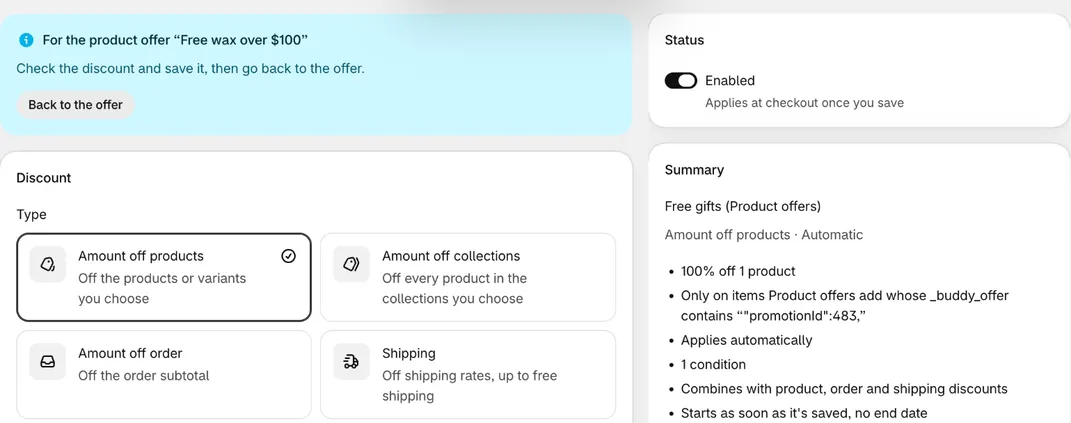
- Click Create gift discount on its Discount at checkout card (Discount when the offer shows on product or cart pages). The Discount page opens filled in:
- an Amount off products discount at 100%, on the gift products
- Areas applied to set to Product offers (items they add), with an Offers it covers row for this offer
- the lowest tier’s amount as a Cart subtotal minimum
- a Line discount quantity limit of the most of one gift a line can hold: the top tier’s quantity, or, for automatic gifts whose tiers add up, a gift’s quantities added together across the tiers that give it
- Check it and save.
- Click Back to the offer. The card now reads Free with and the discount’s name.
The minimum counts the gift at its full price. At checkout that’s fine, because the offer adds the gift only once the tier is reached. Outside checkout, a gift left in the cart counts toward the minimum, so the gift can be free below the tier by up to its price. See Apple Pay, Google Pay and Shop Pay.
Discounts made with Create gift discount combine with order, product and shipping discounts. They apply only to items Product offers add, so they never discount buyers’ own items. With Amounts are in one market’s currency ticked, the discount gets no minimum.
Add a gift to an existing discount
Section titled “Add a gift to an existing discount”If you already have a discount set to Product offers (items they add) that fits the offer, the card offers Add to and that discount’s name instead. It opens the discount with an Add the products button: click it, save, then click Back to the offer. If the discount’s offer rows leave this offer out, the button adds the offer’s row too.
One Product offers discount can cover the gifts of several offers. Its minimum and quantity limit apply to every product it lists, so keep the minimum at or below each offer’s lowest tier.
Gifts from a collection
Section titled “Gifts from a collection”For gifts buyers choose From a collection, one Collection discount makes every pick free:
- Discount type: Percentage (each product), value
100. Plain Percentage splits the percentage between the gifts. - Collections applied to: the gift collection.
- Areas applied to: Product offers (items they add).
Create gift discount sets this up for an offer with gifts from a collection. Products in the collection priced $0 need no discount. See collection discounts.
% off upsells and checkbox upsells
Section titled “% off upsells and checkbox upsells”An upsell or checkbox upsell with Price → % off shows that percent off each product’s live price. Give it a discount at the same percent that applies to Product offers (items they add):
- From the offer’s Discount at checkout card, with Create discount.
- Or by hand: Customizations → Discounts → Create customization → Discounts → Amount off products, Percentage at the same value, Variants applied to the offer’s products, and Areas applied to set to Product offers (items they add). For products from a collection, use a Collection discount at Percentage (each product), with Areas applied to set the same way.
One discount can cover several offers at the same percent. If checkout charges more than the offer shows, because the discount’s percent is lower or its conditions don’t pass, checkout removes the item after it’s added. On an offer shown only on product and cart pages, nothing removes it: buyers pay the regular price. See the discounted upsell recipe.
Fixed price and amount off
Section titled “Fixed price and amount off”- Fixed price sells every product in the offer at one price, whatever its own: at $100, a $430 product and a $1,000 product both show and sell for $100. A product already at or below it shows and keeps its own price. Give it a discount at the same price that applies to Product offers (items they add): Create discount under Discount at checkout makes one. By hand, it’s an Amount off products discount with Fixed price, or for products from a collection, a Collection discount with Fixed price (each product).
- Amount off takes the same amount off each product’s live price, such as $20 off. Give it a discount with Fixed amount (each product) on a collection, or Fixed amount with Apply discount to each item ticked, that applies to Product offers (items they add).
The card doesn’t make a discount for Amount off: make it by hand, as Amount off products with Variants applied to the offer’s products, Areas applied to set to Product offers (items they add), and an Offers it covers row for the offer.
Both are in your store’s currency, and the offer converts them for other currencies. A Fixed price discount converts the same way, and so does a Fixed amount discount with Convert to the customer’s currency ticked, as new ones are. An older Fixed amount discount starts with it off: tick it, or in other currencies checkout takes off a different amount from the one the offer shows. If the offer has Amounts are in one market’s currency ticked, untick it on the discount instead, so both use the amount as typed.
Gifts with a discount code
Section titled “Gifts with a discount code”The Free gift with a code template adds a gift when the buyer enters one of your codes, using a Discount code condition in Who sees it.
- Each code must be a Shopify discount of any kind, like 10% off or free shipping. Checkout drops codes that don’t exist.
- The gift still needs its own 100% discount. Use Create gift discount.
- The two discounts must combine, or checkout keeps only one. Set your code to combine with product discounts, and the gift’s discount to combine with your code’s kind: order, product or shipping. Discounts made with Create gift discount already do.
Discount at checkout card
Section titled “Discount at checkout card”What the card shows, and what it counts as covering a gift or a price, for when it warns and you expected it not to.
The editor shows Discount at checkout for gift offers, and for upsells and checkbox upsells whose Price is % off, Amount off or Fixed price. It’s called Discount when the offer also shows on product or cart pages.
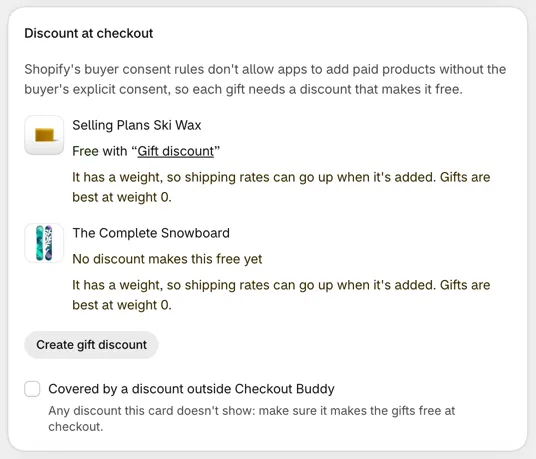
While a gift, a % off or a fixed price has no discount yet, Set up in 2 steps shows at the top of the editor: “The offer adds the gift. A discount makes it free.” (for a price, “The offer shows the price. A discount applies it.”). Its steps are Set up the offer and save it, then Create the discount that makes it free (Create its discount for a price). Step 2 reads “Available once the offer is saved.” until you save, then has the card’s own button. Back from creating the discount, Set up in 2 steps says “All set. Publish the offer under Status when you’re ready.” It goes away once a discount covers everything the card checks.
The card starts with what the discount is for: “Gifts need a discount to be free.”, “The % off needs a matching discount, or checkout removes the item.” or the same for a fixed price. On an offer shown only on product and cart pages, nothing removes the item, so it reads “The % off needs a matching discount, or buyers pay the regular price.” Before the offer’s first save, it adds “Save the offer to create it here.” With unsaved changes, it says “Save your changes to create it here.” instead of showing its buttons. Once the offer is saved, the card lists each gift with its status:
- Free with “Gift discount”: a discount makes it free. The name is your discount’s.
- No discount makes this free yet: buyers pay for it until one does. Use Create gift discount.
For gift offers, the card ends with Remove gifts that aren’t free. It’s off unless you tick it: a gift no discount makes free stays in the cart at its price. Ticked, the offer removes it instead. See gifts that aren’t free.
For a % off offer, the card lists each product the same way, with “No discount gives this 20% off yet” and a Create discount button. A Fixed price offer reads “$100.00 each with” the discount’s name, or “No discount sells this at $100.00 yet”. Products an upsell shows from a collection get one line for the collection, checked against Collection discounts. Products by tag, product type or Shopify’s suggestions can’t be checked, and the card says so.
For Amount off, the card reads “Amount off needs a discount with the same fixed amount off each item. This card can’t check it.” It doesn’t check a Fixed price with Amounts are in one market’s currency ticked either, because discounts use your store’s currency.
A discount counts when it’s active, lists the product, its variant or a collection the product is in, at 100% (or at exactly the offer’s percent, for % off, or a Fixed price at exactly the offer’s price), applies to Product offers (items they add) or to Checkout components, and its minimum and quantity limit fit each tier that gives the product. Shopify’s own discounts that list it at 100% count too: see Shopify’s own discounts. So do some volume and flex discounts: see volume and flex discounts.
A few settings stop a discount from counting, because checkout could charge for the gift:
- A Cart subtotal (excluding selected variants) minimum: it also leaves out buyers’ own items of those products.
- On a Collection discount, a Total discount quantity limit below the tier’s quantity, or, for automatic gifts whose tiers add up, below all the gifts the tiers reached give together. A total that’s big enough still counts, but it’s shared with every offer’s items from that collection.
- On a Collection discount, Markets set to selected markets, unless the offer’s own Market condition stays inside them.
The card also tells you when:
- A gift has a weight, which can raise shipping rates. Gifts work best at weight 0.
- Another offer or an older block also sells the gift product, with an Add button or a checkbox, and the gift’s discount covers that offer’s items, so the product would be free there too. Limit the discount to the gift offer with an offer row, or use a separate gift product or variant.
- A discount reaches another offer’s items: under a gift that a Collection discount makes free, the other offers that add products from its collection (they’d be free too), and under a % off product, a discount that makes it free or gives more off than the offer shows. Offers a discount’s offer rows leave out aren’t named.
Tick Covered by a discount outside Checkout Buddy when a discount the card doesn’t show makes the gifts free, or gives the same % off or price. The card and the Status card then stop warning in this browser. The tick isn’t saved with the offer, so teammates and other browsers still see the warnings.
Which offers a discount covers
Section titled “Which offers a discount covers”Under Areas applied to, a Product offers (items they add) discount has Offers it covers: rows that read _buddy_offer contains a text. Every item an offer adds carries _buddy_offer, with the offer’s ID and kind, like {"promotionId":329,"kind":"GIFT"}.
- No rows: the discount covers every offer’s items.
"promotionId":329,: only the items offer 329 adds. Each offer shows its ID on its Status card. Keep the comma: without it, 329 also matches offer 1329.GIFT: every offer’s gifts."kind":"ADD"covers every upsell item.- Several rows: an item needs to match any one of them.
The text is matched as typed, capitals included. Create gift discount and Create discount add the offer’s own row, so another offer that sells the same product keeps its price.
Shopify’s own discounts
Section titled “Shopify’s own discounts”The offer reads what checkout charges, so a discount made in Shopify can make a gift free too:
- Works: an Amount off products discount at 100% on the gift, for all customers, with no minimum purchase requirement. It also makes the product free when buyers buy it themselves.
- Not enough on its own:
- Buy X get Y: the gift is free only when the buyer has the “Customer buys” items. Checkout Buddy’s Buy X get Y can make its own offer instead, with Add to the cart.
- A minimum purchase requirement: Shopify counts only the products the discount applies to, so it can’t stand in for “spend $100”.
- Customer, segment or market limits: buyers outside them pay for the gift, or it’s removed with Remove gifts that aren’t free ticked.
- A discount code: the gift is free only with the code. That’s fine for an offer shown only with that code.
A gift product priced $0 needs no discount.
Volume and flex discounts
Section titled “Volume and flex discounts”A volume discount or a flex discount can make a gift free too, or give an upsell its % off. Like Shopify’s own discounts, it applies to every item it lists, so it also makes the product free when buyers buy it themselves. The card counts one only when it gives the gift what the offer shows every time the offer adds it:
- Volume discount: Discount applies to set to The same items, Percentage off, and every tier at 100% (or at exactly the offer’s percent), the first from 1 item: a gift on its own is one item.
- Flex discount: Off products at Percentage off each item, 100% (or exactly the offer’s percent).
- Items: the gift’s variant, a collection it’s in, one of its tags, or, on a volume discount, All items.
- Conditions: Apply to all checkouts, or a Cart subtotal of more than an amount at or below the tier’s. Any other condition can leave buyers out.
- Eligibility: All customers. Customer segments and Specific markets leave other buyers out, B2B buyers included, as Shopify’s own discounts limited to some buyers do.
These don’t count: a discount code, Most it takes off an order, Most items that get it, Don’t discount them or Discount them from the compare-at price for items already on sale, Subscriptions only, and spend tiers, group prices, combos, Different items and The whole order. A Buy X get Y discount doesn’t count either: the gift is free only when the buyer has the “Customer buys” items. With Add to the cart, it makes its own offer.
Apple Pay, Google Pay and Shop Pay
Section titled “Apple Pay, Google Pay and Shop Pay”- Apple Pay and Google Pay from the cart skip checkout, and your offers with it. Buyers paying that way don’t get the gift added, and a gift already in their cart is free or not by the discount alone. Give the gift’s discount its own minimum: Create gift discount sets the lowest tier’s amount.
- Shop Pay buyers: turn on Include block in Shop Pay in Shopify’s checkout editor.
Things to know
Section titled “Things to know”- Shopify allows 25 active automatic discounts per store, discounts from apps included. One Product offers discount can cover many offers.
- Up to 10 variants is best. In big carts, Shopify may skip a discount that lists many variants.
- A % off or fixed price item keeps its discount once it’s in the cart, even if the offer’s Who sees it conditions stop passing later. To limit it, give the discount its own conditions or minimum.
- Customers’ own items stay full price. A Product offers (items they add) discount never applies to a product buyers add from your store, and never to the whole cart.
- It’s for automatic discounts on Condition set 1. Codes and Condition set 2 can’t use it, and it can’t be combined with Cart or Checkout components. See product discounts.
- Checkout components is marked Legacy on the Discount page. It’s what older Product offers, Checkbox product offers and Line item upsell use to show a discounted price inside the block. New Product offers don’t need it, but a Checkout components discount still applies to the items they add. See showing the discounted price inside blocks.