
How discounts and checkout rules work
A function changes how checkout behaves rather than what it shows. Discounts are functions, and so are the rules that hide or rename payment and shipping methods, set purchase limits, or block checkout until the cart meets a rule.
Functions differ from blocks in three ways:
- They work on every Shopify plan. A few need Shopify Plus, and their pages say so.
- There’s nothing to place. A function is live as soon as you save it with the status enabled. You don’t add it in the Checkout Editor.
- They run on Shopify’s servers. Customers can’t see or bypass them, and they apply to express checkouts such as Shop Pay.
Discounts
Section titled “Discounts”Which type to choose:
| You want | Type | Plan |
|---|---|---|
| Quantity breaks, tiered pricing or a bulk discount, such as 10% off 2 or more | Volume discount | Deals & Rules or Buddy |
| Spend more, save more, such as $10 off at $100 and $25 off at $200 | Spend tiers | Deals & Rules or Buddy |
| A price for a group of items, such as 3 for $50 | Group price | Deals & Rules or Buddy |
| A bundle discount on items bought together, such as a shampoo and a conditioner | Combo discount | Deals & Rules or Buddy |
| Buy one get one (BOGO), buy 2 get 1 free, or a free gift with purchase, with the free item added to the cart | Buy X get Y | Deals & Rules or Buddy |
| Free shipping over $50 | Shipping | Any |
| A free shipping code, or 10% off plus free shipping with one code | Flex discount | Deals & Rules or Buddy |
| A sale on some products, or a fixed price for them | Amount off products | Any |
| A sale on a collection | Amount off collections | Any |
| A percentage or an amount off the whole order | Amount off order | Any |
| One code per order, or no codes on sale items | Code rules | Deals & Rules or Buddy |
| A code of their own for each customer | Unique codes | Deals & Rules or Buddy |
| A discount for VIP customers or one market only | Segments and markets | Any |
Two things merchants look for here aren’t discount types:
- A free gift once the cart reaches an amount, such as a free tote over $75, is a free gift offer. Buy X get Y is for a gift that comes with certain products.
- Products sold together as one product, such as a kit or a 3-pack, are bundles.
Create a discount
Section titled “Create a discount”- In Checkout Buddy, open Customizations. On the Discounts tab, click Create customization.
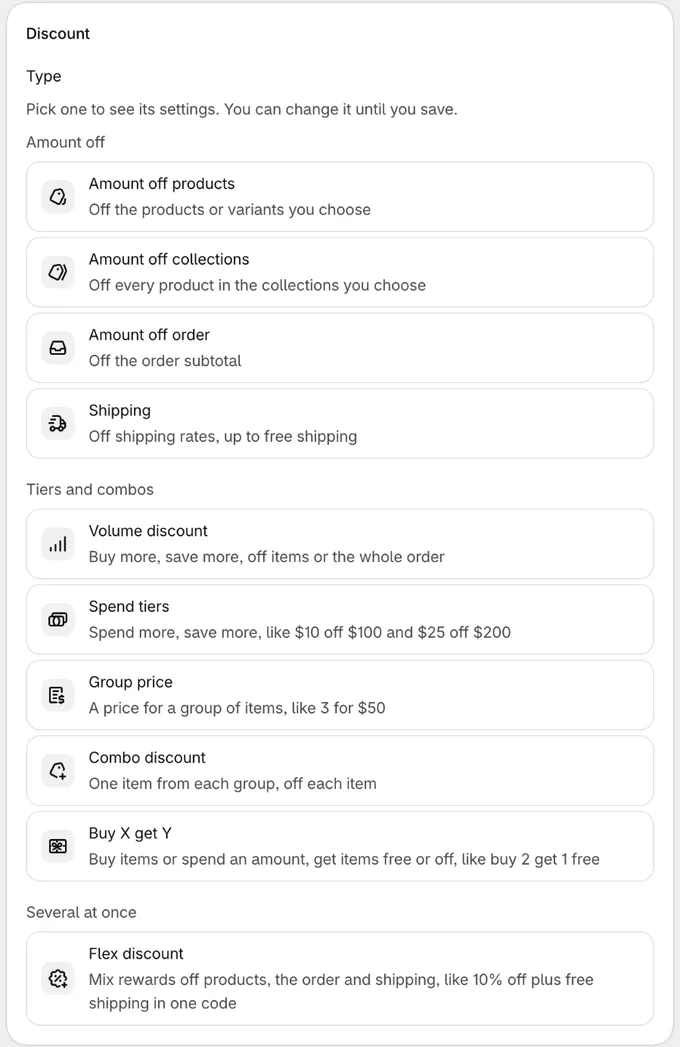
- Click the Discounts card. Every discount type is on this one card. If you search first, for “free shipping”, “collection code”, “volume” or “bogo”, the card opens with that type chosen.
- Under Type, pick the type. The list is grouped: Amount off (Amount off products, Amount off collections, Amount off order, Shipping), Tiers and combos (Volume discount, Spend tiers, Group price, Combo discount, Buy X get Y) and Several at once (Flex discount). To pick another, click Change next to the type.
- Under Method, choose Automatic discount or Discount code. Every type can be either, except Shipping, which is automatic only.
- Give it a Title, fill in the cards below, and click Save. The Summary card shows what the discount does as you fill it in.
Code rules refuse discount codes and give no discount, so they have a card of their own: Discount code rules, on the Checkout rules tab.
You can also start from Shopify: Create discount on Shopify’s Discounts page lists Checkout Buddy’s discount types, and Sidekick can open the page when you ask it to create or edit a Checkout Buddy discount.
What every discount has
Section titled “What every discount has”- Type, method and condition set are fixed once you save. To change one, create a new discount.
- Conditions decide when it applies. Amount off products, collections and order, and Shipping, have condition sets. Volume, spend tiers, group price, combo, Buy X get Y and flex discounts share one list of conditions, with no condition sets.
- Eligibility: All customers, only the customers in the Shopify customer segments you pick, such as VIP customers, or only checkouts in the markets you pick. Code rules don’t have it.
- Unique codes: any discount code can also have unique codes, up to 10,000 single-use codes for the same discount, such as one for each customer on an email list.
- Limits: volume, spend tiers, group price and combo discounts can have limits, such as up to $50 off an order.
- Saving checks the discount first, and shows what’s missing under its field: a value above 0 (a percentage up to 100), the products or collections it’s for, whole numbers for quantity limits, a title for a shipping option, and at least one condition when Apply only when conditions pass is chosen. An older discount saved without one of these asks for it the next time you save it.
Create a function
Section titled “Create a function”For payment rules, shipping rules and checkout rules:
- In Checkout Buddy, open Customizations. On the Checkout rules tab, click Create customization.
- On the Select customization page, pick the function you want, or search by name. A Function label on a card means it runs on Shopify’s servers at checkout. Payment methods and Shipping methods each hold several: choose the card, then the one you want.
- Give it a Name, fill in its settings, and set conditions if it should only apply sometimes.
- Click Save. It’s live straight away.
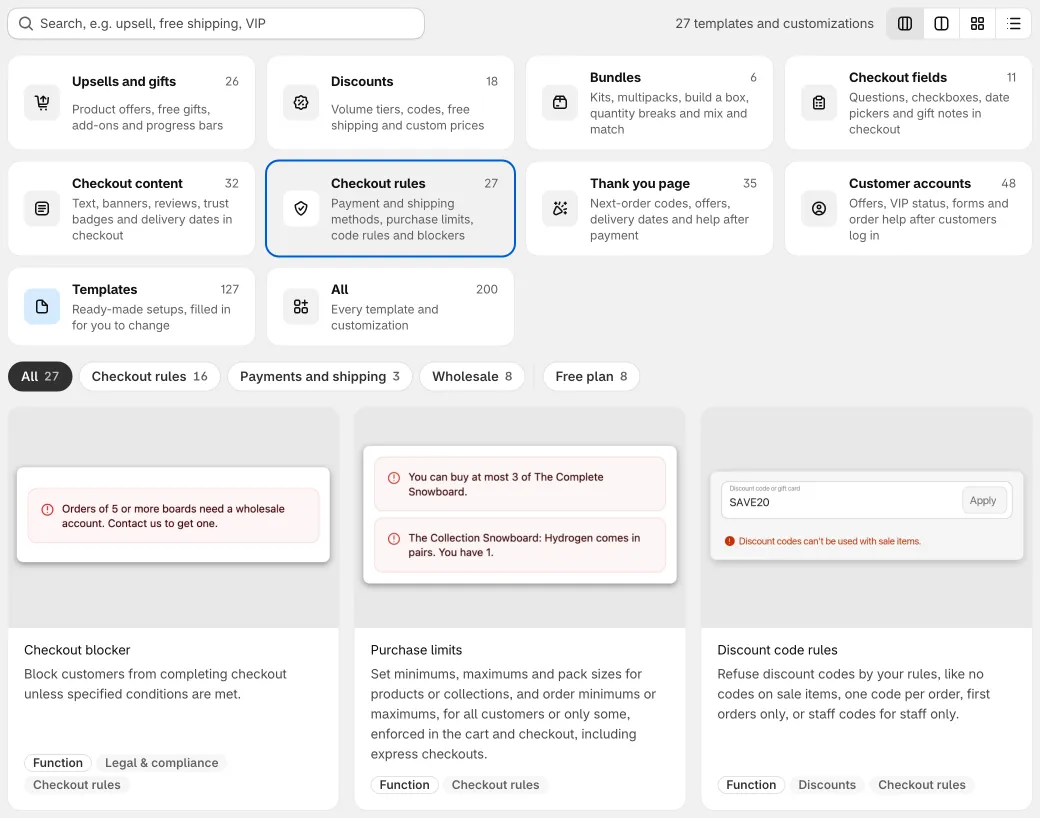
To start from a ready-made function, such as Order minimum or Hide cash on delivery over $500, click the Templates tile. See templates and recipes.
Where functions appear in Shopify admin
Section titled “Where functions appear in Shopify admin”Each function is a real Shopify object, so you’ll also see it in Shopify admin:
| Function | Where to find it in Shopify admin |
|---|---|
| Payment method rules (hide, rename, reorder), B2B order review | Settings → Payments → Payment customizations |
| Shipping method rules (hide, rename, reorder) | Settings → Shipping and delivery → Delivery customizations |
| All discounts | Discounts |
| Checkout blocker, address blocker, purchase limits | Settings → Checkout → Checkout rules |
| Price changers | Not listed anywhere in Shopify admin |
Always edit and delete functions from inside Checkout Buddy. If you delete one directly in Shopify admin, the app still lists it, and its edit page says “Deleted in Shopify admin. Delete it here too, or create a new one.”
Turn a function off, or delete it
Section titled “Turn a function off, or delete it”Each function has a Status card with a switch that reads Enabled or Disabled: turn it off and save to disable the function. Disabling keeps its settings so you can turn it back on later.
- Discounts: disabling sets the discount’s end date to now, so Shopify shows it as Expired. Enabling it again restarts it.
- Everything else: disabling switches off the customization in Shopify.
Delete function (Delete discount on discounts) at the bottom of the edit page removes it from both Checkout Buddy and Shopify. You can’t undo this.
Settings
Section titled “Settings”Most functions let you add more than one setting, for example several payment methods to hide, each with its own conditions. Each setting is checked on its own. Where settings interact, for example when an order discount applies only the first setting whose conditions pass, the function’s page explains how.
On the Free plan each function can have one setting.
Conditions and condition sets
Section titled “Conditions and condition sets”Functions use the same conditions builder as blocks, with two differences.
Fewer conditions are available. A function can only read the checkout data Shopify gives it, so each function type offers its own shorter list of conditions. See conditions for functions.
Some functions have condition sets. When you choose Apply only when conditions pass, some functions show Condition set 1, Condition set 2 and so on. Each condition set is a different list of conditions. For example, Condition set 1 of a shipping method function checks cart contents and addresses, while Condition set 3 checks company metafields and cart weight.
A discount on Apply only when conditions pass needs a condition. Saving a discount with none asks you to add one, or to pick Apply to all checkouts. A code rule on Only when conditions pass asks the same, with Every checkout as its other choice.
Amounts and currencies
Section titled “Amounts and currencies”Enter amounts in conditions, such as Cart total is more than 100, in your store’s currency. Functions convert them to the customer’s currency at checkout using Shopify’s exchange rate.
Fixed discount amounts work differently: some are converted and some aren’t. Each discount’s page explains how its amounts behave. On a multi-currency store, percentages are the safest choice.
| Free | Deals & Rules | Buddy | |
|---|---|---|---|
| Hide, rename, and reorder payment and shipping methods | ✓ | ✓ | ✓ |
| Product, collection, order, and shipping discounts | ✓ | ✓ | ✓ |
| Volume, spend tiers, group price, combo, Buy X get Y and flex discounts, code rules, unique codes | ✓ | ✓ | |
| Checkout blocker, address blocker, purchase limits | ✓ | ✓ | |
| Number of functions | 1 customization in total | As many as Shopify allows | As many as Shopify allows |
| Settings per function | 1 | More than one | More than one |
The Free plan allows one customization in total, counting checkout blocks, discounts and other functions, thank you page blocks, and customer account blocks together. See plans and billing.
Functions marked Shopify Plus need a Shopify Plus store because Shopify only allows them there: hide accelerated checkout payment methods, B2B order review, and the price changers.