
Custom fields
Custom fields adds your own checkout fields: a gift message or gift note, a date picker for the delivery date and time, a PO number, a “How did you hear about us?” choice, or a required terms checkbox. One form can hold several fields, and a field can show only after another answer. Each answer is saved on the order.
Requires: Shopify Plus, since the form shows in checkout. On the Free plan, which includes one customization in total, a form can have one field that isn’t a date; headings don’t count, and Date of birth is allowed. More fields, or a Date field, need the Buddy plan. The Deals & Rules plan doesn’t include checkout blocks, so it can’t save Custom fields forms.
Add a form
Section titled “Add a form”- In Checkout Buddy, open Customizations. On the Fields tab, click Create customization and choose Custom fields. Choose Start blank or a template, such as Gift message, Delivery date and time or Terms agreement.
- Give the form a Name, which only you see. Under Content, you can add a Heading and Text above the fields (bold and links work) and tick Show a border around the form.
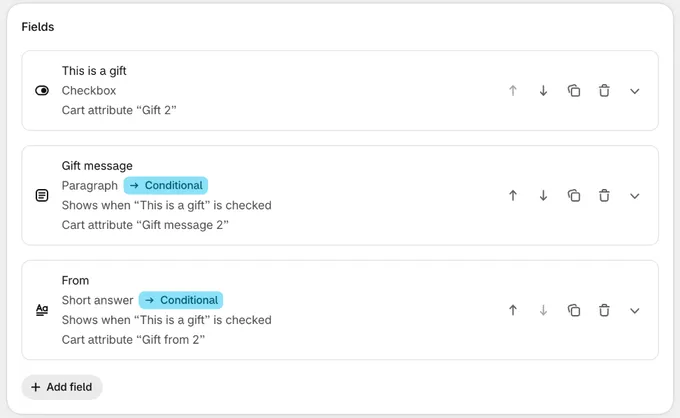
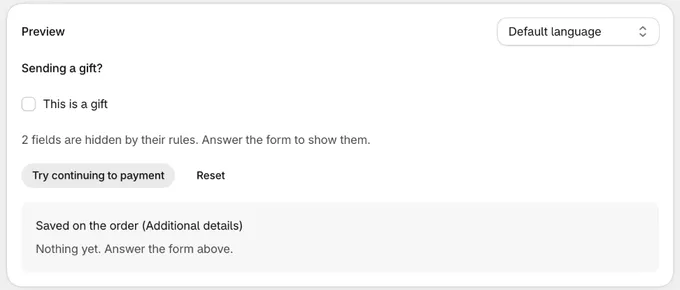
- Add your fields with Add field, and set each one up. The Preview shows the form as customers will see it, rules included.
- Under Status, turn on the switch so it reads Published, and save. New forms start as Draft.
- In Shopify’s checkout editor, add the Custom fields app block where the form should show, and save the editor. Where it shows has a link to the editor, and warns you while the app block isn’t in your live checkout. If any field is required, turn on Allow app to block checkout under Checkout behavior.
Templates
Section titled “Templates”Each template opens the form filled in, for you to change before saving.
| Template | What it adds | Free plan |
|---|---|---|
| Gift message | A This is a gift box that opens a gift message and who it’s from | |
| Gift note | An Add a note box that opens a note, saved as the order note | |
| Delivery date and time | A required date picker: weekdays from tomorrow, in 2-hour slots from 9 AM to 5 PM | |
| How did you hear about us? | One choice, with a box for “Other” | |
| Purchase order number | A PO number field, for B2B orders only | ✓ |
| Terms agreement | A box buyers must tick before they pay. See required terms checkbox. | ✓ |
| Age confirmation | A box buyers must tick when the cart has products tagged alcohol |
✓ |
| Birthday | Month, day and year, for birthday treats | ✓ |
The templates without a tick have more than one field or a Date field, so they need the Buddy plan. On the Free plan, one note field saved as the order note works too.
For gifts, the Gift orders recipe under Templates adds the gift message form, a gift wrap offer and a thank you page block that shows the message.
Which forms an app block shows
Section titled “Which forms an app block shows”The Custom fields app block has one setting, Block IDs:
- Empty: every published form whose conditions pass, oldest first.
- Form IDs, separated by commas: only those forms, in that order. A form’s ID is under Status in its editor once you’ve saved it, and in the ID column on Customizations.
If you add the app block more than once, list IDs in each, so no form shows twice.
Where to place it
Section titled “Where to place it”- In a step’s main column, or in a section: the header, contact, above or below the shipping address, shipping methods, pickup locations, payment methods, above the pay button, the order summary, or the footer.
- Billing address: Shopify has no place for apps at the billing address. Put the app block below the payment methods, the nearest place.
- Not under each line item or shipping option. The checkout editor doesn’t offer those places for this app block.
Fields
Section titled “Fields”| Field | What the customer sees |
|---|---|
| Short answer | One line of text |
| Paragraph | Several lines of text |
| Email, Phone, Number | A field that checks the format |
| Dropdown | A list to pick one option from |
| Single choice | Radio buttons |
| Multiple choice | Several options to tick |
| Checkbox | One box to tick, such as terms or an opt-in. Its label can link to a page: I agree to the [terms](https://yourstore.com/policies/terms-of-service). A box that isn’t required can also save nothing and only show other fields |
| Date | A date field or calendar showing only the days you offer, with optional time slots |
| Date of birth | Month, day and year dropdowns, in the Order you choose, with an optional minimum age |
| Heading | A heading and text between fields (not saved) |
Each field can be required, have help text, and sit beside the next one with Half width. Text fields can set a minimum and maximum number of characters and check a Format:
- Short answer: starts or ends with your text, letters only, digits only, letters and digits, capital letters and digits, letters, digits and dashes, no spaces, a website link, a US ZIP code, a Canadian, UK or Australian postal code, an EU VAT number, a US EIN, or your own pattern (a regular expression)
- Paragraph: starts or ends with your text, or your own pattern
- Phone: starts with a country code, such as +1, or your own pattern
- Email: ends with your company’s address, such as @yourcompany.com, or your own pattern
Starts with and Ends with ignore capital letters: “po-1234” passes “Starts with PO-”.
A Number can set its lowest and highest value.
Customers see our error messages, in English or in French for French-language checkouts, unless you write your own, which you can translate: Message if empty (under Required; on a checkbox it’s Message if unchecked) and Message if invalid (under Rules, for the field’s format, length, number range or minimum age). For example, “Enter your PO number, like PO-1234” or “Please accept the terms to continue”.
Turn on Warn only under Rules to show the message but let customers continue to payment. An empty required field still stops checkout.
On a Dropdown, Single choice or Multiple choice, tick Save different values to give each choice the value orders get, such as LEAVE_AT_DOOR for “Leave at the door”. Customers still see the choice’s text. A Dropdown with No blank choice starts on its default choice, or the first one, so it always has an answer.
Date settings
Section titled “Date settings”A Date field has every setting the older Date field and Date picker blocks had:
| Setting | What it does |
|---|---|
| Show as | A date field that opens a calendar, or a calendar on the page (the old Date picker). |
| Days available | The days of the week customers can pick. |
| Lead days | The earliest date customers can pick, in days from today. 0 is today. |
| Exclude unavailable days from lead days | Lead days count available days only: 2 lead days from Friday is Tuesday, with weekends off. |
| Cutoff time | In 24-hour time. Orders after it count from tomorrow. |
| Number of future days shown | The latest date customers can pick, in days from today. |
| Max date | No dates after this one, as YYYY-MM-DD, like the end of a season. Applies when it’s sooner than the future days shown. |
| Blocked dates | Holidays and closures customers can’t pick. |
| Time zone | Sets when today starts for the cutoff and lead days. Your store’s time zone unless you choose another. Follows daylight saving time, and replaces the old UTC offset. |
Tick Enable timeslots to add a second dropdown once a date is picked:
| Setting | What it does |
|---|---|
| Start time, End time | The first slot starts at the start time; slots that don’t end by the end time aren’t offered. |
| Timeslot interval | How long each slot is. |
| Timeslot label | The dropdown’s label, “Time” if empty. |
| Lead time today | Today only, hide slots starting sooner than this many hours from now. |
| Use 24-hour clock | Show 14:00 - 16:00 instead of 2:00 PM - 4:00 PM. |
| Timeslot key | The cart attribute key the slot is saved under. If you change it, past orders keep the old one. |
Show a field only after another answer
Section titled “Show a field only after another answer”Open a field and set Show this field to Only when…, then pick another field in the form and what its answer must be, such as is, isn’t, includes, has an answer, is checked or is more than. Add more conditions and match all or any of them.
While a field is hidden, it isn’t required and its answer is cleared. A field can depend on one that depends on another.
Who sees the form
Section titled “Who sees the form”Under Who sees it, choose Only checkouts that match conditions to show the form only for some carts: cart total or subtotal, item count, products, product types, vendors, tags or collections, an item on backorder (or every item in stock), subscriptions, discount codes, a cart attribute (such as an older form’s answer), delivery method or delivery option name, shipping country, province, postal code or city, payment method, logged-in or guest customers, B2B customers or companies, language, country, dates, day of the week, or time of day. Add each product type or vendor on its own, so a name with a comma like Acme, Inc. stays one name.
For example, ask for a PO number only when the customer pays later on net terms (Payment method), a gate code only for your local delivery option (Delivery option), or “ship together or as items arrive?” only when an item is on backorder. Day of the week and time of day use your store’s time zone. A condition about payment, the address or the delivery option counts once the customer has chosen it.
Checkout rule for a required checkbox
Section titled “Checkout rule for a required checkbox”A required checkbox, such as terms, stops only the Continue and Pay buttons. Shop Pay, Apple Pay and other express checkouts can skip it. To refuse those orders too, use the Checkout rule card in the saved form’s editor: Add checkout rule opens a new checkout blocker that refuses any order without the box ticked, with the form’s key and conditions filled in. Save it there.
The rule starts off. Turn it on once the form shows in checkout. It also refuses orders that never show the box, like Apple Pay from the cart page. Once a box has a rule, the card shows it with On or Off and an Open link. A checkout blocker needs the Deals & Rules or Buddy plan.
Where answers are saved
Section titled “Where answers are saved”Unless you choose otherwise under Save the answer as (see below), every answer is saved as a cart attribute under the field’s Cart attribute key. Shopify copies cart attributes to the order: they’re listed under Additional details, Shopify Flow reads them as the order’s custom attributes, and notification emails can show them:
{% if attributes["Gift message"] %} <p>Gift message: {{ attributes["Gift message"] }}</p>{% endif %}A new field’s key comes from its label, and you can change it. Keys are 3 to 30 characters. If another form already uses a key, a new field’s key gets a number, such as Terms accepted 2. Once a form is saved, renaming a field doesn’t change its key: change the key yourself if you want a new name. Past orders keep the old one.
Two fields in one form can’t share a key. A key another form also uses shows a warning: if both forms show in one checkout, one answer replaces the other.
Custom fields saves only your fields’ answers. It adds no other attributes to the order, such as __buddy_data or __buddy_form_field, which older form blocks add.
Save the answer as
Section titled “Save the answer as”Short answers, paragraphs and checkboxes that aren’t required have a Save the answer as choice:
- A cart attribute: the default, as above.
- The order note (Short answer, Paragraph): the answer is the order note, under Notes on the order. A note from the cart starts in the box. Nothing else is saved. Other fields’ note lines stay below it. The Gift note template uses it.
- Nothing, it only shows fields (a checkbox that isn’t required): nothing is saved on the order. The box only shows the fields that need it ticked, and starts ticked when one of them has an answer, like a note from the cart.
Also save as a cart metafield
Section titled “Also save as a cart metafield”Tick Also save as a cart metafield to also have the answer on the order as an order metafield, for Shopify Flow, order exports and apps that read metafields. Choose its Namespace (checkout_buddy if left empty) and Metafield key. For example, key gift_message ends up in the order metafield checkout_buddy.gift_message. A key is 2 to 64 letters, numbers, - or _ (59 at most for a date with time slots, which adds _time), and a namespace 3 or more.
How the answer gets to the order:
- When you save the form, Checkout Buddy creates an order metafield definition with that namespace and key, set to copy values from the cart. It’s single line text, or multi-line text for a Paragraph.
- At checkout, the form saves the answer on the cart as a cart metafield with the same namespace and key, as well as the cart attribute.
- When the order is placed, Shopify copies the cart metafield to the order metafield. Shopify does this itself, and it works for any cart metafield whose namespace and key match an order metafield definition set to copy from the cart.
The answer then shows on the order page under Metafields. It’s the same value as the cart attribute, as text. A date’s time slot gets a second metafield: the key with _time, such as checkout_buddy.delivery_date_time.
- Only orders placed after you save get the order metafield. Orders placed before have the cart attribute only.
- An order metafield you already use works too: enter its namespace and key. Checkout Buddy turns on copying from the cart for it. It must be single line or multi-line text, or saving shows an error: use a different key.
- If saving says Checkout Buddy doesn’t have access to orders, reload Checkout Buddy, approve the updated permissions Shopify asks for, then save again.
- Keep the definition. If you delete it, or turn off copying from the cart in Shopify admin under Settings → Custom data → Orders, Shopify stops copying. The cart attribute is still saved.
Also add to the order note
Section titled “Also add to the order note”Tick Also add to the order note to also put the answer in the order note, as one line such as PO number: 12345. If the customer changes the answer, the line is replaced, and any note text the customer wrote stays. A field that hides takes its line back out.
Also set the shipping phone or city
Section titled “Also set the shipping phone or city”On a Phone field, Also set the shipping phone puts the answer in the shipping address’s phone. On a Dropdown, Also set the shipping city sets the city, for example to limit local delivery to the cities you list. This only happens when the order ships to an address the customer can change: not for pickup, B2B company addresses, Apple Pay or Google Pay.
Saved values
Section titled “Saved values”Answers are always saved as text. Use these exact values in Shopify Flow conditions, emails and other apps.
| Field | Saved value | Example |
|---|---|---|
| Short answer, Paragraph, Email, Phone | The text as typed | Happy birthday! |
| Number | The number | 12, 2.5 |
| Dropdown, Single choice | The chosen option’s text, as written in the editor in your store’s default language, even for customers checking out in another language. With Save different values, the choice’s saved value. | Small |
| Multiple choice | The ticked options’ text (or saved values), separated by a comma and a space | Gift wrap, Card |
| Checkbox | true when ticked, false when unticked, in lowercase. Nothing is saved until the customer ticks it, unless it’s ticked by default. With Nothing, it only shows fields, nothing at all. |
true |
| Date | The date as YYYY-MM-DD |
2026-10-14 |
| Time slot | The slot, under its own key (the time slot’s Cart attribute key) | 9:00 AM - 11:00 AM |
| Date of birth | The date as YYYY-MM-DD, once month, day and year are all picked |
1990-05-17 |
When an answer is cleared, or its field hides, the cart attribute and metafield are removed.
Translations
Section titled “Translations”Under Translations, translate the heading, text, labels, help text, placeholders, options, error messages and time slot labels for each of your store’s languages. Customers see your text in their language; answers are still saved in your default language, so orders and Flow read the same values.
Checkout Buddy’s own messages, such as Check this box to continue and (optional), are in English, or French for French-language checkouts. Calendars, month names, and the Month, Day and Year labels follow the customer’s language.
Things to know
Section titled “Things to know”- Dates use your store’s time zone (or the field’s own Time zone) for “today”, lead days and cutoffs. The store’s time zone is saved with the form: if you change it in Shopify, save your forms again. A date the customer picked that’s no longer available when they come back (it has passed, or the cutoff went by) has to be picked again.
- A date field with no day left to pick (its Max date has passed, or its settings leave no room) shows no days and doesn’t stop checkout, even when required. The editor warns you when that happens.
- A form its conditions hide takes its answers back out. For example, a shipping date the customer picked is removed if they switch to pickup, so the order gets only the pickup date. Answers stay while checkout is still loading, and when another form that shows saves under the same cart attribute.
- Answers are only saved once the customer reaches the page with the app block. Express checkouts that skip it won’t have them.
- Required fields need blocking allowed on the app block, or customers can continue without answering.
- Forms don’t show where Shopify doesn’t let apps save cart attributes in that checkout, since there’d be nowhere to save the answers.
- Duplicate, at the top of the editor, makes a draft copy of the form. Delete form, at the bottom, removes it from checkout right away; answers already on orders stay.