
Checkout branding
Shopify’s own checkout editor only offers a few branding options. Checkout Buddy’s branding editor gives you control over far more: every color, font, corner, button, and form field, with a live preview.
Requires: Shopify Plus. Available on every Checkout Buddy plan.
Open it from Settings → Checkout branding.
The branding editor
Section titled “The branding editor”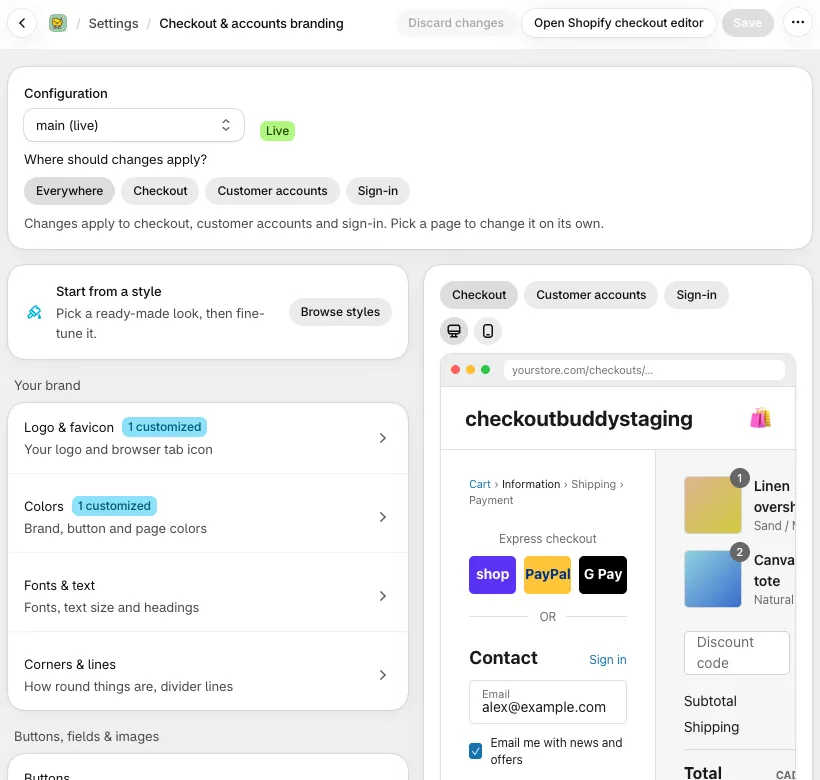
Choose what to edit
Section titled “Choose what to edit”- Configuration: Your checkout and accounts configurations. The one customers see is marked (live). Others are drafts you can prepare in advance.
- Markets: If a configuration has market-specific branding, pick All markets or one market. Settings left empty for a market use the main configuration.
- Where should changes apply?: Everywhere, Checkout, Customer accounts, or Sign-in. Checkout, Customer accounts, and Sign-in override Everywhere. Colors, fonts, and corners are shared by all pages, so change them under Everywhere.
What you can change
Section titled “What you can change”| Section | Includes |
|---|---|
| Logo & favicon | Logo image, size, and position; favicon |
| Colors | Key colors, page colors, message colors, and saved brand colors |
| Fonts & text | Fonts from Shopify’s font library, text size, and text style |
| Corners & lines | Corner radius and border styles |
| Buttons | Primary and secondary buttons, express checkout buttons |
| Form fields | Field style and borders |
| Product images | Thumbnail style |
| Header | Layout, cart link, and breadcrumbs |
| Main content | Background image and dividers |
| Order summary | Background and style |
| Footer | Footer style |
Start from a style
Section titled “Start from a style”Start from a style applies a ready-made look: Clean, Soft, Bold, Elegant, Dark, or Fresh. It replaces your colors, fonts, and shapes but keeps your logo, favicon, and images. Nothing goes live until you save.
Save your changes
Section titled “Save your changes”Click Save. A review screen lists every change and warns about text that may be hard to read. On the live configuration the button reads Save and publish, and customers see the changes as soon as you save.
Discard changes throws away unsaved edits. Reset all branding returns every setting in the configuration to Shopify’s defaults, including logos and images. You’ll review the reset before it’s saved.
If you see the classic editor
Section titled “If you see the classic editor”The classic editor (“Customize checkout branding”) appears when:
- Checkout Buddy needs updated permissions. You’ll see Update permissions to use the new branding editor. Click Update permissions, approve in Shopify, then click I’ve updated them. Your current branding stays as it is in the meantime.
- Shopify hasn’t enabled the new editor for your store yet. You’ll see Using the classic branding editor. Keep using the classic editor; nothing is lost.
The classic editor covers checkout only. Choose a Checkout profile, then a category on the left such as Colors, Typography, Buttons, or Header. Reset checkout branding returns everything to Shopify’s defaults straight away.
Things to know
Section titled “Things to know”- The preview is a close approximation. Fonts only show in the preview if they’re installed on your computer. Check the real checkout after saving.
- Branding also applies to Checkout Buddy blocks, which use your checkout’s colors and fonts.
- Changes made here and in Shopify’s checkout editor affect the same settings. The most recent save wins.