
Cart line editor
Customers often reach checkout and realize they picked the wrong size or quantity. The cart line editor lets them fix it in the order summary instead of going back to the cart. There are two versions.
| Block | What customers can do | Plan |
|---|---|---|
| Cart line editor | Change variant, quantity, and subscription, or remove the item | Business |
| Cart line editor (simple) | Plus and minus quantity buttons | Free |
Both require Shopify Plus.
Place it under line items
Section titled “Place it under line items”The editor shows under every item. To show it only for some items, use rules such as Target line item tags. See rules for a specific line item.
Cart line editor
Section titled “Cart line editor”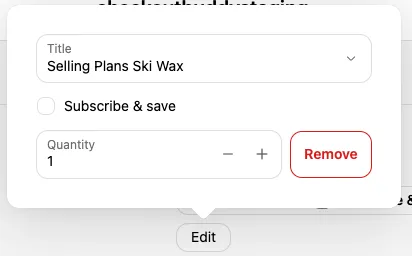
Customers click an Edit link under the item to open a popover with:
- A variant dropdown, when the product has more than one variant. Sold-out variants aren’t offered.
- A subscribe checkbox, when you turn it on and the product has subscription plans. With more than one plan, a plan dropdown appears.
- A quantity stepper. Setting it to 0 removes the item.
- A Remove button.
Settings
Section titled “Settings”Edit button
| Setting | What it does |
|---|---|
| Button text | Defaults to “Edit” |
| Button style | Pressable text, Primary button, Secondary button, or Plain link |
| Icon | Optional icon before the text |
| Text color, Text emphasis, Hide border around pressable text | Styling for the pressable text style |
Edit popover
| Setting | What it does |
|---|---|
| Quantity label, Remove label | Labels in the popover |
| Enable quantity changes | Turn off to only allow variant and subscription changes |
| Show a subscribe checkbox in the popover | Lets customers switch the item to a subscription. Subscribe checkbox label defaults to “Subscribe & save”. |
Add-on upsell
Show an add-on button (requires Shopify Search & Discovery complementary products) adds a second button next to Edit that offers the first complementary product from Shopify’s Search & Discovery app. You can set its text, icon, popover button text and style, and whether the buttons sit on the Same row or are Stacked.
Cart line editor (simple)
Section titled “Cart line editor (simple)”Shows minus and plus buttons under each item. Minus at quantity 1 removes the item.
Hide add quantity button removes the plus button, so customers can only reduce quantities.
Things to know
Section titled “Things to know”- Editing an item marks it as changed by Checkout Buddy, like items added by a cross sell. It then counts for rules such as Line item added by Checkout Buddy, and for product discounts set to apply to Checkout components (upsells, cross-sells, etc.). The simple editor doesn’t do this.
- If the checkout doesn’t allow changing items, for example some B2B and draft order checkouts, the editor doesn’t show.
- Changing to a variant that doesn’t support the item’s subscription shows an error and keeps the old variant.
- Translations entered for the Cart line editor are only used in the Checkout Buddy - Cart Line Item app block. In the main Checkout Buddy app block, write its labels in your checkout’s main language.