
Ask Sidekick
Sidekick is Shopify’s AI assistant in your Shopify admin. Checkout Buddy gives it read-only access to your customizations, your plans (what your Checkout Buddy and Shopify plans allow, and why) and this help center, so it can explain your setup and walk you through new ones.
Ask Sidekick buttons in the app open Sidekick with a question already written for you, like “Explain my Checkout Buddy discount ‘Spring sale’ (ID 123): what it does, when it applies, and why it might not be applying.” Sidekick shows that Checkout Buddy started the conversation, and you can keep asking from there.
Where you’ll find it
Section titled “Where you’ll find it”| Where | What it asks |
|---|---|
| Home, the Ask Sidekick card | A check of your setup (or what Checkout Buddy can do for you), free gift setups and checkout questions on Shopify Plus, offers and a free gift on product and cart pages elsewhere, volume discounts, bundles, purchase limits, what Sidekick can set up for you, and which plan fits |
| Home, the setup guide | How to set up the area you picked, how to add its block (in the checkout editor, or for Product offers on product and cart pages, in your theme), and whether your setup is working |
| Thank you page and Customer accounts setup steps | How to add their app block, and how to switch to new customer accounts |
| A Product offers offer, the Ask Sidekick menu at the top | That offer, and for gifts: which gift setup fits, a gift at each spend tier, making the gift free, a gift offer or Buy X get Y, and what to check when a gift isn’t added. For other offers: which offer fits, discounting the offered products, and choosing which products show. For offers on product and cart pages: setting them up there, a bought together offer on a product page, a free gift in the cart, and what to check when an offer isn’t showing on your store |
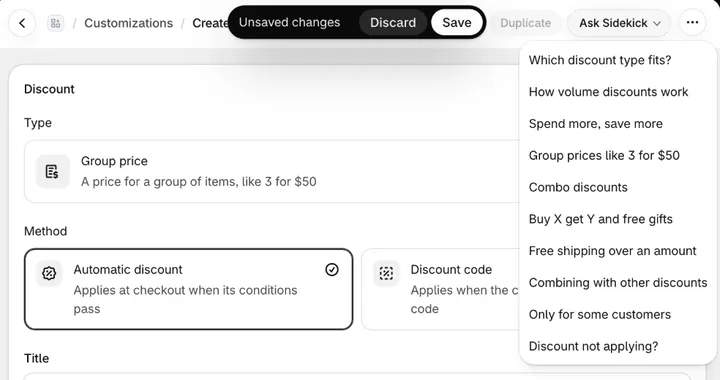
| A discount, or Create discount, the Ask Sidekick menu | That discount, which discount type fits, how volume discounts work, spend more save more tiers, group prices like 3 for $50, combo discounts, Buy X get Y and free gifts, free shipping over an amount, combining with other discounts, limiting a discount to some customers, and what to check when a discount isn’t applying |
| A bundle, the Ask Sidekick menu | Whether a kit, a multipack or a build-a-box fits, how bundle prices work, setting up build a box, and what to check when a bundle isn’t showing in your store |
| Purchase limits, the Ask Sidekick menu | That limit, minimums, maximums and pack sizes, a limit per customer, showing limits on product pages, and what to check when a limit isn’t stopping customers |
| A payment, shipping or checkout rule, the Ask Sidekick menu | That rule, matching a payment or shipping method by its name, applying it to only some carts or customers, and what to check when it isn’t working |
| A Custom fields form, the Ask Sidekick menu | That form, field types and where answers go, showing a form only sometimes, a delivery date with time slots, a required terms checkbox, and using the answers |
| A Content block, the Ask Sidekick menu | That block, what a Content block can show, showing it only to some buyers, live values in text, and what to check when it isn’t showing |
| An automation, the Ask Sidekick menu | That automation, what automations can do, and what to check when one isn’t working |
| Any other block or rule you’ve saved, Ask Sidekick at the top | What it does, when it shows or applies, and why it might not |
| Plans, the Ask Sidekick menu | Which plan fits, what each plan includes and costs, what needs Shopify Plus, changing or downgrading, and billing and the free trial |
| A Not on your plan message | Why it isn’t on your plan, which plan would include it, and whether it needs Shopify Plus |
| A Needs Shopify Plus message | What needs Shopify Plus, and what your store can use on its Shopify plan |
| Create customization, when a search finds nothing | Which customization fits what you searched for |
| Help page | Your search, in your own words, or a check of your setup |
| Help page, Contact support | The message you’ve written, before you send it to us |
| The Learn more about … line at the bottom of a page | About that page’s topic, such as plans and billing |
Ask Sidekick to set it up
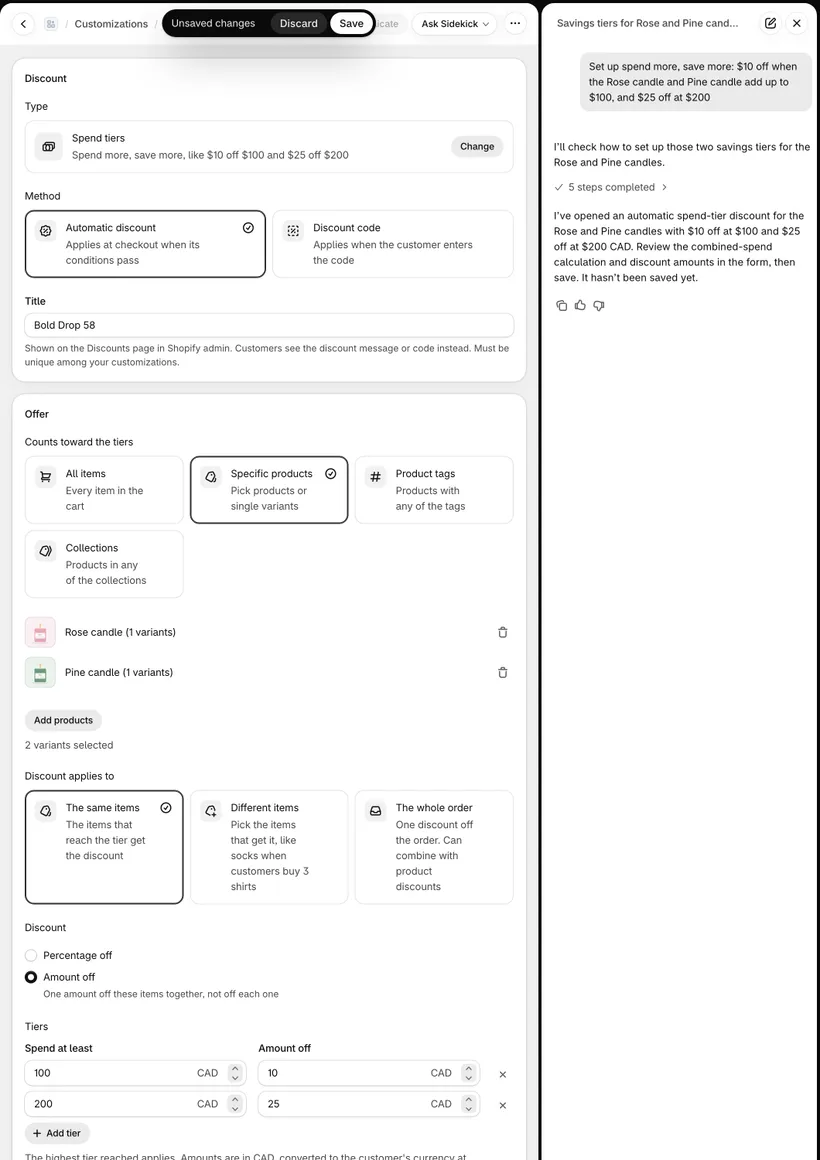
Section titled “Ask Sidekick to set it up”Sidekick can open a discount, a bundle or a checkout rule in Checkout Buddy for you, with what you asked for filled in. Name the products or the collection and Sidekick picks them in the form too. Check it and click Save. Sidekick never saves for you.
| Ask Sidekick | What opens in Checkout Buddy |
|---|---|
| “Create a buy 2 get 1 free discount” | A Buy X get Y discount with buy 2, get 1 free |
| “Buy 2 Lavender candles, get a Rose candle free, and add it to the cart” | A Buy X get Y discount with both products picked and Add to the cart ticked |
| “10% off when buying 2, 20% off when buying 4” | A Volume discount with both quantity breaks |
| “$10 off when these two candles add up to $100, $25 off at $200” | Spend tiers with both products and both amounts |
| “Any 3 from the Candles collection for $50” | A Group price for that collection |
| “Free shipping over $50” | A Shipping discount at 100%, with Cart subtotal over 50 as its condition |
| “10% off orders over $100 with the code SAVE10” | An Amount off order discount code |
| “Make a 3-pack of the Lavender candle at 10% off” | A Kit with 3 of that product |
| “A multipack of the Pine candle: a 2-pack and a 6-pack at 10% off” | A Multipack with both pack sizes |
| “Limit the Rose candle to 2 per customer” | Purchase limits for that product, with the maximum filled in |
| “Hide Cash on Delivery over $300” | A Hide payment method rule |
| “Open my cash on delivery rule” | That rule’s editor |
- Discounts it can start: amount off products, collections or the order, shipping, volume discounts, spend tiers, group prices like 3 for $50, combo discounts, Buy X get Y, flex discounts and discount code rules, automatic or with a code.
- Bundles it can start: a kit, a multipack with two or more pack sizes, or a build-a-box. It opens a new bundle; to change a saved one, open it from the Bundles tab.
- Checkout rules it can start or open: payment and shipping method rules, hiding express checkout buttons, the checkout blocker, purchase limits, the address blocker and B2B order review.
For everything else, such as a Product offer, a Custom fields form or a Content block, Sidekick gives you a link that opens its editor, and the steps from these guides.
Things to know
Section titled “Things to know”- Sidekick asks before it reads. Sidekick asks whether it can use Checkout Buddy for your request, sometimes more than once in a conversation. Choose Yes so it can see your customizations and these guides.
- It doesn’t change anything on its own. Checkout Buddy’s Sidekick access is read-only. Sidekick can open a discount, bundle or rule for you, filled in, but you save it in Checkout Buddy.
- Not everywhere. The buttons show only where Sidekick is available: in the Shopify admin on the web, not the Shopify mobile app, and only on stores that have Sidekick.
- Unsaved changes come first. When the page you’re on has unsaved changes, Sidekick asks you to save or discard them before it opens something else. A new discount, bundle or rule counts as unsaved until you save it.
- Some answers need the checkout editor. Sidekick can’t see where app blocks sit in Shopify’s checkout editor. When a block isn’t showing, it points you to what to check.
You can also open Sidekick yourself and ask anything about Checkout Buddy, such as “Why isn’t my Checkout Buddy discount applying?”