
Checkout blocker (checkout validation)
The checkout blocker is checkout validation with your own rules. It shows an error at checkout and stops the order from being placed while your conditions are met. Use it to block orders that mix subscriptions and one-time items, ship to an area you don’t deliver to, are missing a personalization or a PO number, or break any other rule that must be fixed before checkout.
Plan: Deals & Rules or Buddy. Works on all Shopify plans. In Shopify admin it appears under Settings → Checkout → Checkout rules.
Set up a checkout blocker
Section titled “Set up a checkout blocker”-
In Checkout Buddy, open Customizations. On the Checkout rules tab, click Create customization and choose Checkout blocker.
-
Write the Error message customers see, such as
Orders must be at least $50. -
Under Conditions, choose Apply only when conditions pass, pick the condition set that has what you need, and click Add condition. The conditions say when checkout is blocked: for a $50 minimum, Cart subtotal is less than
50. -
Click Save. The blocker is Enabled from its first save; turn it off under Status. Test with a cart that breaks the rule and one that doesn’t.
Settings
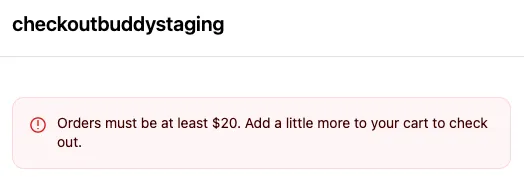
Section titled “Settings”Error message: What the customer sees. Say what’s wrong and how to fix it, for example “Orders must be at least $50. Add a little more to your cart to check out.” It’s shown as you write it, with no placeholders for amounts. It’s required: a blocker doesn’t save without one.
Wait until the buyer pays: Shows the message only when the customer clicks Pay now, express checkouts included. Turn it on for rules customers fix in checkout, like ticking a box or filling in a field. Without it, the message shows as soon as your conditions match. On a three-page checkout, that can stop customers before they reach the box or field. Checkout rules made from a Custom fields checkbox have it on.
Click Add checkout blocker to check several things in one blocker; each setting whose conditions pass shows its own message. The Markets card limits the blocker to the markets you tick under Apply to selected markets only.
Condition sets
Section titled “Condition sets”Each condition set checks different information. Choose one when you create the blocker; it can’t be changed later.
| Condition set | Use it for | Conditions |
|---|---|---|
| Condition set 1 | Quantities, products, subscriptions, customers | Cart products, Number of items, Number of line items, Quantity of variants, Quantity of each variant, Quantity of free variants, Quantity of freebies, Free item quantity exceeds selected product quantity, Line item product type, Line item product tags, Quantity of product types, subscription conditions, Cart contains both subscriptions and one time purchases, Customer tags, User is authenticated / not authenticated, B2B customer exists / does not exist, Cart subtotal, Cart total, Cart attribute key and value |
| Condition set 2 | B2B and customer data, line item properties | Cart total, Cart subtotal, Customer metafield, Company metafield, Line attribute key, Line attribute key and value, Line attribute missing on product type, Line item product type, Quantity of variants, subscription conditions, Cart contains both subscriptions and one time purchases |
| Condition set 3 | Shipping address and method | Cart subtotal, Shipping country, Shipping province, Shipping city, Shipping zip/postal code, Shipping zip/postal codes, Selected shipping option title |
| Condition set 4 | Several checkout attributes at once | Cart attribute key and value (up to 5 different keys) |
Examples
- Order minimum: Condition set 1, Cart subtotal is less than 50.
- Maximum 10 items per order: Condition set 1, Number of items is more than 10. See cart limits.
- Areas you can’t deliver to: Condition set 3, Shipping zip/postal codes includes
995*, 996*, 997*, 998*, 999*. - Personalized items need their upload: Condition set 2, Line attribute missing on product type
_photo_idCustom portrait. It blocks when a Custom portrait line has no_photo_id(or an empty one), even if another portrait in the cart has one. For more product types, add one per type in the same OR group. - Wholesale minimum: Condition set 2, Company metafield
custom.wholesaleis equal totrueAND Cart subtotal is less than500. - Require a PO number when a “Pay by invoice” checkbox is ticked: Condition set 4, Cart attribute key and value
Invoiceis equal totrueAND Cart attribute key and valuePO numberis equal to (blank).
Things to know
Section titled “Things to know”- It runs during checkout, not in the cart. Customers see the message once their checkout matches your conditions, never on the cart page. Purchase limits can refuse a quantity in the cart.
- The message appears at the top of checkout, not next to a specific field. For field-level address errors, use the address blocker.
- Only one cart attribute key per blocker in Condition set 1. Condition set 4 reads up to 5. A condition with a second key in Condition set 1 doesn’t work, and the editor warns under it.
- Each condition checks the whole cart on its own. Line item product type and Line attribute key can match two different lines. To check both on the same line, use Line attribute missing on product type.
- A blank value means “missing”. In Cart attribute key and value, is equal to with an empty value passes when the attribute isn’t set or is empty.
- Cart attribute comparisons. is more than and is less than compare numbers, so 10 is more than 9; use them only for numbers. includes isn’t offered for cart attributes, since it never matches here: use is equal to or is not equal to.
- A blocker saved without a message (before the message was required) never blocks. Open it and add one.
- If the function itself fails, checkout is not blocked. Shopify lets the order through rather than trapping customers.
- Moving to the Free plan deletes your checkout blockers. See downgrade to Free.
- Blocking everyone, or no one? See a payment, shipping, or checkout rule isn’t working.
- To block based on something only a block can see, such as a form field, a selected payment type, or a checkbox, set a checkout attribute with a block and check it here. See function conditions from blocks.