
Order discounts
An order discount, Amount off order in the app, takes a percentage or an amount off the order subtotal, automatically or with a discount code. Use it for “10% off orders over $200”, a loyalty discount for tagged customers, or a discount for B2B companies. It works on every Shopify plan and every Checkout Buddy plan, Free included.
An automatic order discount can hold a few tiers, such as 5%, 10% and 20% off by subtotal: see several settings. For tiers in one list, or tiers on a code, use spend tiers. For free shipping, use a shipping discount. For 10% off plus free shipping with one code, use a flex discount.
Create an order discount
Section titled “Create an order discount”-
In Checkout Buddy, open Customizations. On the Discounts tab, click Create customization, then the Discounts card.
-
Under Type, choose Amount off order. Under Method, choose Automatic discount or Discount code.
-
Give it a Title, choose the Discount type and enter the Discount value.
-
To discount only orders over an amount, choose Apply only when conditions pass and add Cart subtotal is more than, such as
199.99. Click Save.
The discount shows on the Discounts page in Shopify admin, titled with its Title. Clicking it there opens it in Checkout Buddy.
Settings
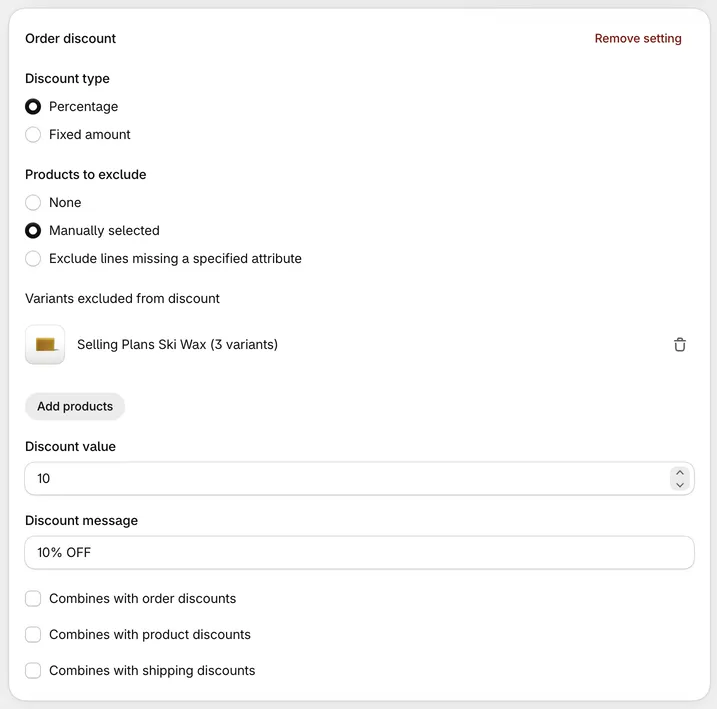
Section titled “Settings”- Discount type: Percentage or Fixed amount.
- Discount value: The percentage or amount. It has to be above 0, and a percentage can’t be over 100.
- Discount message: The label customers see at checkout (automatic version only). Defaults to
DISCOUNT. - Products to exclude (automatic version):
- None: The whole subtotal is discounted.
- Manually selected: Pick variants in Variants excluded from discount. Their lines aren’t discounted.
- Exclude lines missing a specified attribute: Only lines that carry a line item property with this Attribute key (and Attribute value) are discounted. Both are needed to save: enter
*as the value to accept any value. Key and value must match exactly, including capitals.
- Variants excluded from discount (code version): Variants whose lines aren’t discounted.
- Combines with order discounts, Combines with product discounts, Combines with shipping discounts: All off by default.
The code version also has Discount code, Limit to one use per customer, and Apply usage limit → Usage limit.
Both have start and end dates under Active dates.
Eligibility: All customers, or only Specific customer segments or Specific markets, which Shopify checks itself. See segments and markets.
Several settings: the first match wins
Section titled “Several settings: the first match wins”You can add several settings to one automatic order discount, each with its own conditions. At checkout, only the first setting whose conditions pass is applied, in the order they appear on the page.
This makes tiers easy. Put the biggest discount first:
- 20% off when Cart subtotal is more than 499.99
- 10% off when Cart subtotal is more than 199.99
- 5% off when Cart subtotal is more than 99.99
A $300 order gets 10%, because the first setting doesn’t pass and the second does.
An order discount code holds one setting. This works on the automatic version only.
Two other types keep the tiers in one list: spend tiers for tiers by amount spent, such as $10 off at $100 and $25 off at $200, and a volume discount for tiers by the number of items bought. Both work as a discount code too, and need the Deals & Rules or Buddy plan.
Conditions
Section titled “Conditions”Choose a condition set when you create the discount; it can’t be changed later.
Condition set 1
- Cart total, Cart subtotal, Cart products, Quantity of variants
- Cart collections, Quantity of items in collections, Quantity of unique variants in collections, Quantity from each collection
- Cart attribute key and value
- Line attribute key, Line attribute key and value, Line attribute key and value quantity
- Quantity of items added by Checkout Buddy
- User is a customer, User is authenticated as a customer, Customer tags
- B2B customer exists / does not exist
- Company metafield: reads the company metafield
checkout_buddy.trigger - Is POS checkout, Is not POS checkout, POS location ID
Condition set 2
- Customer metafield, Company metafield (any namespace and key)
Things to know
Section titled “Things to know”- The discount comes off the subtotal, not shipping or tax. For shipping, use a shipping discount.
- Excluding by attribute and other attribute conditions don’t mix. A function can read one line item property key. If you use Exclude lines missing a specified attribute, don’t also use a line attribute condition with a different key, or the Quantity of items added by Checkout Buddy condition, in the same discount.
- Quantity of items added by Checkout Buddy counts the items customers added from Checkout Buddy blocks, by quantity. Items Product offers add count too, gifts included: a gift line of 75 counts 75. For older blocks it only works when Disable custom attributes is off in the Checkout Editor. It never works when the discount has line attribute conditions.
- Fixed amounts aren’t converted between currencies. On multi-currency stores, use a percentage or test each currency.
- Older discounts with a Markets card. Discounts saved with the older Markets card open with those markets ticked under Eligibility → Specific markets, and your next save moves them there. The same checkouts get the discount. The card stays when the discount is for customer segments, or when your store has a B2B or point of sale market: Shopify’s Specific markets don’t reach those buyers (see segments and markets), so the card keeps giving them the discount as before. With both set, a checkout has to pass both.
- Exclusions on Condition set 2. Exclude lines missing a specified attribute has no effect on Condition set 2 discounts. Use Manually selected instead.
- An older order discount code that never applies. If it uses Quantity from each collection, Quantity of unique variants in collections or Line attribute key and value quantity, open it and save it again. Older saves left out what those conditions read.
- Subscriptions: the code version applies to subscription orders. The automatic version follows Shopify’s default for app discounts.