
Hide, rename or reorder payment methods
Payment rules change the payment step of checkout. Hide a payment method, like cash on delivery on big orders or invoice for customers without a tag, rename one, change the order they’re listed in, or hide express checkout buttons. A rule applies to every checkout, or only when your conditions pass.
Plan: Free (as its one customization), Deals & Rules or Buddy. Works on all Shopify plans, except Hide accelerated checkout payment methods, which needs Shopify Plus. There’s nothing to add to your theme or the Checkout Editor: a rule works as soon as you save it.
| Function | What it does | Shopify plan |
|---|---|---|
| Hide payment method | Removes a payment method from checkout | Any |
| Rename payment method | Changes the name customers see | Any |
| Reorder payment method | Changes the order methods are listed in | Any |
| Hide accelerated checkout payment methods | Hides express checkout buttons such as PayPal or Google Pay | Shopify Plus only |
Set up a payment rule
Section titled “Set up a payment rule”-
In Checkout Buddy, open Customizations. On the Checkout rules tab, click Create customization, choose Payment methods, then Hide payment method, Rename payment method or Reorder payment method. Hide accelerated checkout payment methods has a card of its own.
-
Fill in the setting, starting with the Payment method name, such as
Cash on Delivery. Type it the way Shopify names it, which isn’t always what checkout shows: a card is your card provider’s name, not “Credit card”. -
Under Conditions, keep Apply to all checkouts, or choose Apply only when conditions pass, pick a Condition set and click Add condition. To hide cash on delivery on big orders, add Cart subtotal is more than
500. -
Click Save. A new rule is Enabled from its first save; turn it off under Status.
Saved rules also show in Shopify admin under Settings → Payments → Payment customizations.
Two templates under Templates start you off with Hide payment method:
- Hide cash on delivery over $500: hides methods named “Cash on Delivery” when the order subtotal is over $500, so big orders pay upfront.
- Hide card payments for companies (B2B): hides
Shopify Paymentsand saved cards (CreditCard) for company buyers. With another card provider, type its name instead. See how payment methods are matched.
For a full walkthrough, see payment methods for certain customers. If a rule doesn’t do what you expect, see a payment, shipping, or checkout rule isn’t working.
How payment methods are matched
Section titled “How payment methods are matched”You type a payment method’s name, and Checkout Buddy looks for payment methods whose name contains that text. Matching ignores capitals and spaces at either end, so cash matches “Cash on Delivery (COD)”.
Type the payment method’s name as Shopify passes it to the function, which isn’t always what checkout shows:
- Cards: your card provider’s name, such as
Shopify Payments,Stripe Card PaymentsorAdyen Payments - Credit Cards. “Credit card” matches nothing. - Wallets:
Shop Pay,Apple Pay,Google Pay,Venmo. Amazon Pay isamazon_pay. - PayPal:
PayPal(Shopify often calls it “PayPal Express Checkout”, which still contains it). - Gift cards:
Gift card. Store credit and Shop Cash share one method,Redeemable payment method. - Manual payment methods: the name you gave them in Shopify’s payment settings, such as “Bank Deposit”.
Hide payment method
Section titled “Hide payment method”- Payment method name: The first payment method including this name is hidden.
- Require exact name match: Match the whole name instead of part of it (capitals and outer spaces are still ignored). Use it when one name contains another, such as “Card” and “Gift card”.
- Hide every matching payment method: Hide every method that matches, not only the first.
The method is hidden everywhere it appears, including as an express checkout button.
Examples
- Hide “Cash on Delivery” when the cart total is more than $500.
- Hide “Invoice” unless the customer is tagged
net30(use Customer tags does not includenet30). - Hide a method for orders shipping outside your country.
Rename payment method
Section titled “Rename payment method”- Payment method name: The method to rename. The first payment method including this name is renamed.
- Require exact name match: Match the whole name instead of part of it.
- Rename every matching payment method: Rename every method that matches, not only the first.
- New payment method name: What customers see instead.
For example, rename “Bank Deposit” to “Pay by bank transfer (ships once payment clears)”.
Reorder payment method
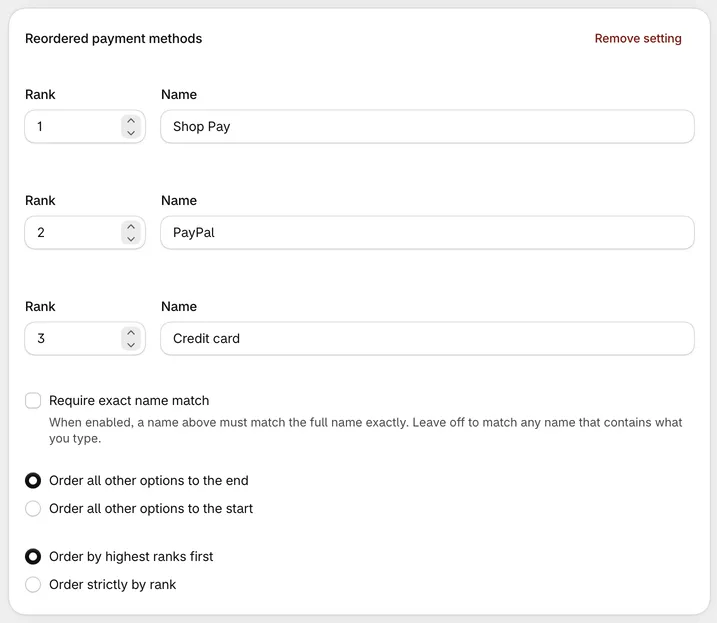
Section titled “Reorder payment method”A reorder function has one setting with a list of Rank and Name rows. Click Add ordering to add a row.
- Rank:
1is the top of the list. Lower numbers come first. - Name: Text to match, using the same “contains” matching as above.
- Require exact name match: When on, the whole name must match (capitals and outer spaces are still ignored). Turn it on when one name contains another, such as “Card” and “Gift card”.
- Order all other options to the end / to the start: Where to put payment methods that don’t match any row.
- Order by highest ranks first (default): Matching methods are sorted by rank, then followed by (or preceded by) everything else. If a method matches more than one row, the first row it matches is used.
- Order strictly by rank: Each rank is a fixed position in the list. Rank 3 is the third method shown, even if nothing is at 1 or 2 yet. Methods that don’t match fill the gaps. In this mode the “other options” setting has no effect.
Hide accelerated checkout payment methods
Section titled “Hide accelerated checkout payment methods”Requires: Shopify Plus.
This function controls the express checkout buttons at the top of checkout, not the regular payment list.
Hide all express payment methods, except: Tick the wallets to keep. The other wallets in this list are hidden.
- PayPal Express Checkout
- Venmo
- Amazon Pay
- Google Pay
- Shop Pay
- Apple Pay
For example, tick only Shop Pay to show Shop Pay as the only express button. Venmo is separate from PayPal, so tick both to keep both. The function only hides the other wallets from the express checkout area, not from the regular payment list.
This function also has a Markets setting, so you can limit it to certain markets.
Conditions available: Cart products, Line item product title, Cart attribute key and value, and Customer tags. For example, use Cart products to hide express buttons only when a certain product, like a repair service, is in the cart.
Conditions for payment functions
Section titled “Conditions for payment functions”Hide, rename, and reorder have two condition sets. Choose the condition set when you create the function; it can’t be changed later.
Condition set 1 covers most needs:
- Cart products, Cart total, Cart subtotal
- A line item subscription exists / does not exist
- Line item product title
- Cart attribute key and value
- Customer has an account, Customer tags
- B2B customer exists / does not exist
- Shipping country, province, zip/postal code, city
- Shipping address company exists / does not exist
- Selected shipping option title, Delivery method type
Condition set 2 is for B2B and product tags:
- Company location metafield
- Line item product tags
See conditions for functions for how each condition matches.
Things to know
Section titled “Things to know”- Credit cards in the US and Canada need Shopify Plus. On other plans, Shopify doesn’t let payment functions hide, rename or reorder credit card options there; other payment methods work as usual. See Shopify’s help.
- Payment functions can’t see everything a block can. They can’t read the email address, line item properties, product types, or the chosen payment method. To hide a payment method based on something only a block can see, use the checkout attribute workaround.
- Customers see the change instantly. Conditions are checked again as the customer changes their address, shipping method, or cart.
- Only one cart attribute key per function. If you add two Cart attribute key and value conditions with different keys, only the first key is read, and the editor warns under the condition that won’t work. Create a separate function for the second key.
- Settings add up. Every setting whose conditions pass is applied.
- Older functions named “Hide payment method (B)”, “Rename payment method (B)” or “Reorder payment method (B)” are the same as Condition set 2. They keep working.