
Translations
Blocks show their text in your store’s default language unless you add translations. Checkout Buddy shows the translation that matches the customer’s checkout language.
Requires: Shopify Plus.
Translate a block
Section titled “Translate a block”- Go to Settings → Translations.
- Use the Block menu at the top to pick the block, and the Language menu to pick a language. The list shows the languages published in your store.
- Fill in the translations on the right. The original text is shown on the left for reference.
- Click Save.
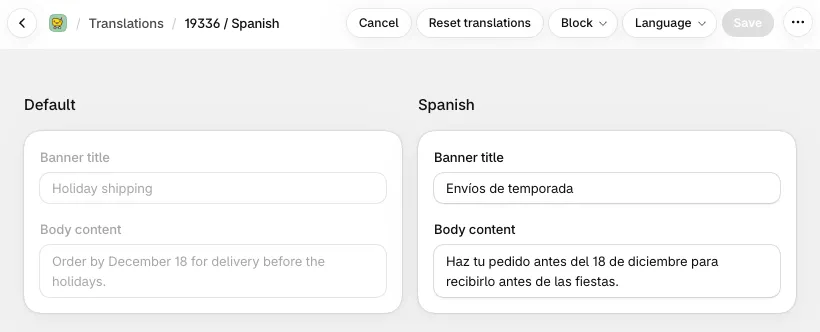
Reset translations clears the form so you can start again. Nothing changes until you click Save.
What can be translated
Section titled “What can be translated”Anything customers read: headings, body text, button labels, banner text, field labels and error messages, dropdown options, FAQ questions and answers, progress bar text, and so on.
Settings that aren’t text, such as field types, required fields, and validation rules, come from the original block and apply in every language. Images in Image, Trust badges and Icons with text blocks can be translated.
Product titles and descriptions in cross sells and other offers come from Shopify, so they use your store’s product translations automatically.
How the language is chosen
Section titled “How the language is chosen”- Translations are per language, not per region.
pt-BRandpt-PTboth use the Portuguese translation. - If a field has no translation, the original text is shown.
- A dynamic text expression in a translation works the same as in the original. Use the same metafields and variables as the original text, because Checkout Buddy decides what to load from the original.
Things to know
Section titled “Things to know”- If you add or remove fields, icons, or options in a block after translating it, check its translations again. The list may no longer line up.
- For Discount buttons, you can translate the discount code too, to give each language its own code.
- Translations for the Line item upsell and SMS consent blocks aren’t used at checkout yet. Cart line editor translations are only used when the block is placed with the Checkout Buddy - Cart Line Item app block.
- To show completely different content per country rather than per language, create separate blocks with markets.